
In this User Guide, we cover YARDOS Estimation’s Respondent RFQs feature, including how to create them, manage and import work scope,
and how RFQs interact with other features.
YARDOS Estimation‘s Respondent RFQ feature handles a situation commonly faced by subcontractors and other organizations. You may have multiple prime contractors, who are each looking to respond to the same government RFQ, issue their own RFQs for portions of the work they want to subcontract out. In that situation, you’d need to prepare estimates and pricing proposals that share much in common, but differ in the work scope specified by each of the RFQs you want to respond to.
The differences in costs between those responses will affect the project’s total estimate and price. It would be clunky and inefficient to have to create a separate YARDOS Estimation project to handle those differences. With the Respondent RFQs feature, you can build a single estimate that handles the differences in work scope between your customers, while eliminating duplication. You can then copy and export YARDOS Estimation projects based on the scopes for one or more respondent RFQs. Let’s see how it works.
Table of Contents
New Concepts
There are a few new concepts introduced with this feature, including Respondent RFQs, Scopes, and Paragraphs.
Definitions
- Respondent RFQ: A record, representing an individual RFQ from a customer, that stores relevant information about the RFQ – including company, work scopes, status, and more.
- Paragraph: A column in the line items table showing the paragraph in the specifications that a given line item is associated with.
- Paragraph Settings: A pane available in a work item’s Settings, that captures the list of paragraphs that can be linked to line items in that work item.
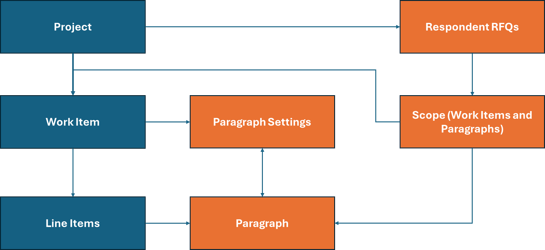
- Scopes: A list of work items, and paragraphs for each work item, that are included in this Respondent RFQ.
Here’s a diagram to illustrate how these relate to project, work item, and line item.
Associate Line Items with Paragraphs
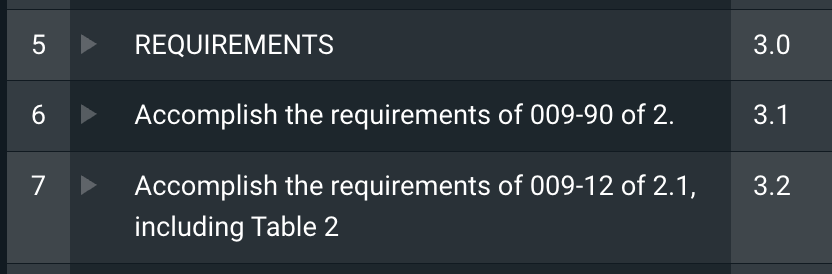
Respondent RFQs rely on an optional configuration we can enable for you that adds a Paragraph column to the line items table. This lets you associate line items with a paragraph in the specification, making it clearer how the estimate links back to the specification.
How it works
This is a two step process.
1. Add the list of possible paragraphs
Go to the Paragraphs pane in a work item’s Settings, and add a list of paragraphs that the work item’s line items can be associated with.
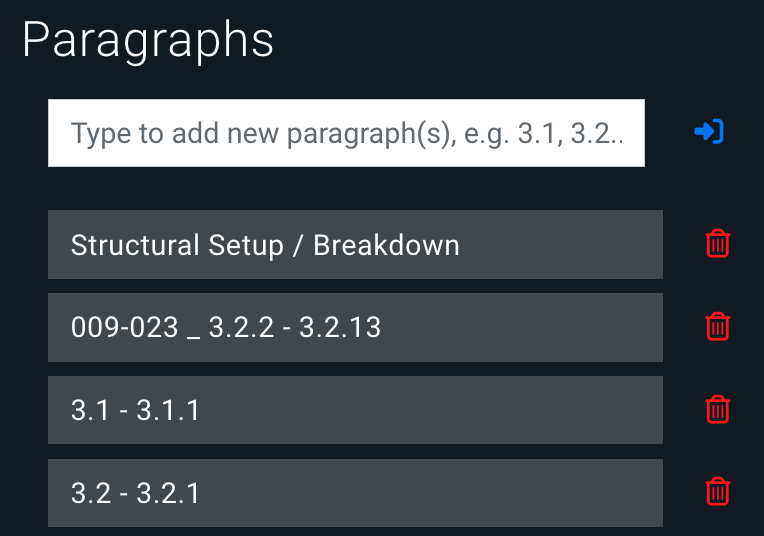
To add a paragraph value, just put it in the box and hit Enter. Values can include any text. For example, the following example paragraph values are all allowed:
- 3.1
- 3.2 – 3.3
- 3.4 Inspect
To add multiple values at once, separate the values with commas.

The result is a simple list of the possible values. To delete one, just hit the Trash icon on the right.
2. Populate the Paragraph column
Once a choice of values is set up for a work item, you can can start populating the Paragraph column for the line items. Those values now show as a dropdown.
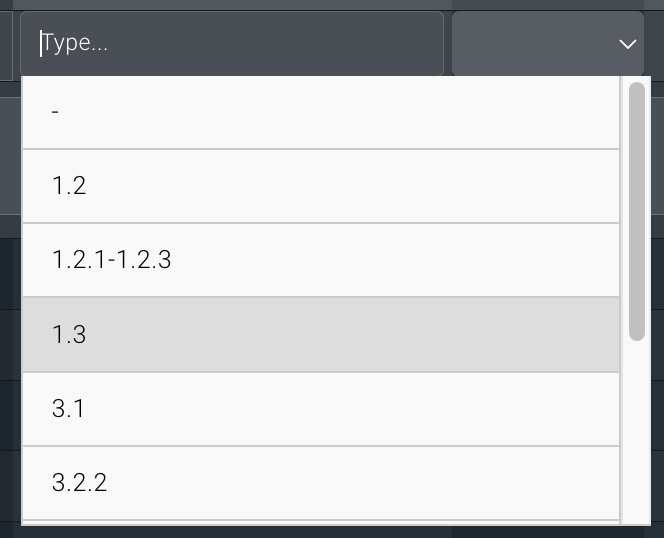
You can scroll and select a value from the list, or search the list by typing in the box – the values shown will filter based on what you type.
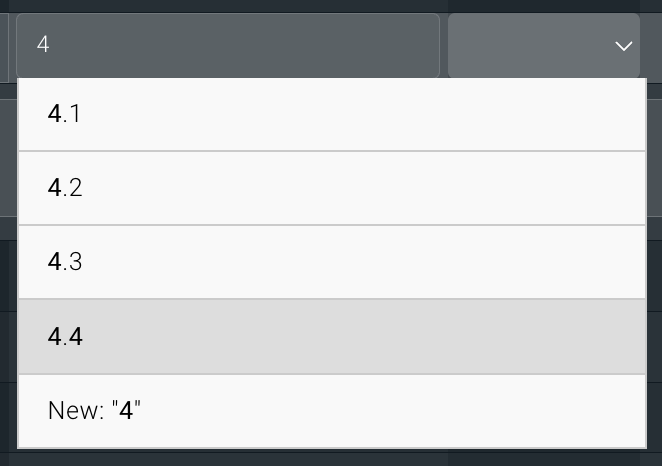
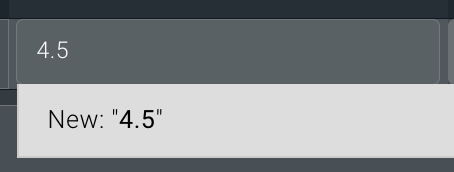
If the value you want to add isn’t showing up, use the ‘New’ option at the bottom of the list. That will add your value to the work item’s Settings list so it can be used in other line items.
Create a Respondent RFQ
To add a Respondent RFQ to a project, go to the project’s Settings, then the Respondent RFQs pane.
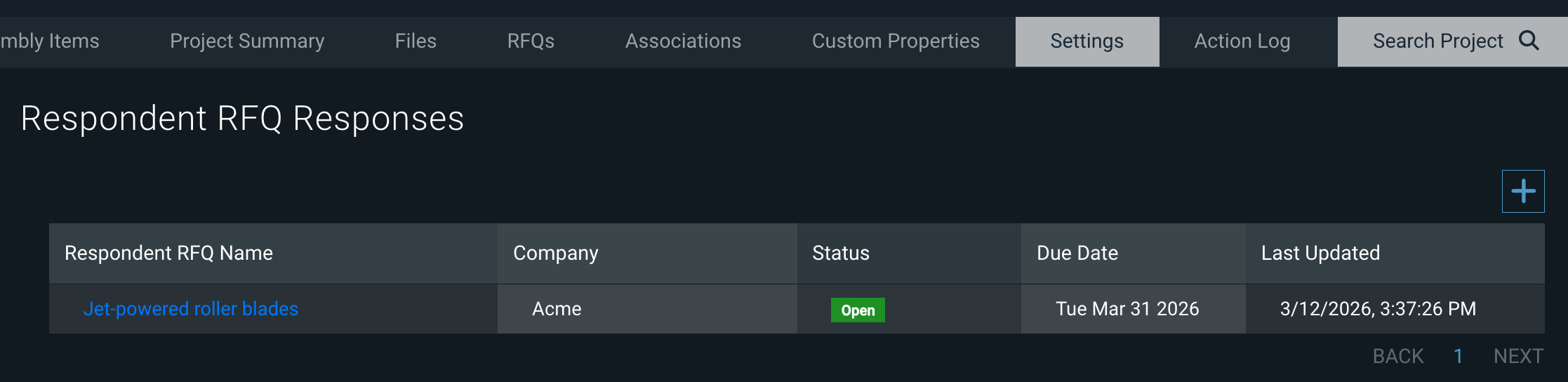
To add one, click the + icon at the top right of the table, then fill in the fields.
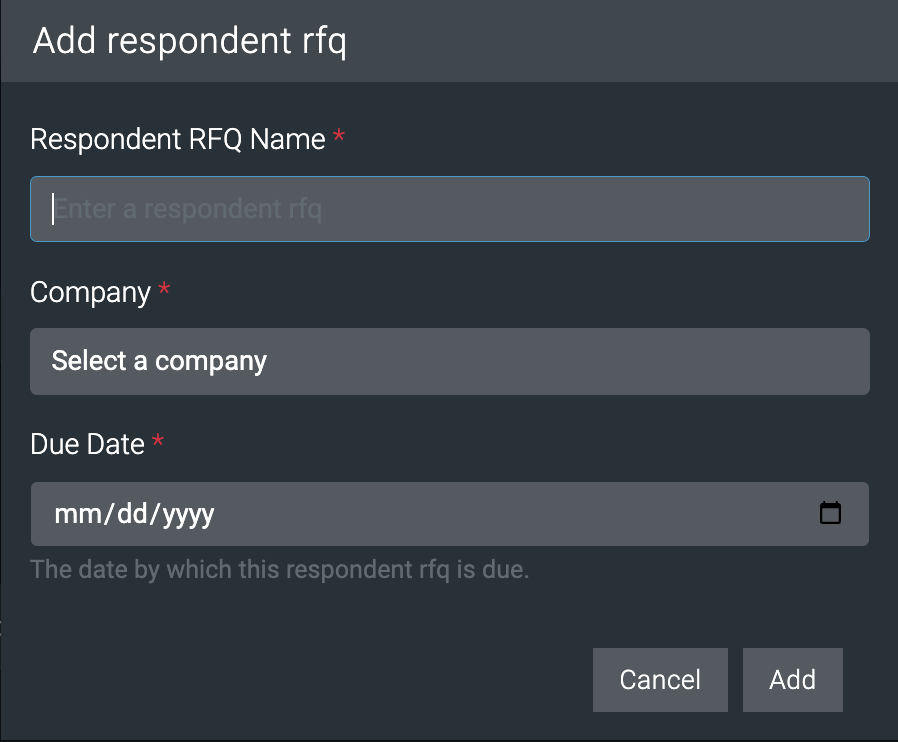
There are three required fields when creating a new Respondent RFQ.
- Respondent RFQ Name: Enter an identifier for the RFQ.
- Company: Select a Company record indicating the Customer the RFQ was received from.
- Due Date: When the response to the RFQ is due to be submitted to the customer.
Company is a dropdown list that pulls from the system’s Companies list, and you must choose a value. See below for more information on that.
You can type in the Due Date field, or use the calendar icon on the right to pick a date.
Working with Respondent RFQs
If you’ve just added a Respondent RFQ, you’ll be sent to the details screen. If you want to work with an existing one, just click on the name to pull up the details screen.
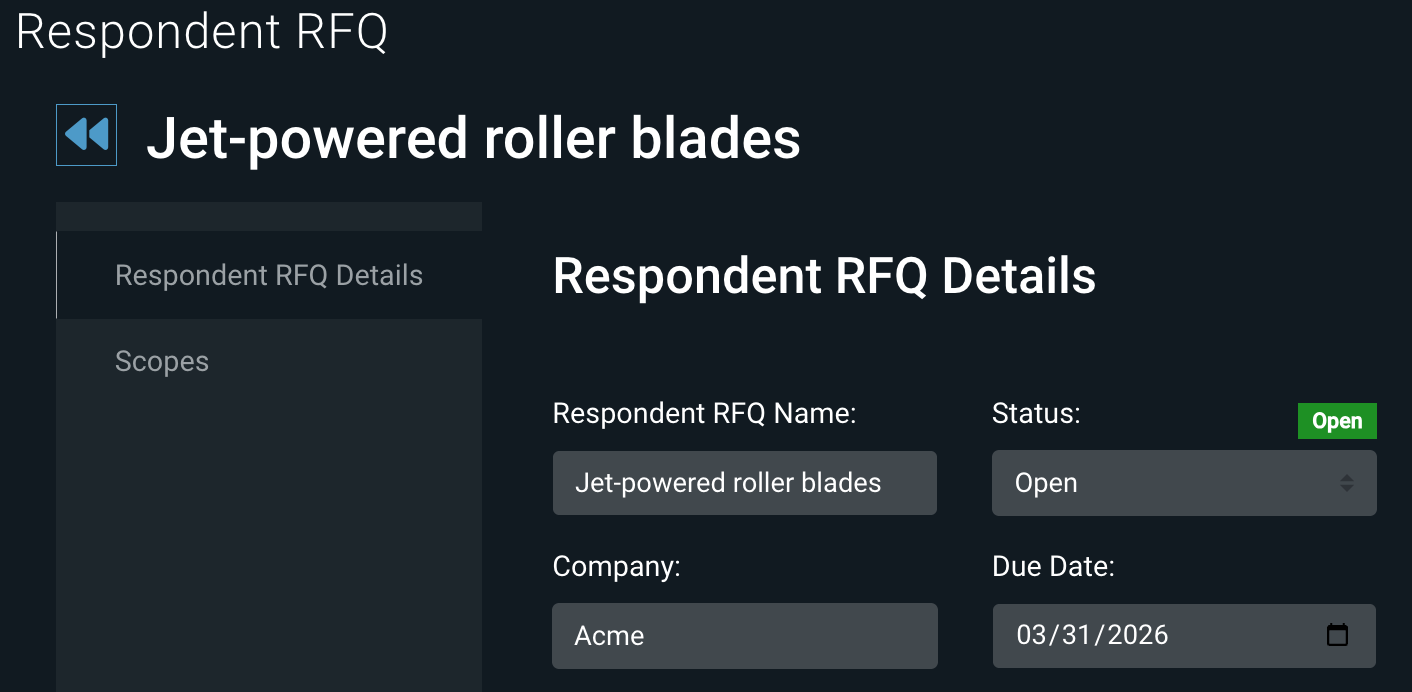
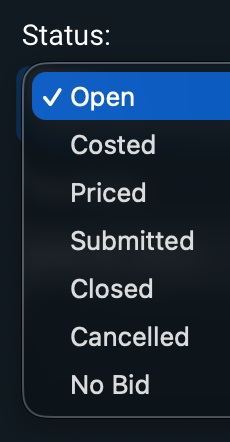
Here, you can edit the Name, Company, and Due Date fields – and change the Status as the RFQ moves through its process.
Managing Work Scope
Within the Respondent RFQ details view, you can switch to the Scopes pane.
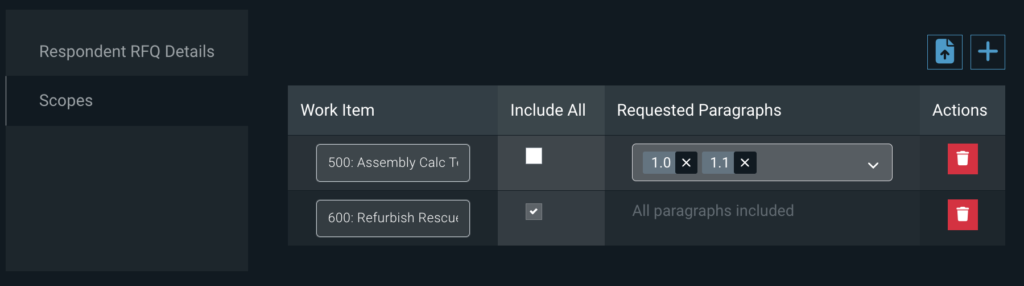
This is where you add the work items and configured paragraphs to include in the RFQ response. Each record consists of a work item and one or more paragraphs. If there are scope records already present, you can modify them:
- Change the work item, by deleting the existing value and selecting a new one (type in the box if you know the work item you want).
- Toggle the Include All checkbox, either to include all the paragraph values configured for that work item, or to choose individual paragraphs.
- When you toggle to include all paragraphs, any values in Requested Paragraphs are deleted, so be sure you really want all before checking that box.
- Choose individual paragraphs, if Include All is unchecked, by typing them in the Requested Paragraphs field. Or delete values using the X to the right of a value.
- Delete a scope record, using the Trash icon on the right.
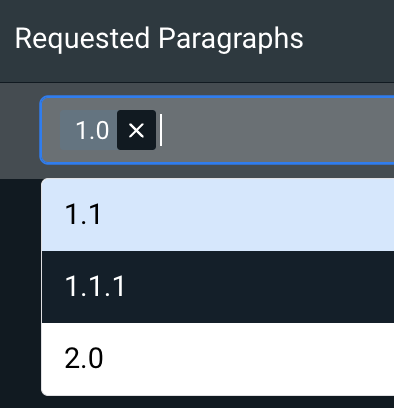
The following sections will go over how to add scope records.
Manually adding a Respondent RFQ scope
To add one scope record, hit the + button in the toolbar. This will pop up the Add Scope screen.
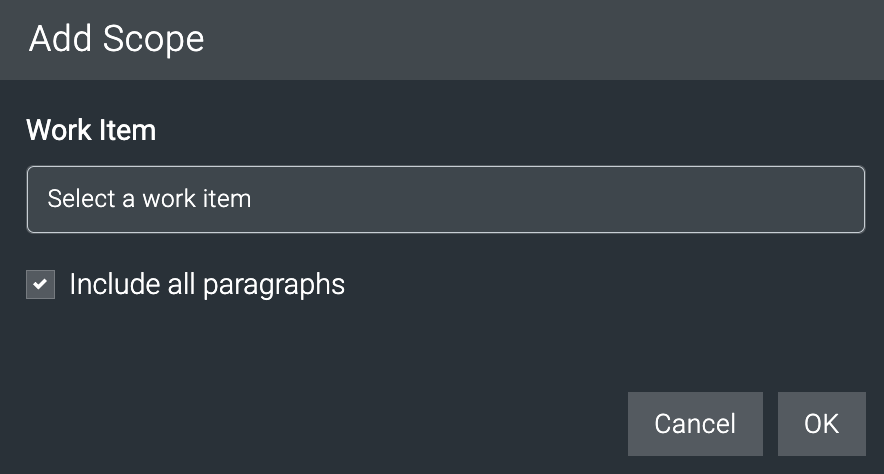
Choose a work item from the dropdown, or type part of the work item’s Name in the box to search; the search is case-insensitive and includes all parts of the Name.
If you want to include all paragraphs configured for the work item, just leave the Include box checked. If you uncheck the Include box, then you can include specific paragraph values the same way we covered in the previous section. You can add as many configured paragraphs to the Requested Paragraphs as you want. Use the X to the right of a value to delete it.
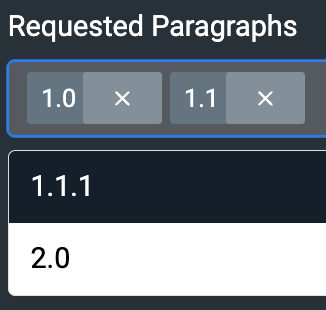
Note that the work item has to have paragraph values added in its Settings, as we covered previously, so if you can’t find a paragraph you need to add, you’ll have to go back to the work item Settings to add it there.
Import Respondent RFQ scope configurations
If you want to add a bunch of work items and paragraphs at once, use the import button in the toolbar.
This will pop up the Import screen, where you can choose a file to upload. Use the Download Import Template button to get a fresh file to populate with import records.
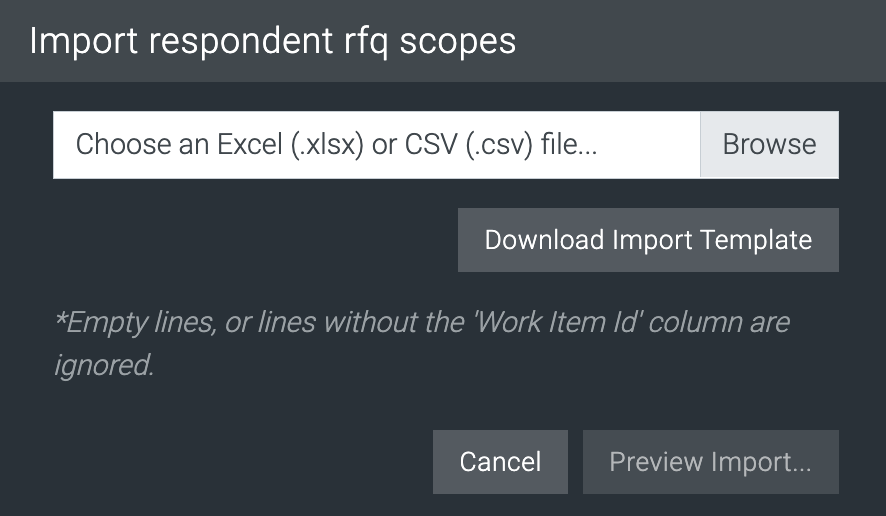
The import file only needs two columns: Work Item Id and Paragraphs. Here’s an example:
| Work Item Id | Paragraphs |
| 100-00-001 | 3.1, 3.2, 3.3 |
| 200-00-001 | All |
Import Notes:
- The Work Item Id entered in the first column must already exist on the project. If it doesn’t, the work item will not be added to the scope.
- Enter paragraphs separated by commas. If a paragraph does not already exist on a work item, but is included in the import, the paragraph will be added to the work item’s Paragraph Settings and added to the scope record.
- Use All as the Paragraphs value to include all the work item’s configured paragraph values.
Company Records
YARDOS Estimation uses Company records in various pieces of functionality. In YARDOS Estimation Respondent RFQs, Companies represent the organizations that submit RFQs to you, who you complete estimates for. As we saw, Company is a field in a Respondent RFQs details view.
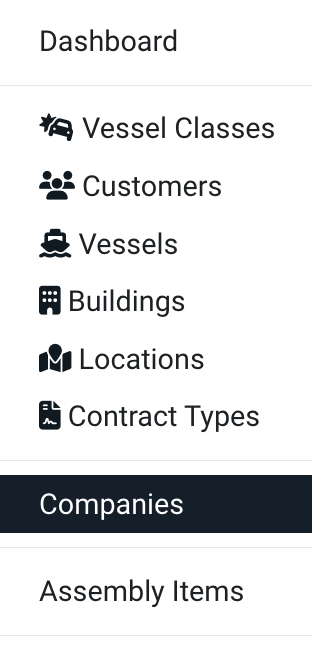
The Company options you can choose from are configured in the system’s Companies database, in the system menu.
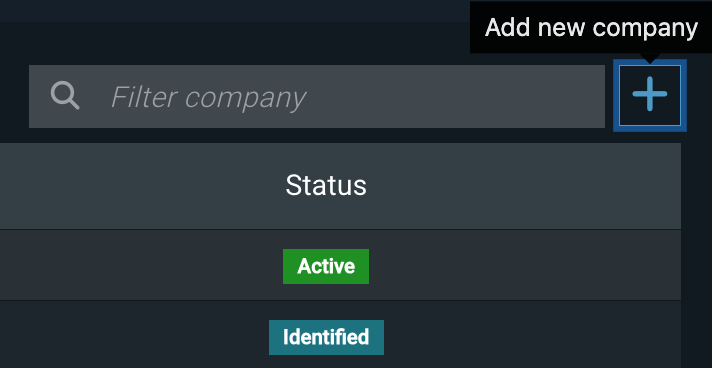
To create a new Company record, click on the + icon on the top right of the Companies table.
This will open the Add screen.
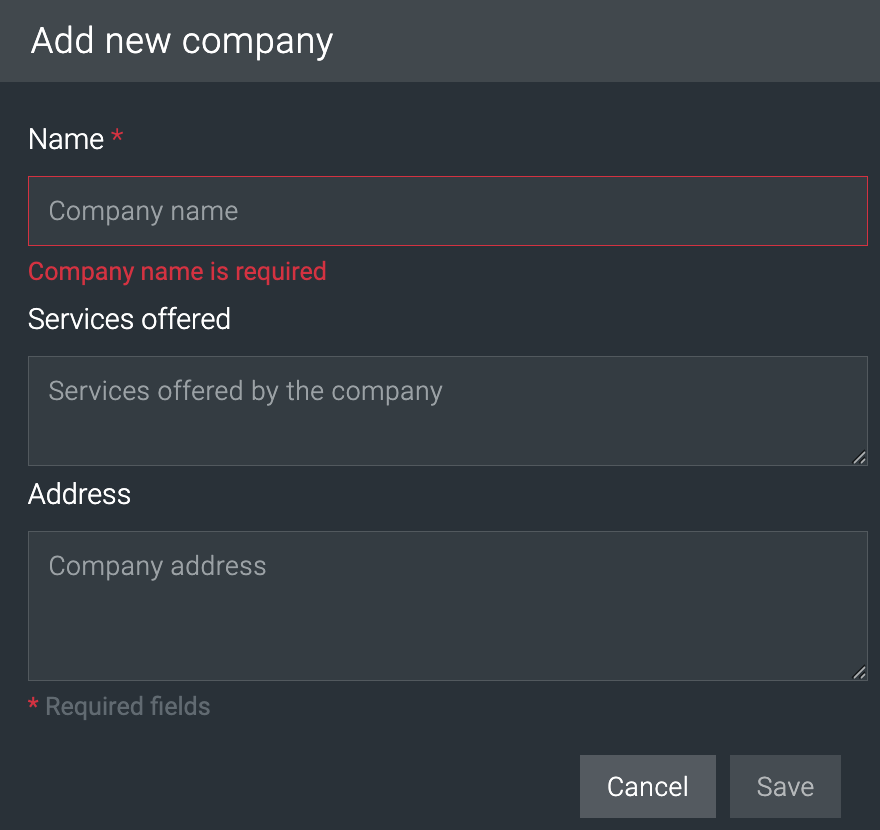
All three fields are text fields, and only Name is required.
- Name: Enter the name of the Company.
- Services Offered: List of services offered by the Company. This field is not relevant for Respondent RFQ functionality.
- Address: Enter the Company address. This field is not relevant for Respondent RFQ functionality, but may be helpful for estimators to be able to reference.
Once the Company is created, additional fields are available to be populated – but YARDOS Estimation Respondent RFQs only need those three fields. Some additional fields worth mentioning here are:
- Alternate Names: Store alternative names for the company.
- Company Contacts: Store contact information for the organization in a centralized location for all estimators to access.
- Files: Upload documents relevant to the Company for all estimators to access.
Copy Project Filters by Respondent RFQs
In some scenarios, you may want to create a copy of the project, but only include the work items and line items that are part of specific RFQ(s). When using the Project Copy functionality, admins have a new option to Filter by Respondent RFQs. Note that this only applies to the Copy Project button in the Project Home toolbar, not the project-copying option in the Projects dashboard.
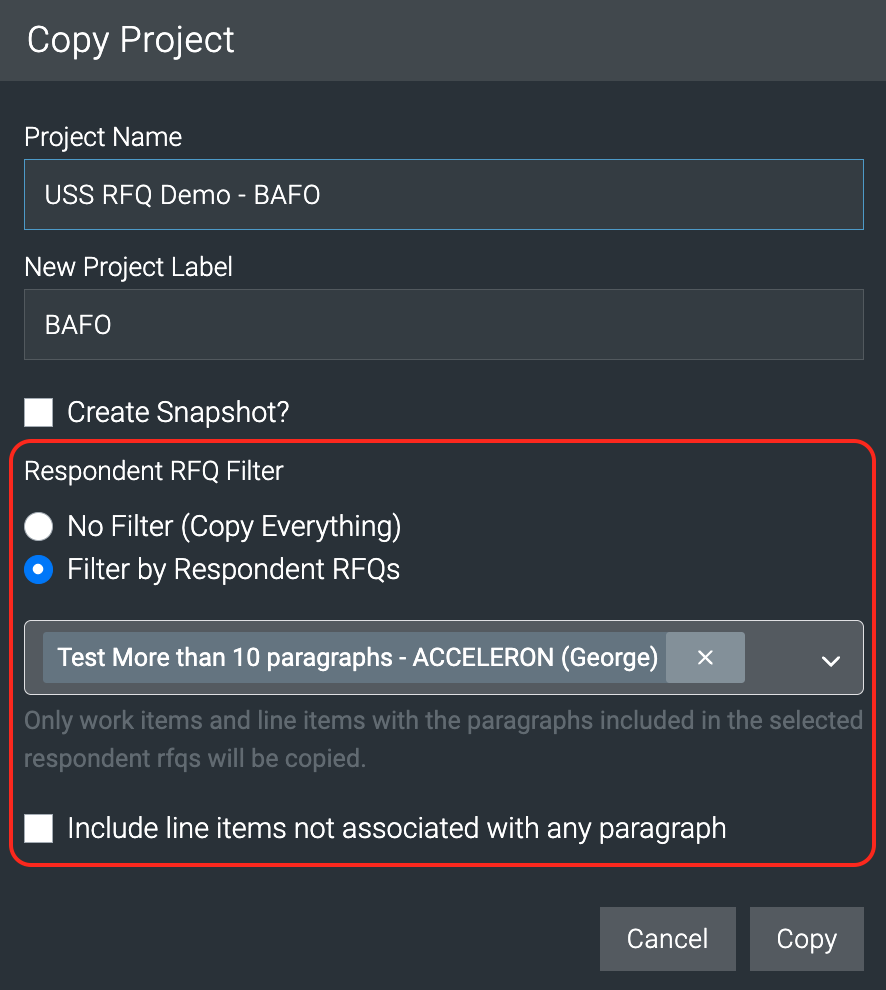
There are several filter options:
- No Filter (Copy Everything) does what the name indicates – copies all work and line items.
- Filter by Respondent RFQs lets you choose one or more RFQs from the dropdown menu.
- Using this option, you can also check the Include line items not associated with any paragraph box to override the default assumption that you only want to copy items associated with paragraphs.
The following logic is used when including Respondent RFQ filtering in Copy Project:
- The copied project will only include work and line items that are associated with the selected Respondent RFQ(s).
- All line items in a Distributed work item are copied, no matter what customer RFQs are selected in the copy. The distributed values will be re-weighted based on the work items and line items included in the copy.
- If a work item has no line items associated with a paragraph included in the scope of the Respondent RFQ(s), the work item will not be copied at all.
- If the Include line items not associated with any paragraph option is selected, a line item not associated with any paragraph will be included in the copy – as long as its work item is part of the RFQ to be copied.
Project Export Filters by Respondent RFQs
When using the Project Export functionality to export estimate details to Excel for submission to a customer, users can filter the export on one or more YARDOS Estimation Respondent RFQs.
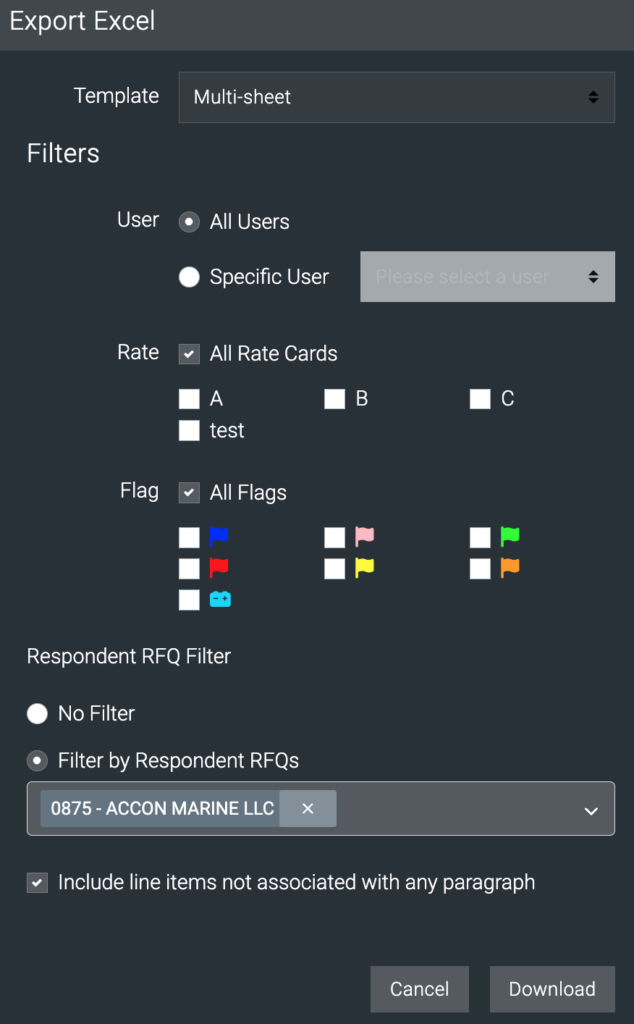
The options here work the same as described above for Copy Project.
The following logic is used when including Respondent RFQ filtering in Export Project:
- The output will only include work and line items that are associated with the selected Respondent RFQ(s).
- Estimate values from Distributed items do not have their weights recalculated based on the customer RFQs included in the export.
- If the Include line items not associated with any paragraph option is selected, a line item not associated with any paragraph will be included in the export, assuming the work item is included in the RFQ.
If you have any questions, please raise a request in the YARDOS Estimation Help Center.
Learn More
Check out the rest of our User Guides to learn more about YARDOS Estimation.