

The YardOS Estimation User Permissions Admin Guide covers how to assign baseline roles — Administrator, Editor, Viewer, User. It doesn’t cover RFQs. This guide explains how those baseline roles, together with data classification and CSL specific roles, determine who can do what at each point in the RFQ lifecycle. It covers permissions for users of both the Estimation Application and the Supplier Portal.
Table of Contents
- The People Involved
- How Access Is Decided
- Baseline Roles
- Project Access Grants and Sensitive Projects
- Special Duties: Data Classification and Sanctions Screening
- How to Assign Roles to Users
- What Can Happen at Each RFQ Stage
- Bidders and the Supplier Portal
- Quick Lookup: Who Can Do What
- Getting Access Changed
The People Involved
RFQs bring together two audiences that never share a login.
| Who | Where they work | What they are called in the application |
| Your estimating team | Estimation Application | Users with a baseline role: Administrator, Editor, Project Member, or Viewer |
| Your suppliers | Supplier Portal | Companies and their Contacts. On RFQ screens they are called bidders. |
A few internal users also carry special duties on top of their baseline role:
- Data Classification Labeler marks RFQ file libraries with a data classification, for example export-controlled material.
- Data Classification Grantor grants and revokes a company’s or contact’s clearance to receive classified material.
- Screenings Reviewer and Screenings Viewer work the sanctions-screening review queue for companies and contacts.
These duties are granted separately and are not included in any baseline role, not even Administrator (see What Can Happen at Each RFQ Stage below).
How Access Is Decided
Every RFQ action passes four questions. All four must be answered “yes”.
- What is your baseline role? Administrator, Editor, Project Member, or Viewer.
- What access do you have to the RFQ’s project? RFQs belong to a project and inherit that project’s access. Your project access is your baseline role plus any project-specific grant (View, Edit, or Admin) given on the project’s Permissions tab.
- What state is the project in? Sensitive projects are visible only to people explicitly granted access. Projects in Submitted or Done status are locked: their RFQs can be read but not changed. You must also have access to the project’s workspace, Estimation or Production.
- What stage is the RFQ in? Each stage allows a different set of actions (see Special Duties below).
Note: There is no separate “RFQ permission” to request. If you can edit the project, you can run its RFQs. If you can only view the project, you can only view its RFQs.
Baseline Roles
Every user has exactly one baseline role, assigned by your system administrator in the identity system (Keycloak).
| Role | Intended for | RFQs on non-sensitive projects | RFQs on sensitive projects |
| Administrator (estimation-admin) | System administrators | Full control, plus templates, settings, and all-files export | Only with an explicit project grant |
| Editor (estimation-edit) | Estimators, RFQ managers | Full RFQ control on every project in their workspace | Only with an explicit project grant |
| Project Member (estimation-user) | Contributors on specific projects | Only granted projects. View grant = read. Edit grant = run. | Same, grant required |
| Viewer (estimation-view) | Read-only stakeholders | Read every RFQ, change nothing | Only with an explicit project grant |
Administrator — System administrators
- Create, edit, solicit, close, and evaluate RFQs on any non-sensitive project in their workspace.
- The only role that can create and edit RFQ templates and the default response template in Settings.
- The only role that can use Export All Files on an RFQ, a bulk archive of every bidder’s response files.
- Can manage the Permissions tab of any project and mark projects Sensitive.
- Does not automatically see sensitive projects. An Administrator needs a project grant like everyone else.
- Does not automatically hold the data classification duties.
Editor — Estimators and RFQ managers
- Everything an Administrator can do on RFQs on non-sensitive projects, except templates, Settings, and Export All Files.
- Can invite, remove, and re-solicit companies, record a Decline to Bid on a company’s behalf, and confirm revisions.
- Cannot see or change sensitive projects without a project grant.
Project Member — Contributors on specific projects
- Sees only projects where they hold a grant, sensitive or not. Everything else is hidden, RFQs included.
- With a View grant: read the RFQ, its scopes, libraries, companies, and responses.
- With an Edit grant: create and edit RFQs, upload libraries, draft and evaluate responses, change RFQ stage, publish to the Supplier Portal, and add companies while the RFQ is in Development.
- Even with an Edit grant, cannot remove or re-solicit a company, change a company’s invitation status, record or retract a Decline to Bid, or confirm a bidder’s revision. Those need an Editor or Administrator.
- Cannot see the Settings area at all.
Viewer — Read-only stakeholders
- Read-only across all non-sensitive projects in their workspace: RFQ details, responses, evaluation results, no-bid reasons.
- Intended never to change anything. A project Edit grant overrides read-only for that project, so do not give Viewers Edit grants unless you mean it.
Project Access Grants and Sensitive Projects
Project grants are managed on Project Settings › Permissions.
| Grant level | Meaning for the project’s RFQs |
| View | See the project and read its RFQs. Required for Project Members, and for anyone on a sensitive project. |
| Edit | Run RFQs: setup, solicitation, libraries, responses, evaluation, portal publication. |
| Admin | Everything in Edit, plus manage the Permissions tab itself: add and remove other people. |
Who can grant access: an Administrator, on any project; or anyone holding an Admin grant on that project.
Sensitive projects hide the project and all of its RFQs from everyone who does not hold a grant, regardless of role. Marking a project sensitive automatically adds the person doing it to the permissions list, and you cannot remove your own grant while the project is sensitive.
Workspaces. Users are given access to the Estimation workspace, the Production workspace, or both. A user with only Estimation access never sees production projects or their RFQs, whatever their role. Users with both see an Estimation / Production toggle on the dashboard.
Special Duties: Data Classification and Sanctions Screening
Some RFQ libraries contain material that only cleared suppliers may receive. Two separate duties control this. Both are assigned by your system administrator on top of the baseline role and are never implied by it, so an Administrator without them is blocked too.
| Duty | What it unlocks | Where it appears |
| Data Classification Labeler (data-classification-labeler) | Add or remove a data classification on an RFQ library or a project file library. Required for RFQs whose libraries need a classification before they can be published to the Supplier Portal. | Data classification picker in the RFQ Libraries section |
| Data Classification Grantor (data-classification-grantor) | Grant or revoke a company’s or contact’s clearance for a classification. Without a matching grant, a contact cannot see or download classified library files in the portal. | Company detail page › Data Classification Grants |
Labelers still need ordinary edit access to the RFQ. The duty is additive. Classification changes are recorded in the audit log.
Sanctions screening (CSL checks)
When the screening feature is enabled, every company and contact is checked against the Consolidated Screening List (CSL) of sanctioned parties. Screening runs automatically when a company or contact is created or activated, when its name, alternate name, email, or phone changes, and again whenever the daily list update adds new sanctioned names. Nobody has to start a check by hand.
Everyone sees the result. Company lists, company headers, and contact lists show a Check Status badge to every user, whatever their role.
| Badge | Meaning |
| Pending | Not screened yet |
| Pass | No match, or a match that a reviewer cleared with an allowlist entry |
| Potential | A possible match is waiting for a reviewer’s decision |
| Fail | A reviewer confirmed the match |
Only screening duty holders can review. The Screenings page in the main menu, and the View Screening History link on company and contact pages, appear only for users holding one of these duties.
| Duty | What it unlocks |
| Screenings Viewer (screenings-viewer) | Read-only: open the Review Queue, see match details side by side with the sanctioned record, browse Dataset Runs and the User Actions history. |
| Screenings Reviewer (screenings-reviewer) | Everything a Viewer can, plus the decisions: Confirm match, Clear with allowlist, Add allowlist, Remove allowlist. A Reviewer does not also need the Viewer duty. |
An Administrator without these duties cannot open the queue or make a decision. Every reviewer decision is recorded with the person, time, and reason on the User Actions tab of the Screenings page. This is a separate log from the RFQ action log.
Screening gates the Supplier Portal, not the Estimation Application. When screening is enabled, a company and each of its contacts must have a completed check with no unresolved match before that contact can use the portal.
- Company shows Pending, Potential, or Fail: every contact at that company loses portal access, and the company’s RFQs are withdrawn from the portal.
- Contact shows Pending, Potential, or Fail: only that contact loses access. Colleagues at the same company keep theirs.
- Access returns automatically when the check completes with no match, or when a reviewer chooses Clear with allowlist. Confirm match keeps the block in place.
- “Not screened yet” counts as blocked. A newly added contact cannot sign in until the automatic check has finished.
- The block is checked on every portal request, so a contact who is already signed in is cut off as soon as a match is recorded. Nobody on your team has to act, and there is no way to override it from the RFQ.
On the internal side, screening changes nothing. You can still invite a company with a Potential or Fail badge, re-solicit it, and publish the RFQ, and the RFQ Companies tab shows it as Invited without any warning. Its bidders cannot reach the RFQ until the badge reads Pass. Before inviting a company, check its badge on the Companies page. If an invited company shows Potential, a Screenings Reviewer must clear the match before that bidder can see anything.
How to Assign Roles to Users
All of the above only works, of course, if users are assigned the proper roles. An admin with access to the User Management site (Keycloak) can do this.
Once you’ve found the user you want in the Users directory, go to the Role mapping tab.
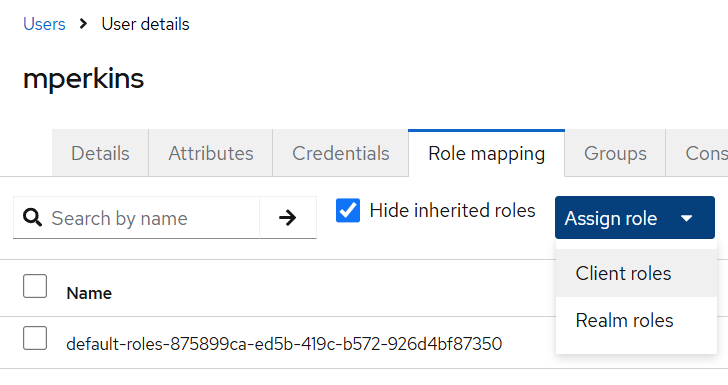
Click on the Assign Role dropdown, and choose Client roles. This will open the screen where you choose the user’s roles.
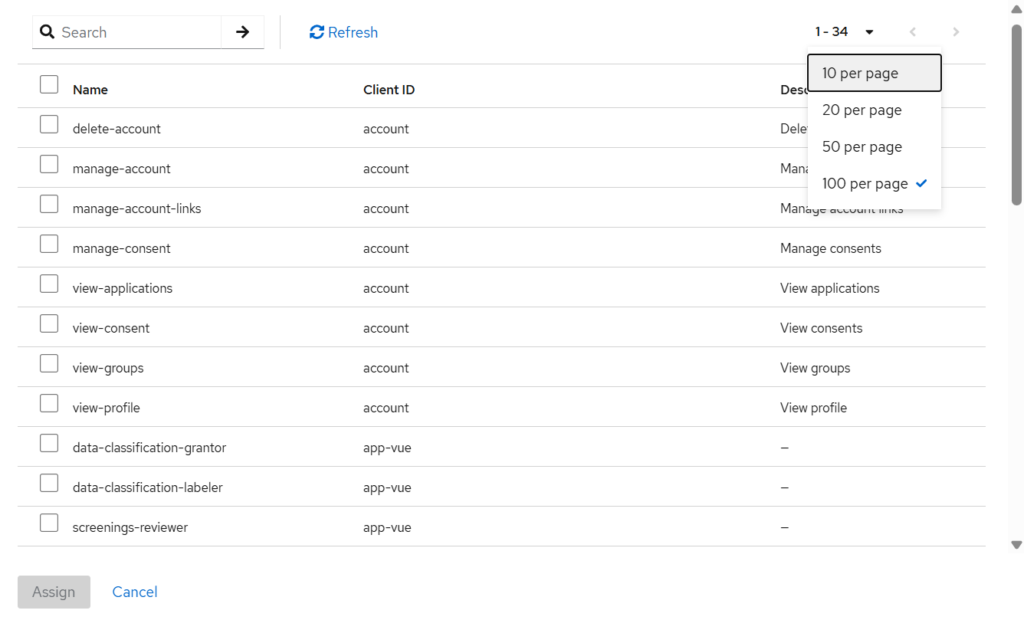
Select the roles you want to assign to the user. You can control how many roles display on the page, go to the next page of roles, and search the role Name field (be sure to hit the right arrow after you’ve typed in your search terms). Then hit Assign at the bottom of the form.
What Can Happen at Each RFQ Stage
RFQ stages as shown in the application, with Canceled available from any non-final stage. Moving between stages requires edit access to the project.
Development → Soliciting → Closed → Selection Complete → Done (or, from any stage before Done, Canceled)
| Stage | Internal users with edit access can… | Bidders can… |
| Development | Build the RFQ: description, terms, due date, scopes, libraries, response fields. Invite and remove companies. Turn on the Supplier Portal switch. | Nothing yet. The RFQ is not visible in the portal. |
| Soliciting | Clarify the RFQ, adjust due date, add libraries, mark a new version after bidder-visible changes, answer bidder questions, post notices, draft responses on behalf of a company, record a Decline to Bid. | See the RFQ, download permitted files, ask questions, submit, replace, or retract a response, accept terms, Decline to Bid. |
| Closed | Re-solicit specific companies, request revisions, record no-bids, evaluate: select or deselect full responses or individual scopes. | Companies that responded keep read access. Invited companies that never responded lose sight of the RFQ. Re-solicited companies and companies asked for a revision can submit again. |
| Selection Complete | Finish evaluation, correct selections. | Companies that responded keep read access. No submissions. |
| Done | Read only. Remaining submitted responses are automatically marked Not Selected. | Nothing. |
| Canceled | Read only. | Nothing. |
Two locks sit on top of the stage rules:
- Project locked. When the project is in Submitted or Done status, every RFQ on it becomes read-only for everyone.
- Portal publication locked. The Supplier Portal switch can be turned on at any stage except Done and Canceled. Once it is on while the RFQ is Soliciting or later, it can never be turned off again.
Response statuses you will see: Draft, Submitted, Submission Failed, Selected, Not Selected, Revision Requested, Replaced, Retracted. Company participation labels: Invited, Removed, Re-solicited, No Response, Responded, Declined.
Bidders and the Supplier Portal
Suppliers never log in to the Estimation Application. They use the Supplier Portal, a separate site with its own logins: a password plus a one-time email code.
There are no roles or tiers in the portal. Every portal login belongs to exactly one Contact at one Company, and everything that person sees is scoped to that company. A company with three contacts has three logins with identical rights.
A contact can see an RFQ in the portal only when all of the following are true:
- Their company has been invited to the RFQ, or has previously responded to it. A removed company that already responded keeps read access to its own response.
- The contact is active and their portal account is enabled.
- The RFQ has the Supplier Portal switch on, and either the RFQ is Soliciting (or Closed with the company re-solicited), or the company has already submitted a response and the RFQ is not yet Done.
- When sanctions screening is enabled, both the company and the contact show a Pass Check Status (see Special Duties above). A Pending, Potential, or Fail badge on the company blocks every contact; on the contact, it blocks that contact only.
- For classified libraries: the contact or company holds a matching data classification grant. Without it, the RFQ is visible but those files are not.
A bidder can
- View the RFQ, its scopes and shared scope details, and permitted library files.
- Draft and submit a response, replace it, or retract it while the RFQ is Soliciting, or while re-solicited or asked to revise.
- Accept the RFQ terms, required before submitting.
- Decline to Bid, and later retract the decline, as long as their company has no open response.
- Ask questions, private to their company, and read notices from your team.
- Export their own response.
A bidder can never
- See any other company’s response, questions, or participation.
- Change the RFQ, its scopes, libraries, due date, or invitation list.
- Select, deselect, or evaluate responses.
- See an RFQ their company was not invited to, even if other RFQs on the same project are visible to them.
Internal actions that control bidder access
| Action | Who can do it |
| Invite companies to an RFQ (Development stage) | Anyone with edit access to the project |
| Remove, re-solicit, or change a company’s invitation | Editor or Administrator |
| Record or retract a Decline to Bid on a company’s behalf | Editor or Administrator |
| Confirm a bidder’s revision | Editor or Administrator |
| Turn on the Supplier Portal switch for an RFQ | Anyone with edit access, RFQ not Done or Canceled |
| Activate or deactivate a contact | Editor or Administrator (Companies pages) |
| Classify a library | Data Classification Labeler, plus edit access |
| Clear a company or contact for classified material | Data Classification Grantor |
| Confirm or clear a sanctions-screening match | Screenings Reviewer. A Potential or Fail badge removes the company’s or contact’s portal access until cleared. |
Quick Lookup: Who Can Do What
| I want to… | Minimum requirement |
| See an RFQ | View access to its project. Viewers, Editors, and Administrators have this on non-sensitive projects; Project Members need a grant. |
| Create or edit an RFQ | Edit access to its project, project not Submitted or Done |
| Invite companies | Edit access, RFQ in Development |
| Remove or re-solicit a company | Editor or Administrator role, plus edit access |
| Record a Decline to Bid for a company | Editor or Administrator role, plus edit access |
| Publish an RFQ to the Supplier Portal | Edit access, RFQ not Done or Canceled |
| Answer bidder questions, post notices | Edit access |
| Evaluate responses (select, deselect, request revision) | Edit access, RFQ Closed or Selection Complete |
| Classify a library | Data Classification Labeler duty, plus edit access |
| Clear a supplier for classified files | Data Classification Grantor duty |
| See a company’s sanctions Check Status badge | Any role. Shown on company and contact lists when screening is enabled. |
| Review a potential sanctions match | Screenings Reviewer duty. Screenings Viewer can look but not decide. |
| Restore a bidder’s portal access after a screening match | Screenings Reviewer, via Clear with allowlist. Nothing on the RFQ can override it. |
| Create or edit an RFQ template | Administrator |
| Change the default response template | Administrator |
| Export all response files from an RFQ | Administrator |
| Give someone access to a project | Administrator, or an Admin grant on that project |
| Change someone’s baseline role or special duties | Identity system administrator (Keycloak). There is no in-app screen. |
Getting Access Changed
- Project access (View, Edit, Admin): ask the project’s owner or any Administrator to add you on Project Settings › Permissions. Takes effect immediately.
- Baseline role, workspace access, and special duties: ask your system administrator. These are set in the identity system (Keycloak), reachable from Settings › Users › User Management. Changes take effect at your next sign-in.
- Supplier access: your estimating team controls this by inviting the company to the RFQ and, for classified material, granting clearance. Suppliers cannot request access from inside the portal.
Controls greyed out?
Check in this order: is the project Submitted or Done, is the RFQ Done or Canceled, do you hold only a View grant, and is the RFQ a template (Administrator only).