

In this User Guide, we’ll give you an overview of the RFQs for OAE feature, including how to create RFQs, invite companies to submit bids, and manage responses.
RFQs for OAE lets you solicit subcontractors for bids within the system, and pull the estimate values in their responses right into your estimate. You control the work scope of each RFQ, as well as which companies are invited to bid. Once the RFQ is closed, you review the responses for each scope and choose the ones you want – and your estimate for those items automatically updates with the values from that scope response. And all of that happens within OAE.
Having to import estimate values from RFQ responses slows you down and risks errors. Handling the full RFQ lifecycle inside OAE lets you bid faster and more accurately.
Table of Contents
For users, OAE’s support for RFQs centers around the RFQs tab and the details view for each RFQ.
RFQs Tab
Here’s what you’ll see in a project’s RFQs tab, which defaults to the dashboard view (unless there are no RFQs).
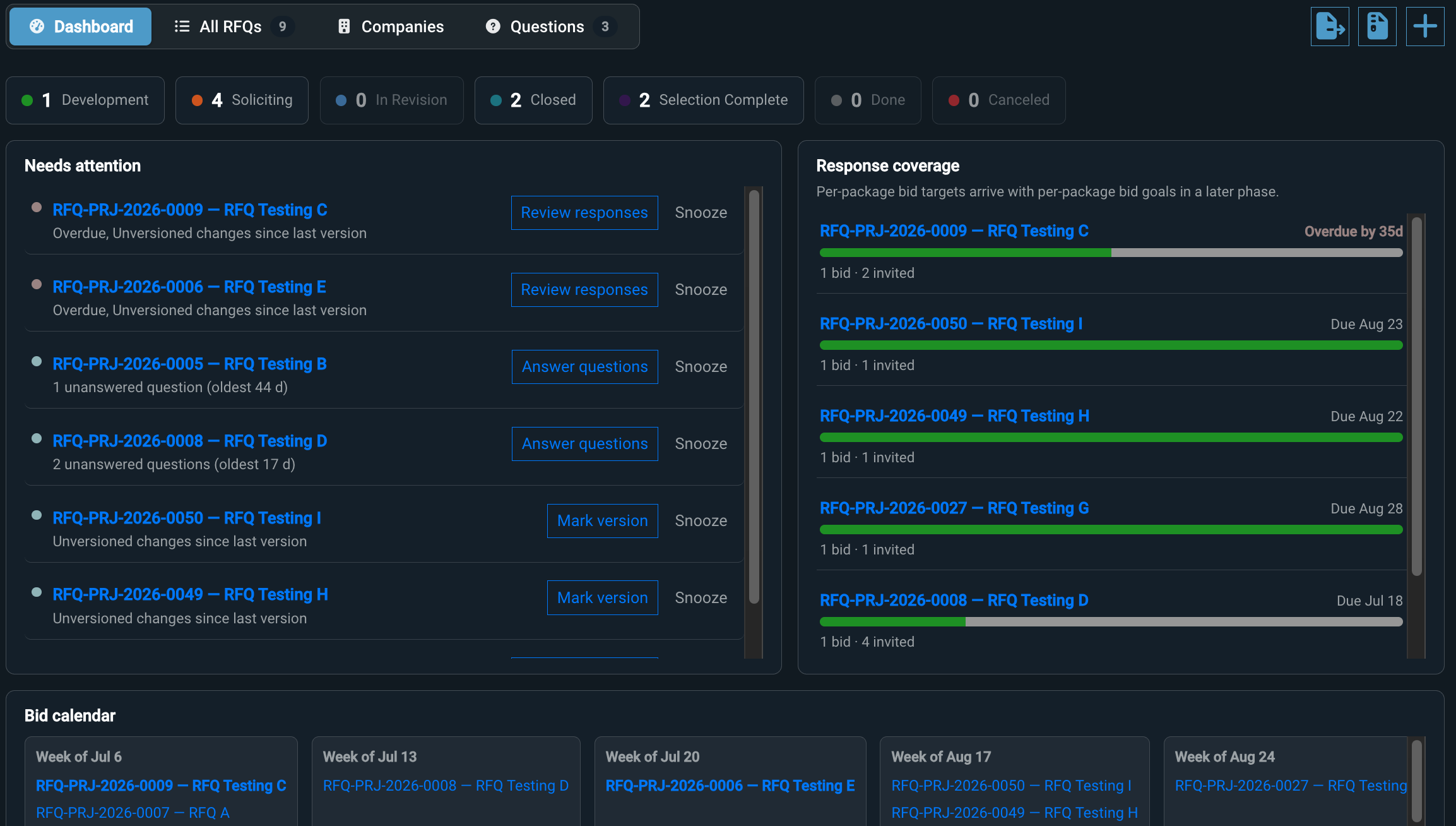
This view has five sections. Clicking on any of the RFQ links will take you to the RFQ’s details page (see below).
Toolbar
On the left are four views that let you focus on different aspects of the bidding in this project. We’ll cover those further on.
The blue icons in the toolbar on the right let you:
- Export All Responses – Download an XLSX file containing all responses sorted by RFQ.
- Export All Response Files – Download a ZIP file containing all files attached to RFQ responses in this project.
- Add – Add a new RFQ (a Name is all you need).
Overview buttons
For each status in the RFQ workflow, you get a button that tells you how many RFQs are in that status. Clicking one of them will take you to the All RFQs view with a filter applied for that status, so you can work with just those.
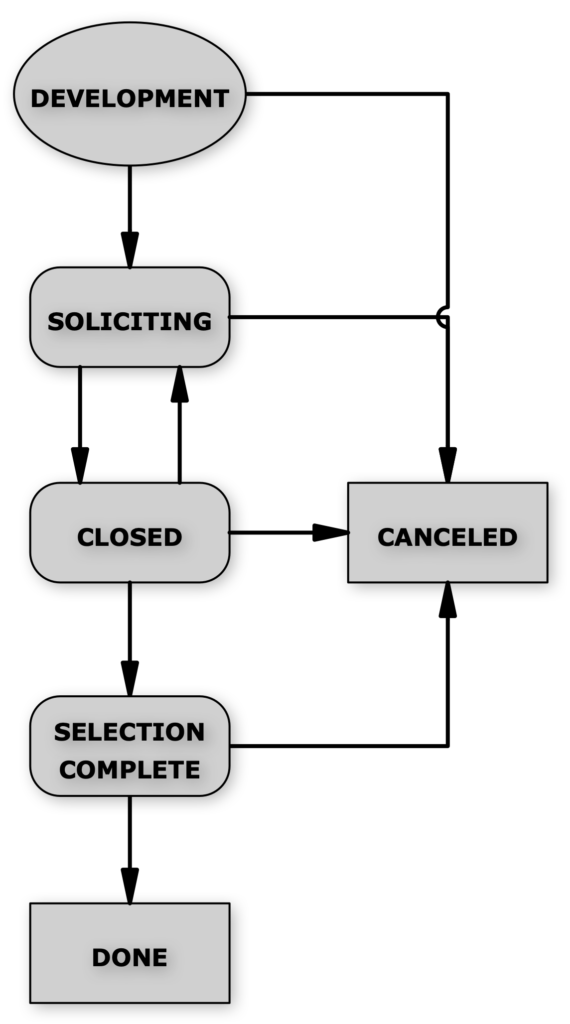
Here’s generally what each status means:
- Development: Still being configured, not ready for responses yet
- Soliciting: Open for companies to submit responses
- Closed: The deadline has been reached, or the RFQ was manually closed. This status allows for revisions and other interaction with the company.
- SelectionComplete: No further supplier interaction expected, but RFQ is still editable.
- Done: No further work expected by anyone.
- Canceled: The RFQ has been canceled.
And here’s the RFQ workflow, so you understand what statuses are available at each point.
Needs attention
This list shows RFQs that are overdue, have unanswered bidder questions, unversioned changes, and so forth – think of it as a to do list. Under the link to the RFQ is a summary of why it’s on this list.

On the right of each row in this list is a button that will take you to the RFQ’s relevant tab, where you can give it the attention it needs. So, if for example there are unversioned changes, you’ll see a Mark version button.
Response coverage
Here you get an overview of how many of the companies invited to bid have submitted bids – and whether there are companies who have missed the deadling.

As you can see in this example, of two companies invited, only one has submitted a bid (and is overdue), so the green bar is at 50%.
Bid calendar
Each box represents a week, and lists the RFQs with deadlines in that week.
All RFQs view
This view defaults to showing just RFQs in Soliciting. See the Toolbar section just below for how to change that.
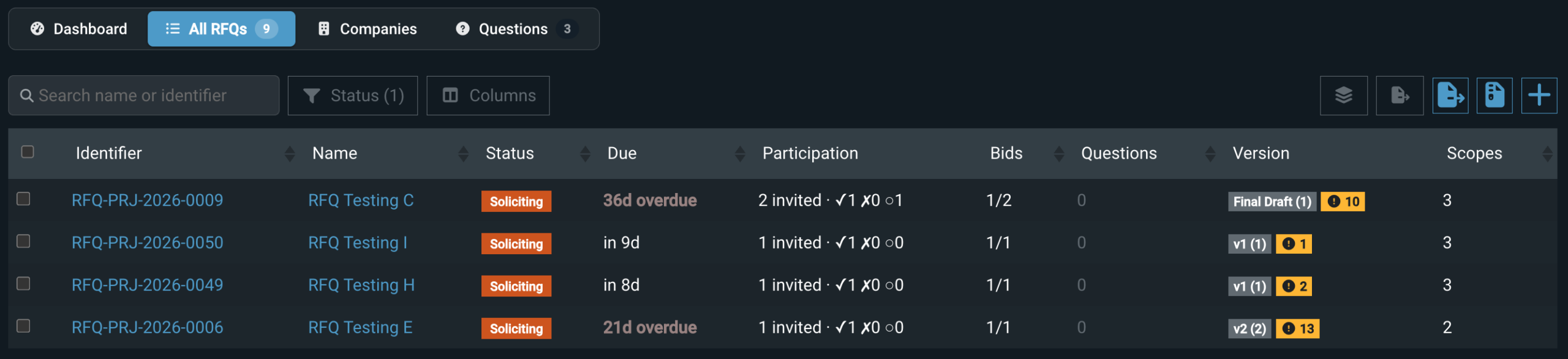
At the top, of course, we have the same four views so you can switch easily between them. The rest of the page features a toolbar and the RFQs table.
Toolbar
From left to right, we have:
- Search box: Find the RFQ(s) you want based on the Name or Identifier values (see explanation below of Identifier).
- Status dropdown filter: Limit the list to just the RFQ status values you need.
- Column chooser: Make the RFQ list work for you by showing just the columns you need.
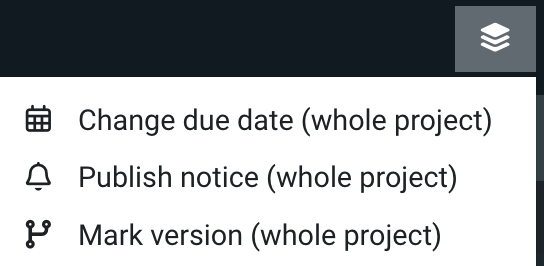
- Change all RFQs: Apply one of three changes to all RFQs in the project.
- Export bid register: Download a .csv file containing all the bids for all RFQs in the project – or just the ones selected, if you have checked any of the boxes on the left – including for companies that were invited but haven’t submitted yet.
- Export all responses files: Download a .xlsx file containing all responses for all RFQs in the project
- Add RFQ: Pull up the Add RFQ screen.
Table columns
The Identifier, Name, Status, Created, and Updated columns are straightforward since they just display properties of each RFQ. Here’s more about the other columns.
- Selection checkbox: If you want to export a big register with just some RFQs in it, check the boxes for those RFQs.
- Due: This is a relative indicator, telling you – from today’s date – in how many days the RFQ’s due date is, or how many days it’s overdue by.
- Participation: Provides an overview of company invitations for the RFQ, including how many have been invited and where they are in the process. Hover over the field to see an expanded version.

- Bids: A simple indication of the number of companies that have submitted responses out of the number invited, e.g.
1/2. - Questions: The number of unanswered questions the company has asked in the portal.
- Version: The name and number of the current version, plus the number of changes since the current version.
- For instance, in
 “PM Review” is the current version name, “(2)” is the version number, and the 3 tells you three changes have been made since the PM Review was saved.
- For instance, in
- Scopes: The number of work scopes that are set up for the RFQ.
Click on any column header to sort the table by that column.
Companies view
This view gives you a quick overview of where each company is in bidding on the RFQs they were invited to.
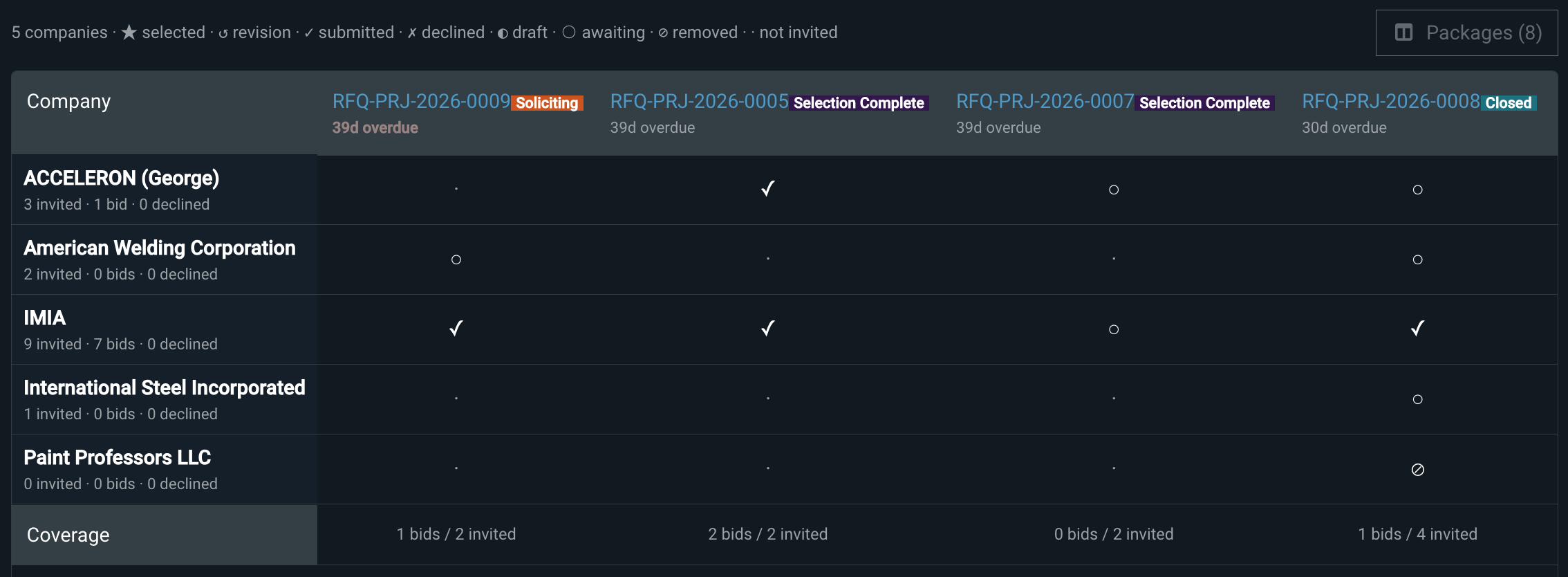
There are four sections.
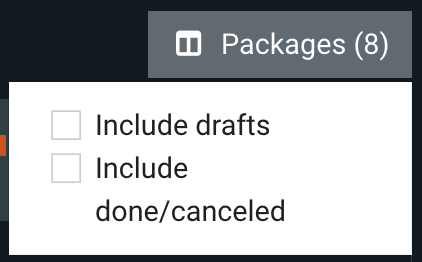
- Toolbar: Above the table header on the left is a guide what the symbols in the table mean. On the right is a button that lets you show RFQs outside the bidding phase.
- Table header: Shows the basic state of each RFQ. The RFQ name is a link to the RFQ page.
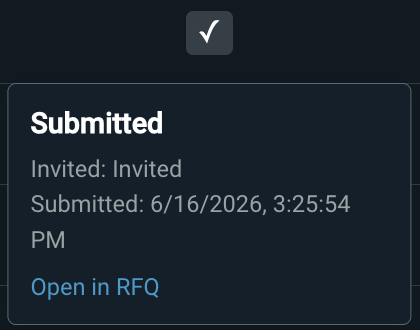
- Table rows: The symbol tells you where in the response lifecycle the company is. Click on the symbol for more details.
- Table footer: Tells you how many of the invited companies have submitted bids.
Questions view

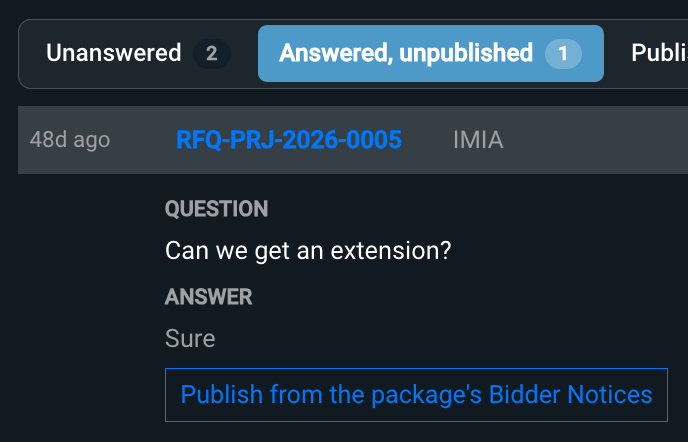
By default, this view shows all unanswered questions. Use the filter buttons to show a different set of questions.
To read the answer or send a private answer to the inquiring company, click on a question.
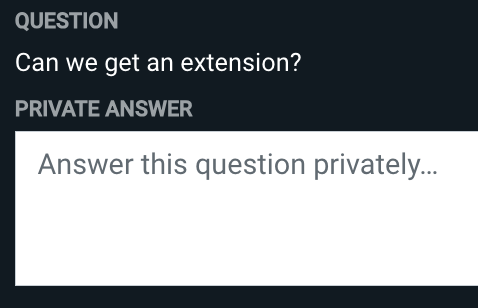
To publish a question and its private answer, go to the Bidder Notices tab in the RFQ page. There are links to that in the “Answered, unpublished” filter – just click on an RFQ.
RFQ Details
Here’s what you see when you click into an RFQ’s details view, which loads the Overview tab when you first go there.
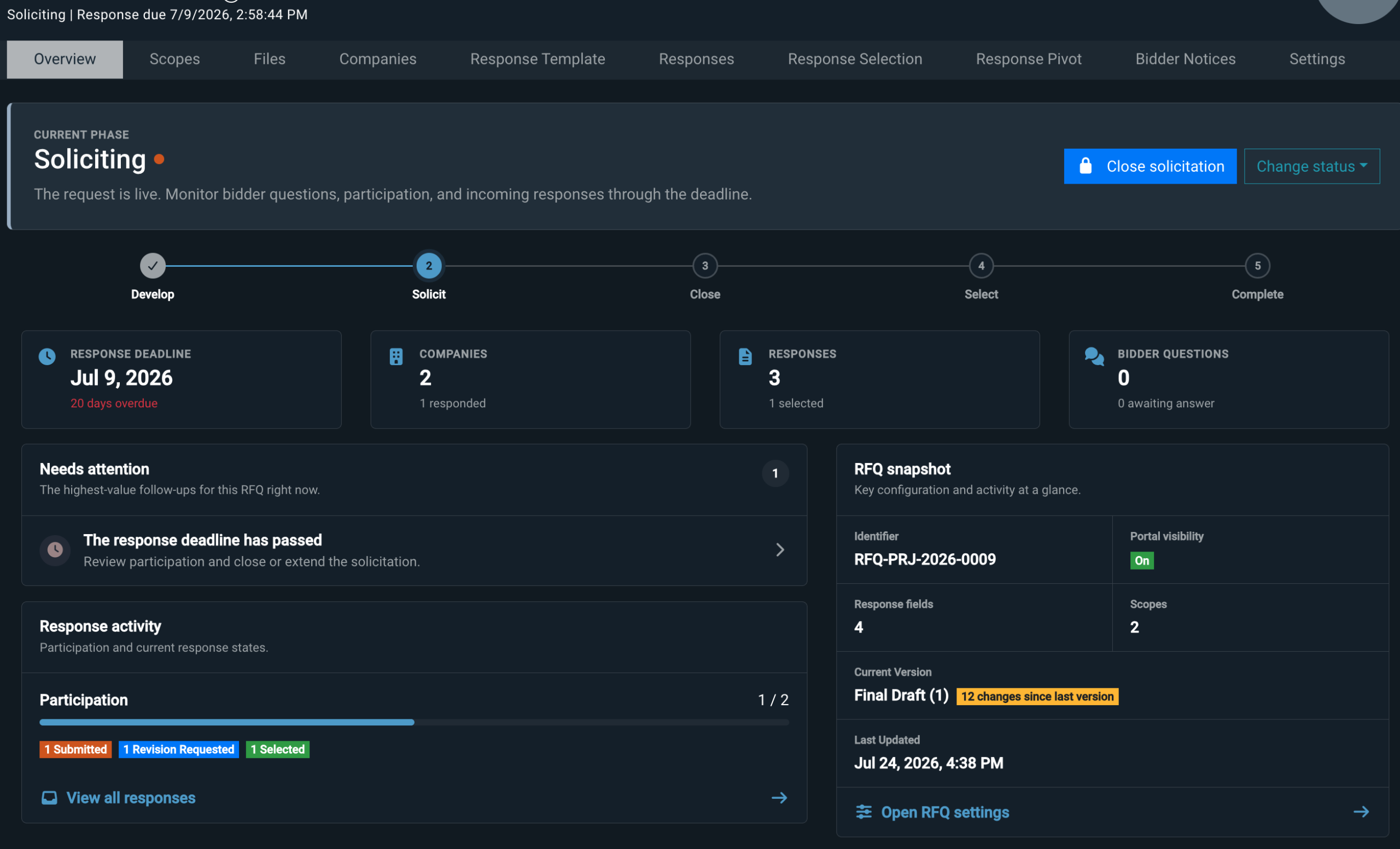
Across the top is the navigation bar. Click on a tab to switch to it.
This tab, as the name indicates, gives you a sense for the state of the RFQ. Where the information in a box is tied to one of the other tabs, clicking on the box will take you to that tab.
Now let’s look at the tabs available in the navigation.
Overview
This is the default tab that loads when you pull up the details view – as shown above. From top to bottom, you’ll see:
Work Scope
This table displays the scope of the work included in the RFQ.
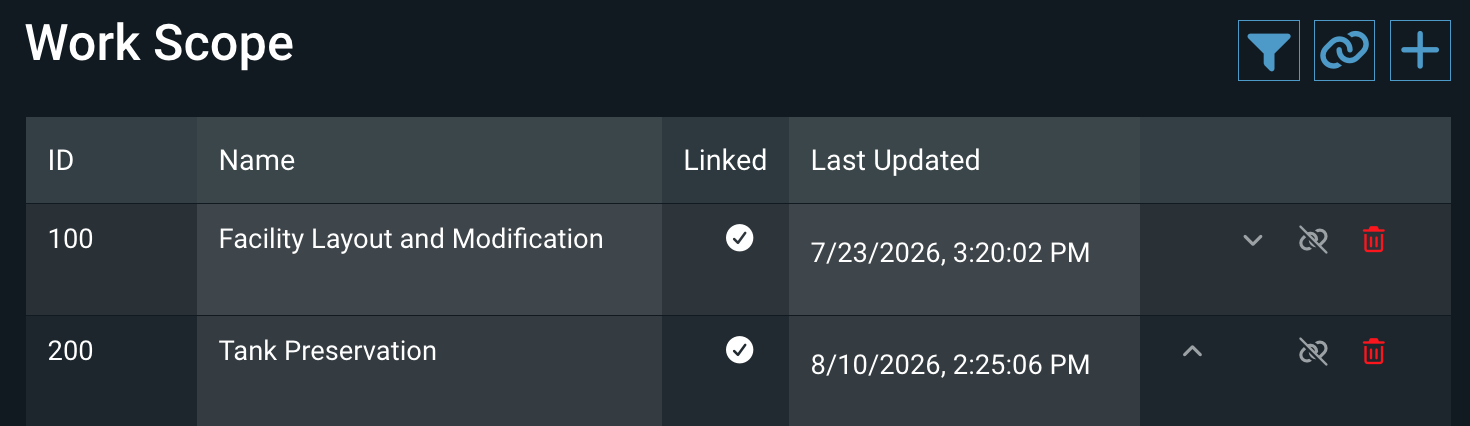
Here’s how to use this tab.
Toolbar
The buttons in the upper right are as follows.
Add Scopes and Details by Linking Filtered Items
This opens a screen that lets you search for existing work/line items to add scopes for, by using filters.
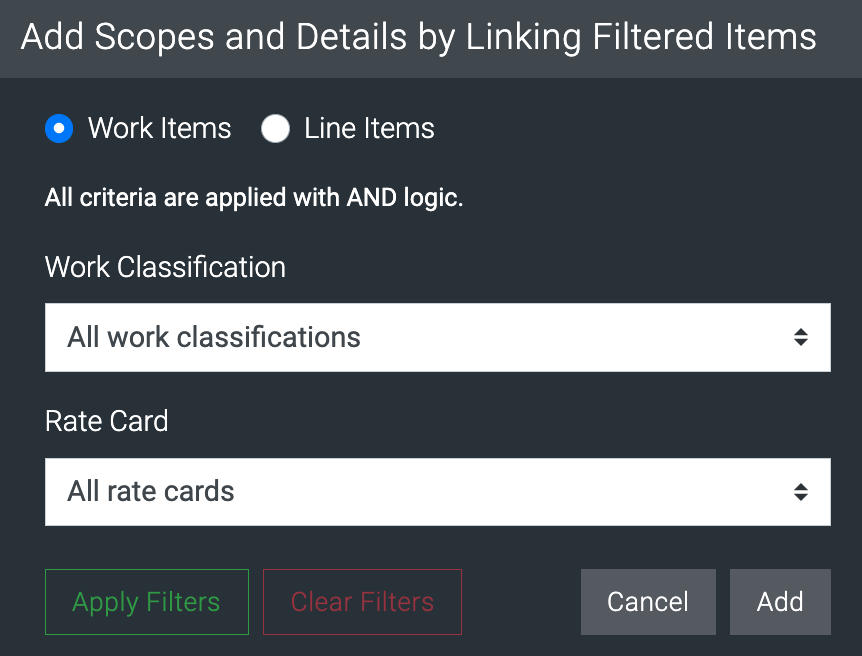
Here’s how to use it:
- Work Items / Line Items toggle – Indicate whether you want to add scopes for just work items, or work and line items. Including line items also gives you the option of filtering on flags.
- Work Classification – Choose a work classification (as configured in System Settings) to filter on.
- Rate Card – Choose a rate card to filter on.
- Flags – If Line Items is selected, you can choose a flag to filter on.
- Action buttons – Use Apply Filters to see a count of how many items your filter choices would add. Once you’re happy with the filters, hit Add.
Add a Scope and Details by Linking an Item
This button does the same as the previous button, just for a single work item – including a single line item if you want. Instead of using dropdown fields, type into the text fields in this screen to search for and select items.
Add a basic Scope
This lets you add a scope without linking it to a work item. This should be considered a place holder, and carries with it the danger of creating a mismatch or discrepancy, since a scope might also be added by linking to a work item for the same work.
There are only three fields, each of which is optional, but you do have to fill in at least one field. After hitting Add, you’ll see the scope’s details to fill in; you can also link your manually-added scope to a work item after the fact – see the next section for more on that.
Table columns
Here’s how to use the Work Scope table.
Data Columns
ID and Name are what you provide; only one of them – or a Description in the details – is required. The Linked column indicates whether the scope detail is linked to a line item.
Action buttons
These let you unlink a linked scope detail, link the scope detail to a line item, and delete the scope detail.
Scope details
As with scopes, you can add scope details either by linking to line items or by manually entering data. Scope details only require a value for Code or Name or Description.
Working with scopes
To see or work with a scope’s details, click on it. The details will slide out on the right.
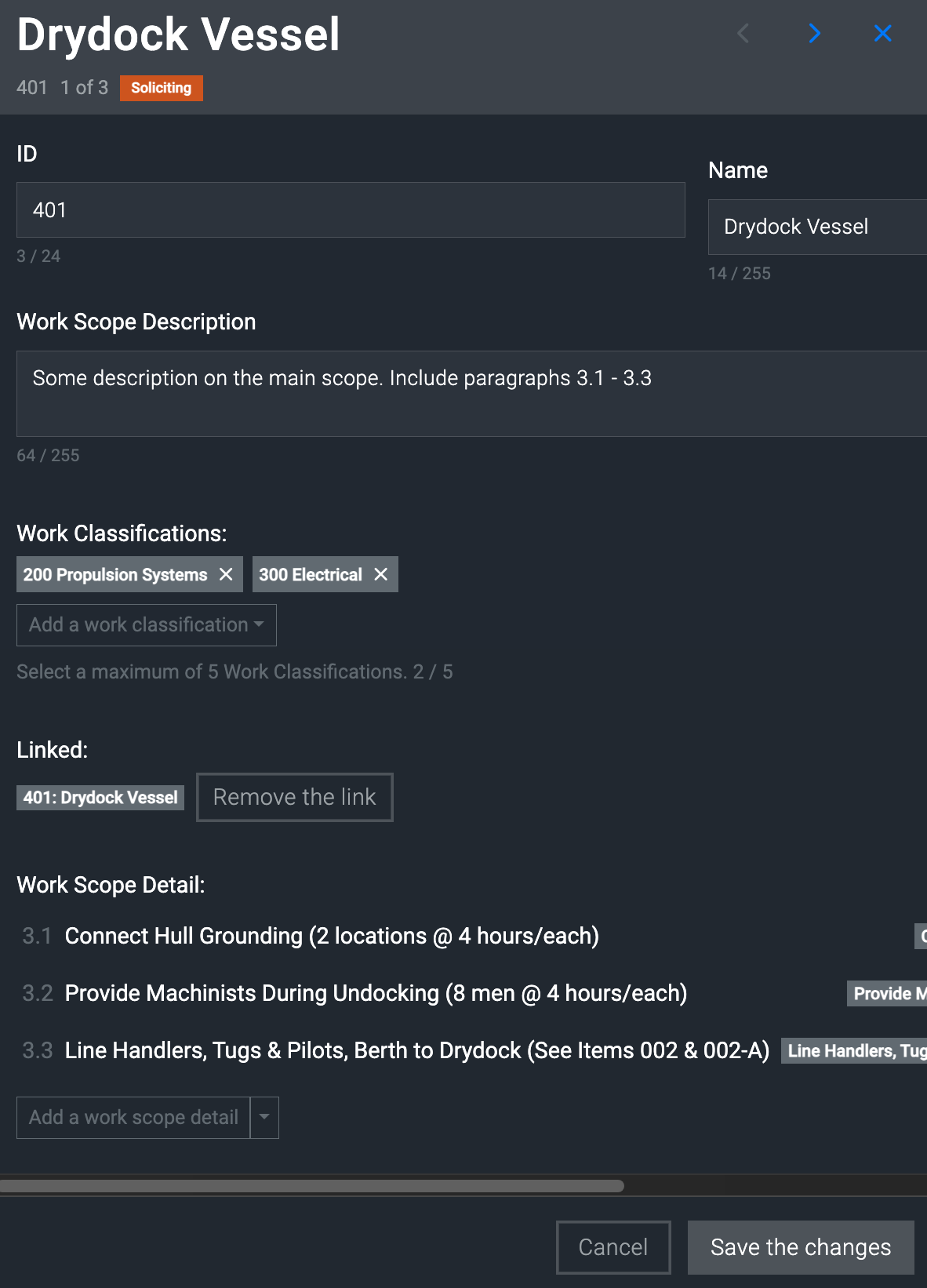
In the header we have the current Name and ID of the scope, the status of the RFQ, and on the right, blue arrow buttons to move easily between scopes. The x of y next to the RFQ status (e.g. 1 of 3 in the screen shot above) shows you where you are in the list of scopes.
Here you can edit the scope’s ID, Name, Description, and Work Classifications. If the scope is linked to a work item, you can Remove the link.
Last comes the list of any work scope details. You can add a new scope detail either manually, or by pulling in data from a line item, using the dropdown menu under the list of scope details.
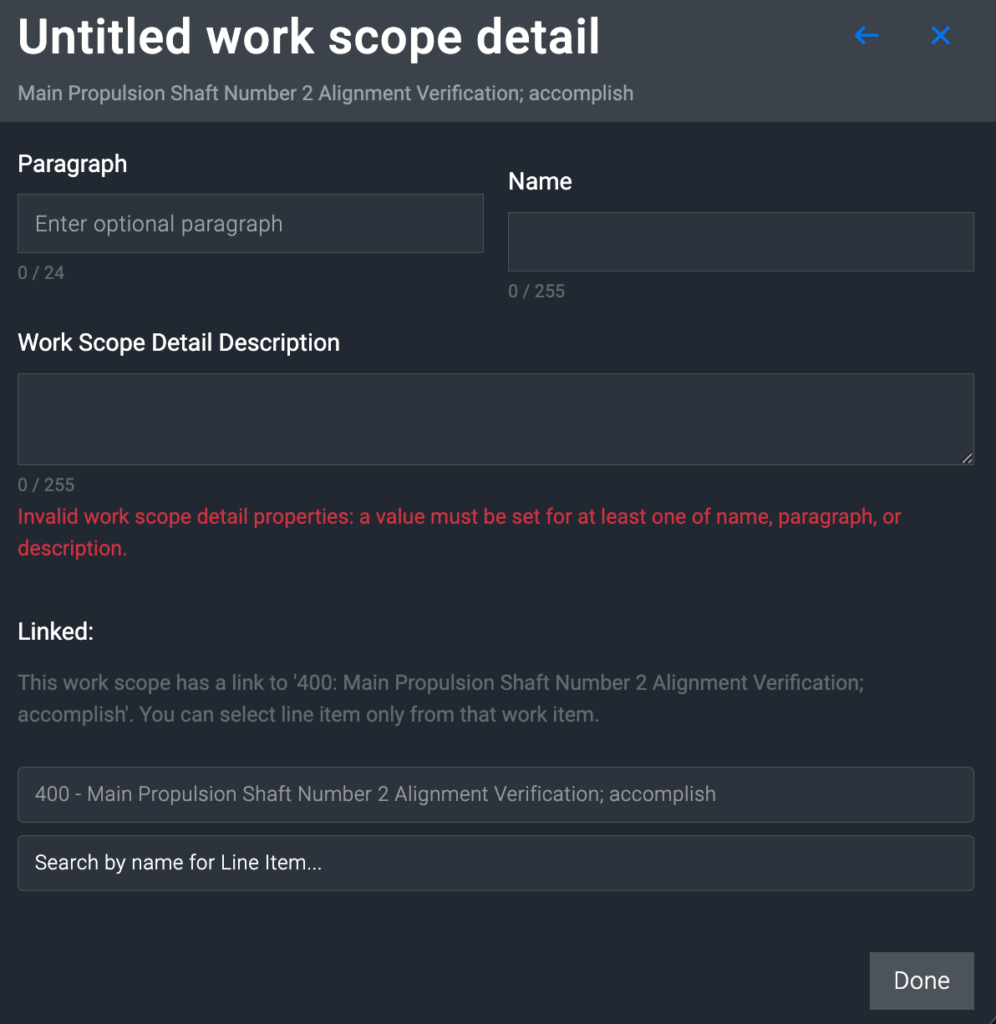
Manual scopes will not have the Linked section. Let’s look at this.
- Under the default placeholder name for a new scope detail, you’ll see the scope’s Name (in the above screenshot, that’s “Main Propulsion Shaft Number 2 Alignment Verification; accomplish”). To the right are a back arrow, which takes you back to the work scope, and an X button to close out the side panel.
- The Paragraph field is handy if you rely on the paragraph values for work scopes when selecting responses. As we’ll see further down, the Response Selection tab has a Paragraphs column, and this field is what populates that.
- You only need a value for Paragraph, or Name, or Description. As you type, each field shows underneath how many characters you’ve used (like the “0 / 255” under Name above).
If you’re adding a scope detail by linking it to an existing line item, you’ll need to choose the line item. If the scope isn’t linked to a work item, you’ll have to choose a work item first.
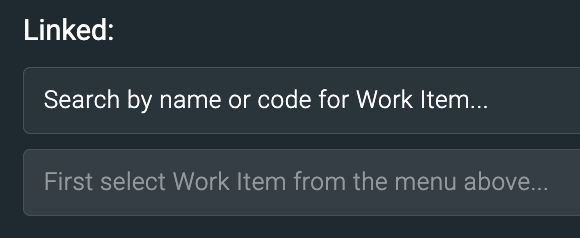
Hit Done to save the changes; if you try to leave the pane without saving, you’ll be prompted to save first.
Work scope detail
To see all the information for a scope detail, click on it.
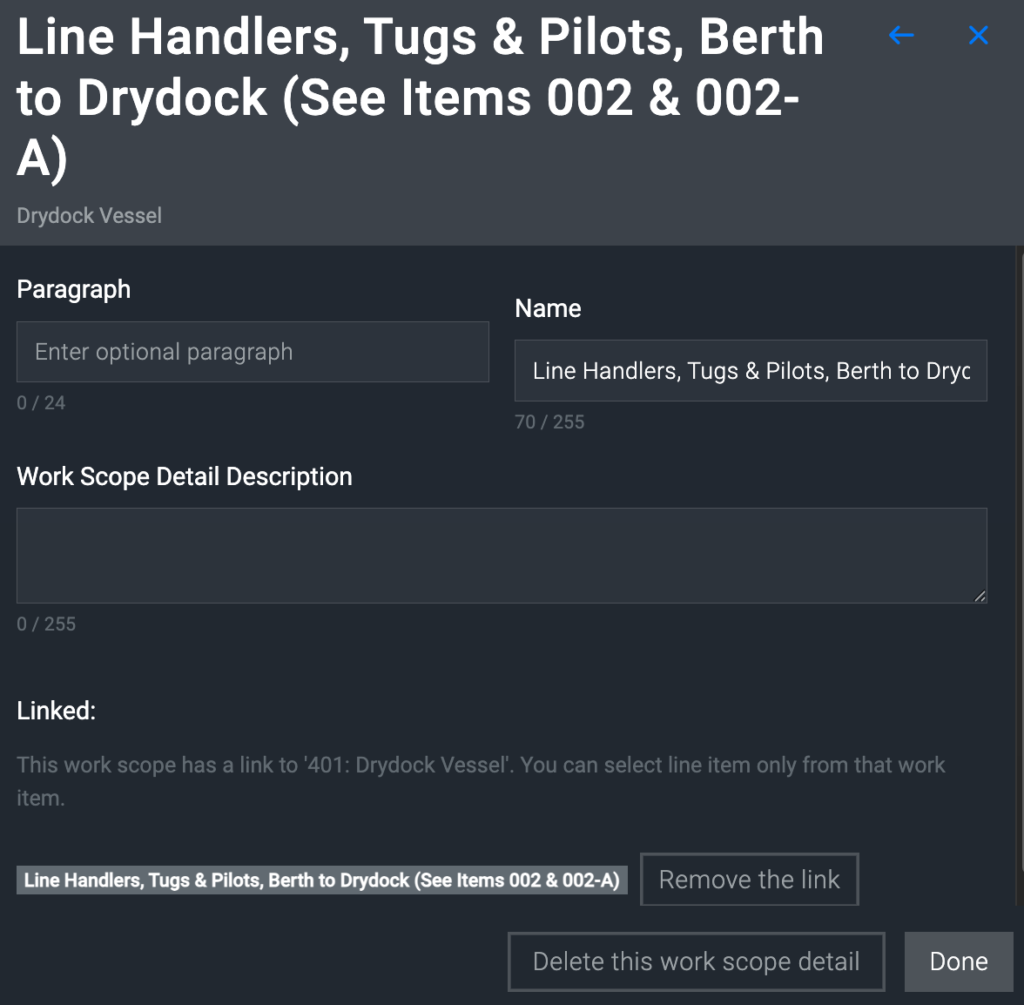
This works just like the work scope screen, except that if you want to look at other scope details, you have to use the blue back arrow, then select a scope again.
Files
This tab lets you upload and organize files pertaining to the RFQ.
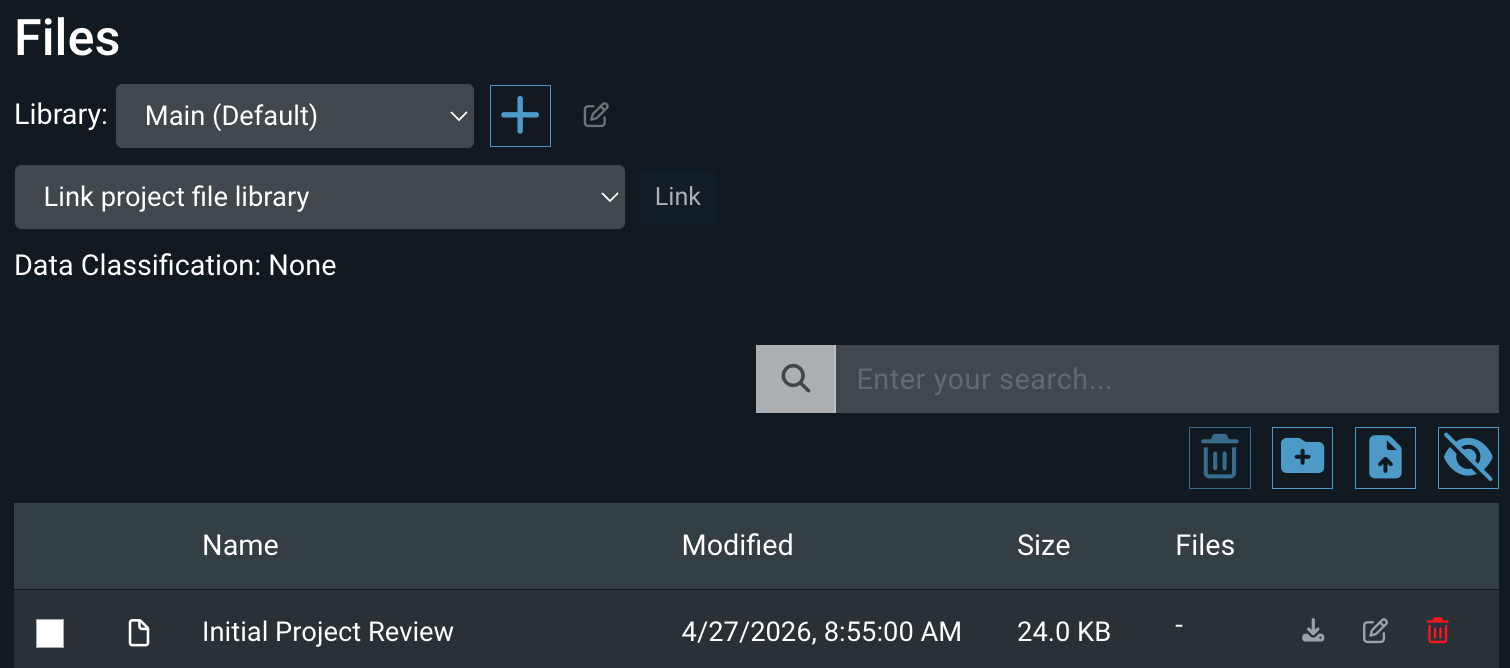
Here’s how it works.
Library row
Here you can choose, or create, a library to hold certain files. The Main library is loaded by default; if you choose a different one using the dropdown menu, the files table below will update to show any files in that library.
When you create a library, you can assign a Data Classification to it, in which case that DC will be displayed when the library is chosen. This DC will control who can see the file in the portal.
When you choose any library aside from the Main one, you can also edit or delete it.
Link project file library
If the project is set up with any RFQ Shared Libraries, you can choose one with this dropdown menu – just click and choose, then hit the Link button.

Once the shared library is linked, any files whose Data Classification allows you to see them should show up in the file list.
Search
Type one or more characters into the search box to filter the table by filename. The search is case-insensitive, and while it does include folder names, it excludes the contents of folders. So if you want to search inside a folder, you have to open the folder and search inside it.
Toolbar
You can take the following actions using these buttons:
- Delete – If you select one or more files or folders (see below), this will delete them. All contents of a deleted folder will also be deleted.
- Add Folder – All you have to provide is the Title.
- Upload File – Opens a dialog box so you can choose one or more files from your computer or network.
- Show Hidden Files – These are usually system files that you don’t need to worry about.
Table
Here you can see the name, last modified datetime, and size (in bytes) of each file, along with an icon for files indicating the basic file type. Folders are always at the top. If there are folders, you can drag a file onto that folder to move the file inside.
Here’s what you can do with each file:
- File selection checkbox – Check this box on the left side if you want to delete the file or folder. Since each file or folder has its own delete button (see below), this is intended for bulk deleting.
- Action buttons – Rhese icons on the right side let you download the file, edit the name, or delete.
Companies
Here is where you manage inviting companies to submit estimates. You can use the Invitation Status and Response Status filters to narrow the list of companies.
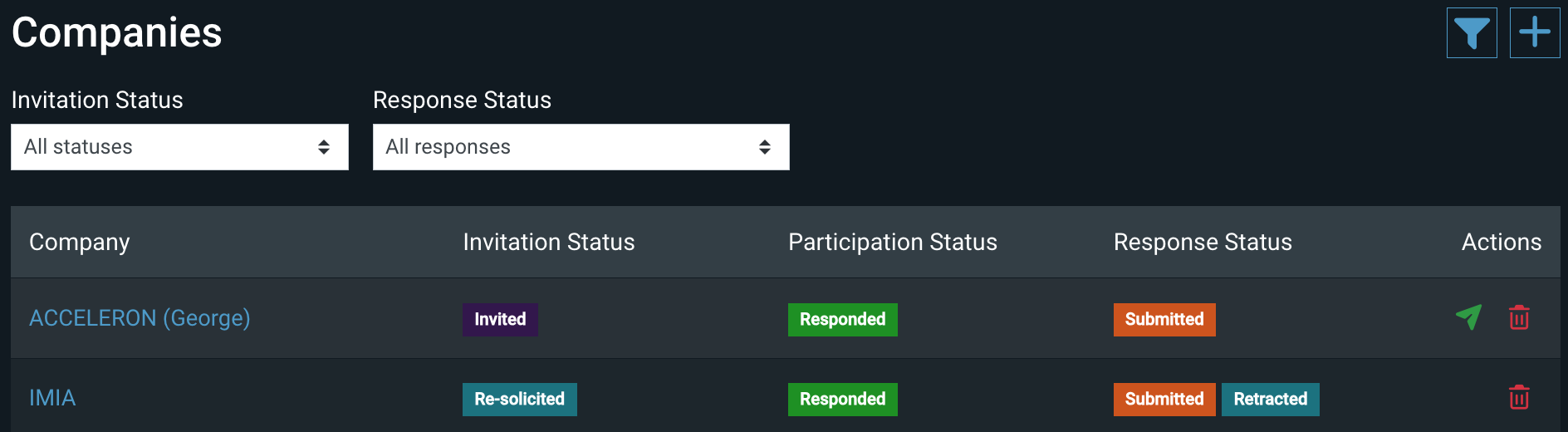
Using the toolbar in the upper right, you either can invite based on a company’s work and/or data classifications using the Add companies by filter button, or just choose one from a dropdown using the Add company button.
Aside from the company name, the table displays the following columns.
Invitation status
This can be:
- Invited: When a company is first added, OAE sends an invitation to the contact email configured for the company.
- Re-Solicited: Enables a company to bid on a Closed RFQ, for example, if they missed the deadline but you still want them to bid.
- Removed: The company can no longer submit bids for this RFQ.
Participation status
This is either No Response, if the company contact has not yet accepted the invitation, or Responded, if they have accepted.
Response status
This column shows the current status for each of the company’s responses.
Actions
You can delete any invitation here. If the company has not yet accepted the invitation, you can re-send it using the green Re-solicit company button.
Response Template
This determines the information a response can include. A new project will inherit the default template configured in System Settings, but you can modify it if needed.
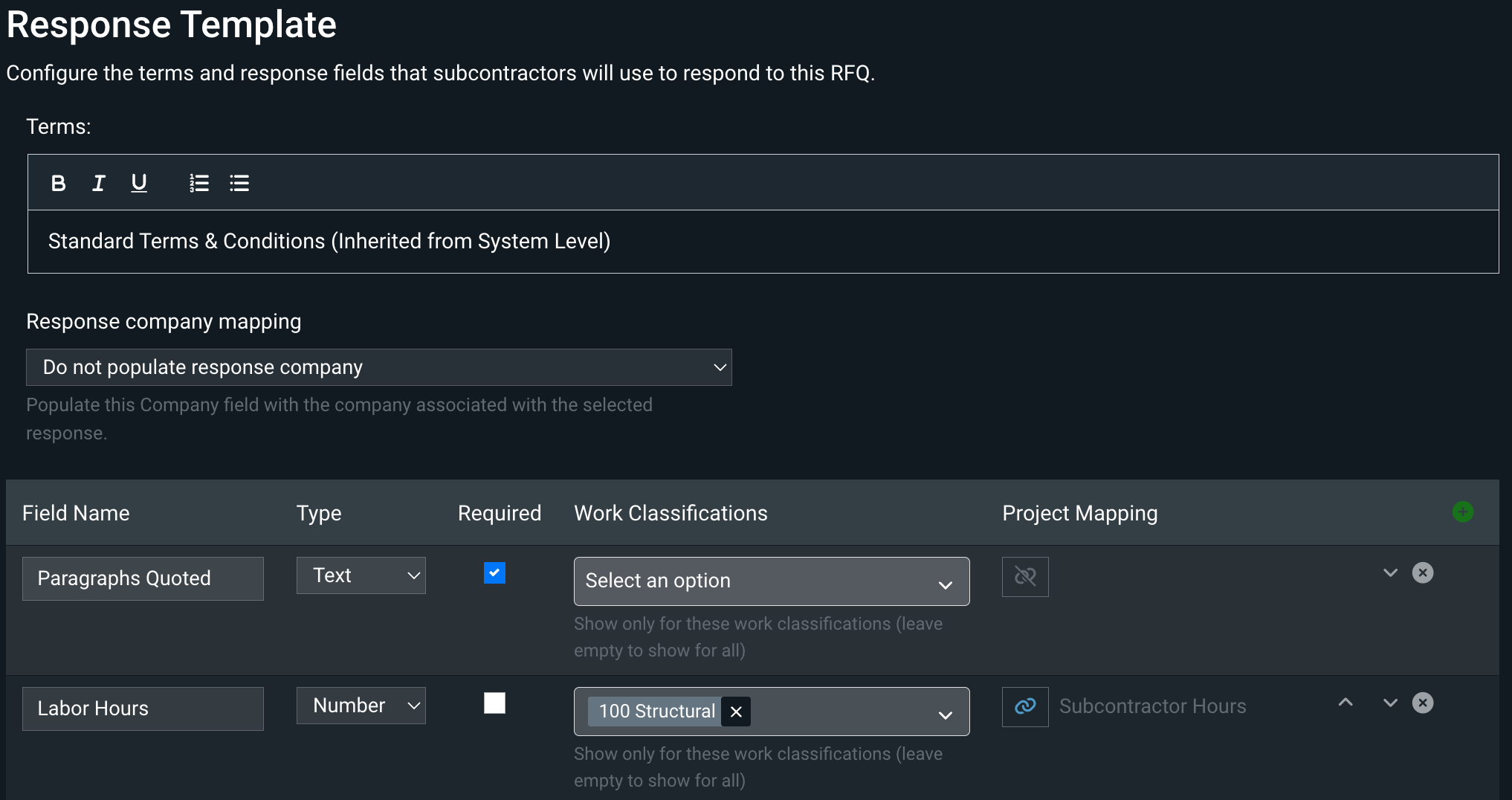
There are three sections.
Terms
This is a rich text field to hold any terms and conditions applying to the RFQ.
Response company mapping
Since the end result of OAE RFQ process is usually items containing the selected vendor’s quoted values, you might want those items to include the vendor’s name. If your Structure includes a column of type Company, use this field to pull the Company for each response into the auto-generated item.
Response field table
Here you set the field’s name, what type it is (Text, Currency, Number), and whether or not it’s required. Use the green + button to add an empty new response field to the bottom of the table, where you can fill in the details. You can also:
- Select one or more Work Classifications to limit this field to; if you leave it empty, all work classifications will see this field – otherwise only scopes for the selected work classifications will see this field.
- Link this field to a structure column using the Project Mapping button, or unlink a linked field.
- Reorder the fields using the up ^ and down v buttons.
- Delete a field using the x button.
Responses
Here you see any responses submitted for the RFQ, and take various actions on them.

Using the toolbar, you can download a .zip file of all response files, or – if the RFQ is in Soliciting or Re-solicited status – add a draft response to the bottom of the table. It’s useful to be able to add a response yourself in some cases, like when a subcontractor won’t use the portal, or when a user’s portal account isn’t set up or working yet.
In addition to the Status values in the response workflow, there are two other tags you may see here: Late, which tells you the response was submitted after the due date, and Submission Failed, which means something went wrong in the submission process.
Here’s what you can in the Responses table.
Toggle description/details
In addition to the data displayed in the table, you can use the blue button on the left to show or hide the response description and details.
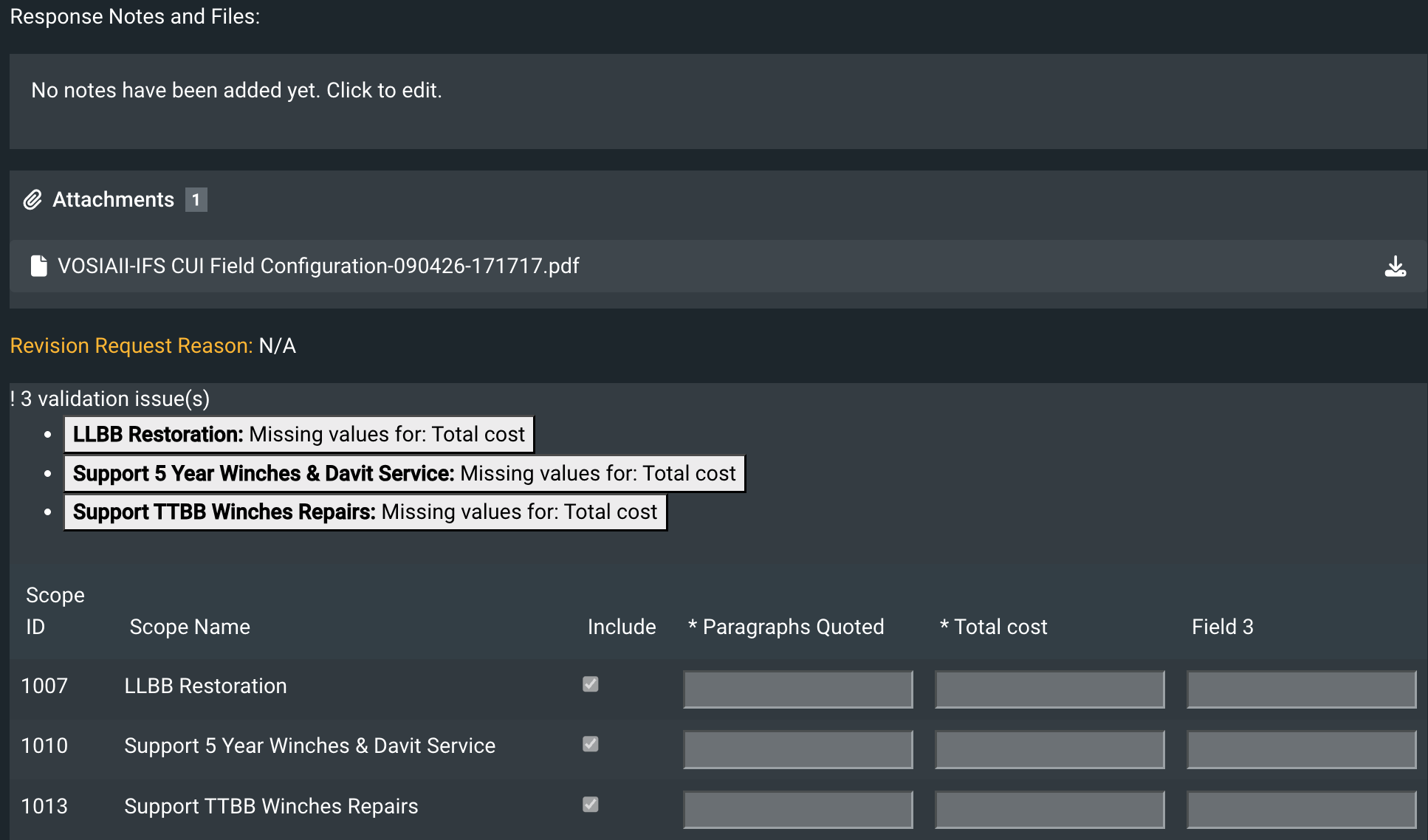
These details are pulled from the company’s response (if any), except for the validation box, which is generated when the page loads. If the response has been submitted, this is all read-only – otherwise some fields may be editable.
Response table columns
Company and Contact are pulled from the company’s response. Status shows where a response is in the response workflow. Selection shows – for Closed RFQs – which scopes have been selected from that response.
On the right side are actions you can take, which vary based on both the RFQ’s and the response’s statuses.
- Submit Response – for Draft responses only, when you’re managing responses for a bidder
- Review Scope Selection – for RFQs that are out of Soliciting but still open to responses from the bidder
- Select Full Response – for RFQs that are out of Soliciting but still open to responses from the bidder
- Clear Full Response Selection – for Selected responses only
- Request Revision – for Submitted responses in RFQs that are open to the bidder
- Record Revision Confirmation – for Submitted responses in RFQs that are open to the bidder
- Start Revision Draft – for Submitted responses in Soliciting and Closed RFQs
- Retract Response – for Submitted responses in RFQs that are open to the bidder
- Delete – for Draft responses only, when you’re managing responses for a subcontractor
Response Selection
All scopes listed in the Scopes tab appear in this table, whether or not any responses include them. The Selected column shows you how many responses include that scope, and whether any have been selected.
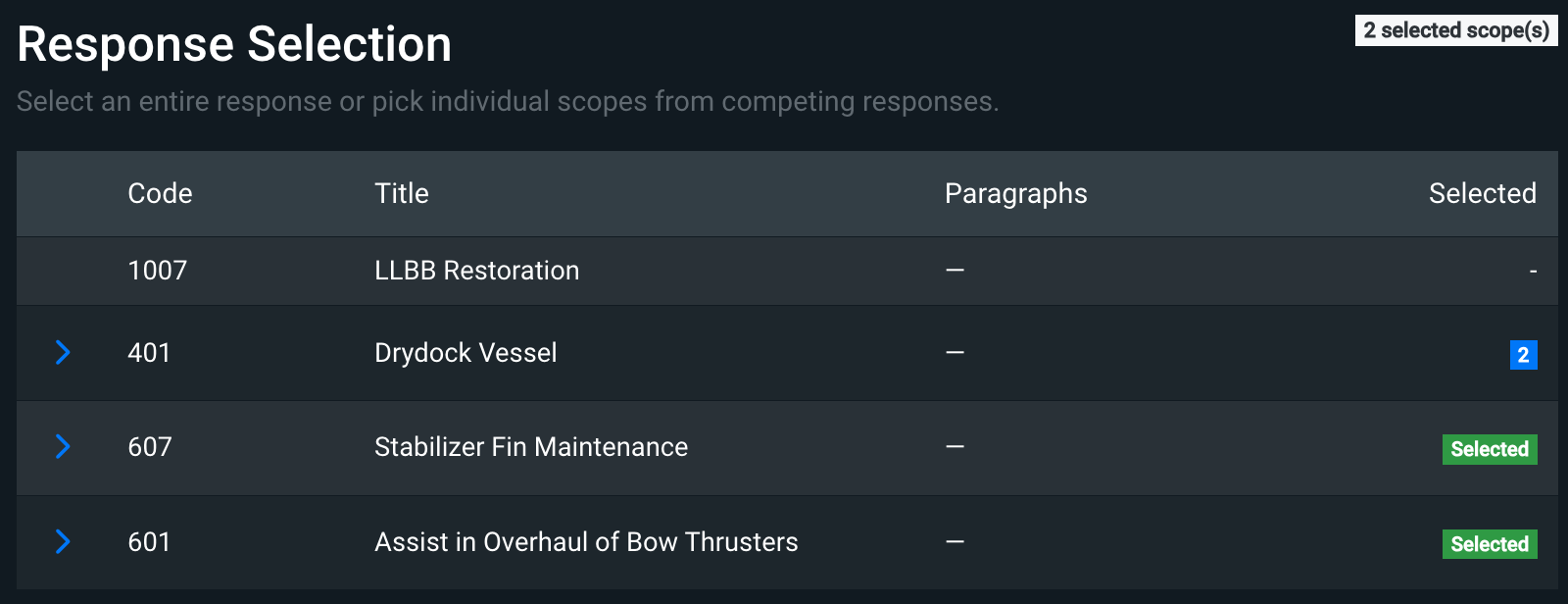
If a scope has been included in a response, you can expand it to see the responses for that scope – click the blue > arrow on the left.

Here you get an overview of each company’s response for that scope, including the response template fields. You can easily get to the response using the blue arrow on the right, and can select ( + ) or deselect ( - ) that scope.
Note that taking the Select Full Response and Clear Full Response Selection actions in the Responses table will update the Response Selection table too.
Response Pivot
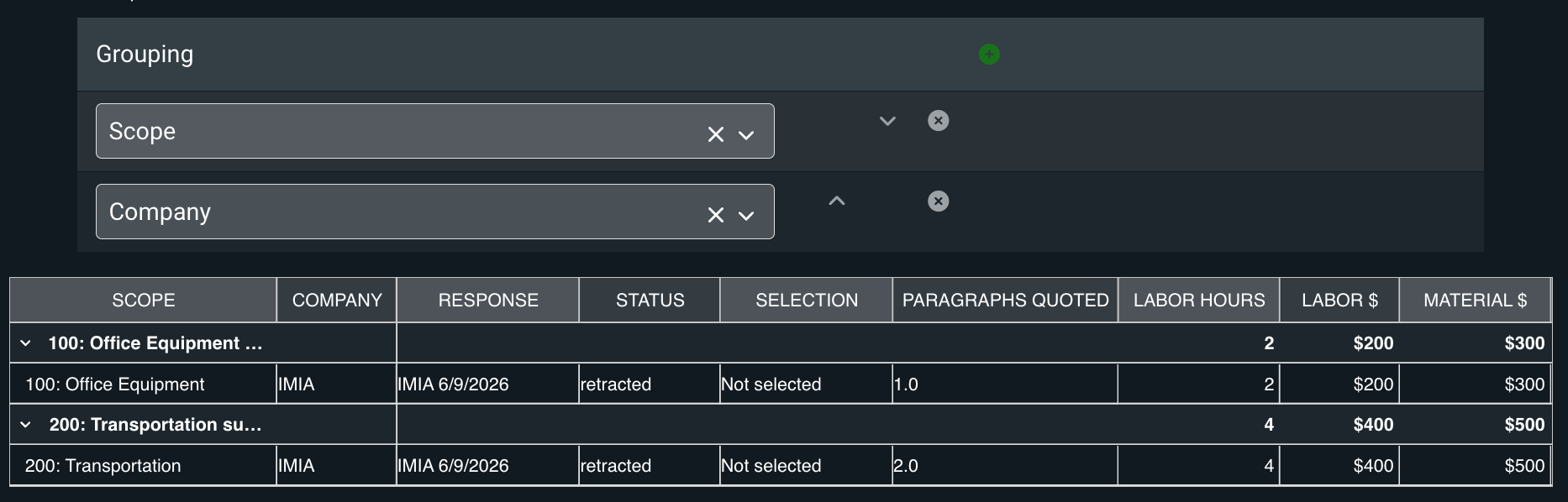
This tab lets you run pivot reports for all responses. It defaults to Scope and Company as the groupings, but you can choose other options. You can also add and delete groupings, and change the order of groupings.
Bidder Notices
Here you can communicate with the company. They can ask questions in the portal which you answer here, and you can send notices that for companies to see in the portal.
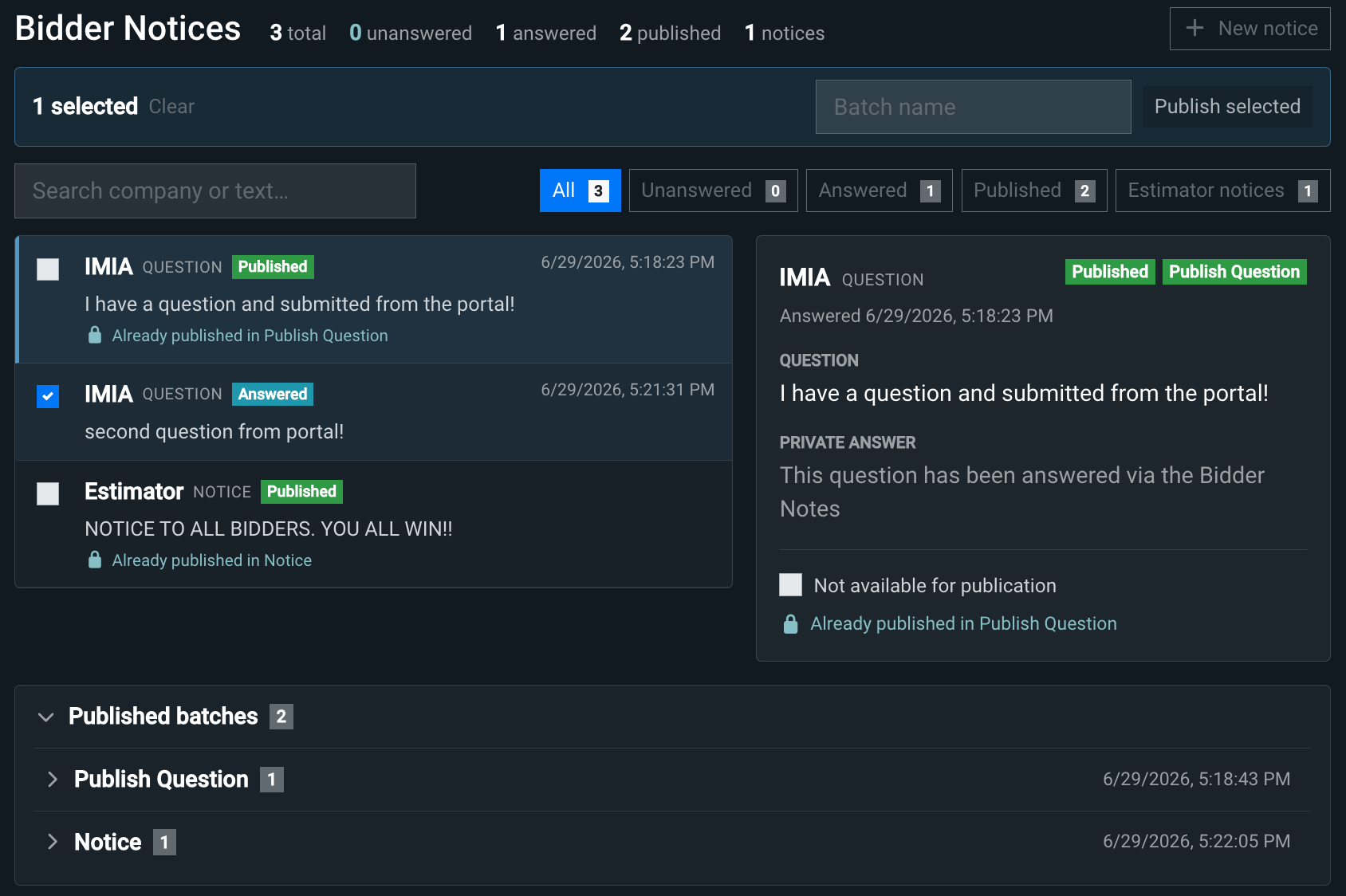
To view the details for an item, click on it on the left side, and the details will pull up on the right.
You can filter the items by whether they’re answered or not, if they’re published, or if they’re notices – or you can just search. The search will match terms in the company name, the question or notice, and the answer.
Note that ‘publish’ here means push out to all active Invited and Re-solicited companies for the RFQ. Questions can be published, in addition to notices. Publishing is done in batches, so you don’t have to do each one separately.
Questions
In addition to answering questions, you can publish them. This is handy if, for example, a company catches an error and you need to inform everyone.
To answer, select the question on the left, type the answer into the box on the right, and hit the Answer privately button.
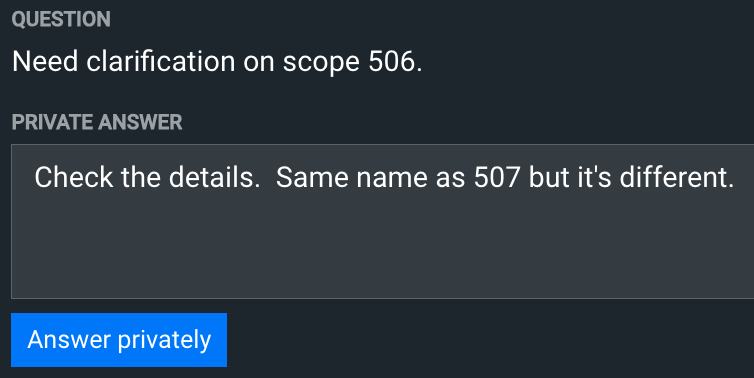
You can also resolve a question as a duplicate. Just choose one of the options and hit Resolve.
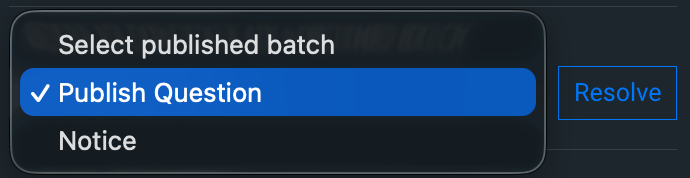
If you want to publish an answer, check the Select for publication box on the right.
Notices
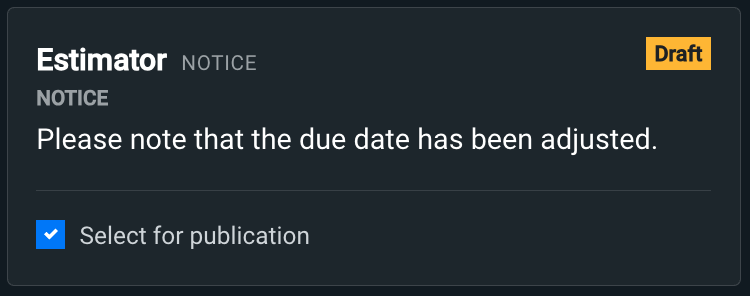
Use the + New notice button to add a draft notice. When you’re ready to publish it, check the Select for publication box on the right.
Publishing
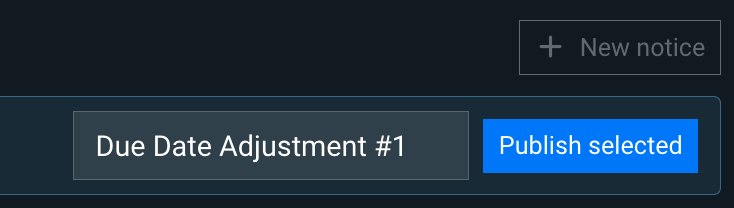
Once you’ve selected one or more items to publish, give the batch a name at the top, then hit Publish selected.
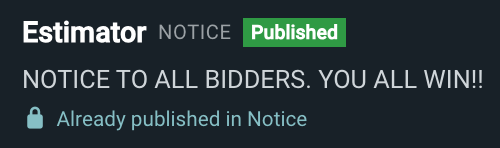
The entries on the left will update to show how they were published.
Responses and Response Selection
Here’s where the heart of RFQ work takes place. In short, you can review incoming responses from companies, create and manage responses on behalf of companies, and select responses.
See our RFQ Responses guide for all about that.
Settings
This tab lets you modify basic information for the RFQ.
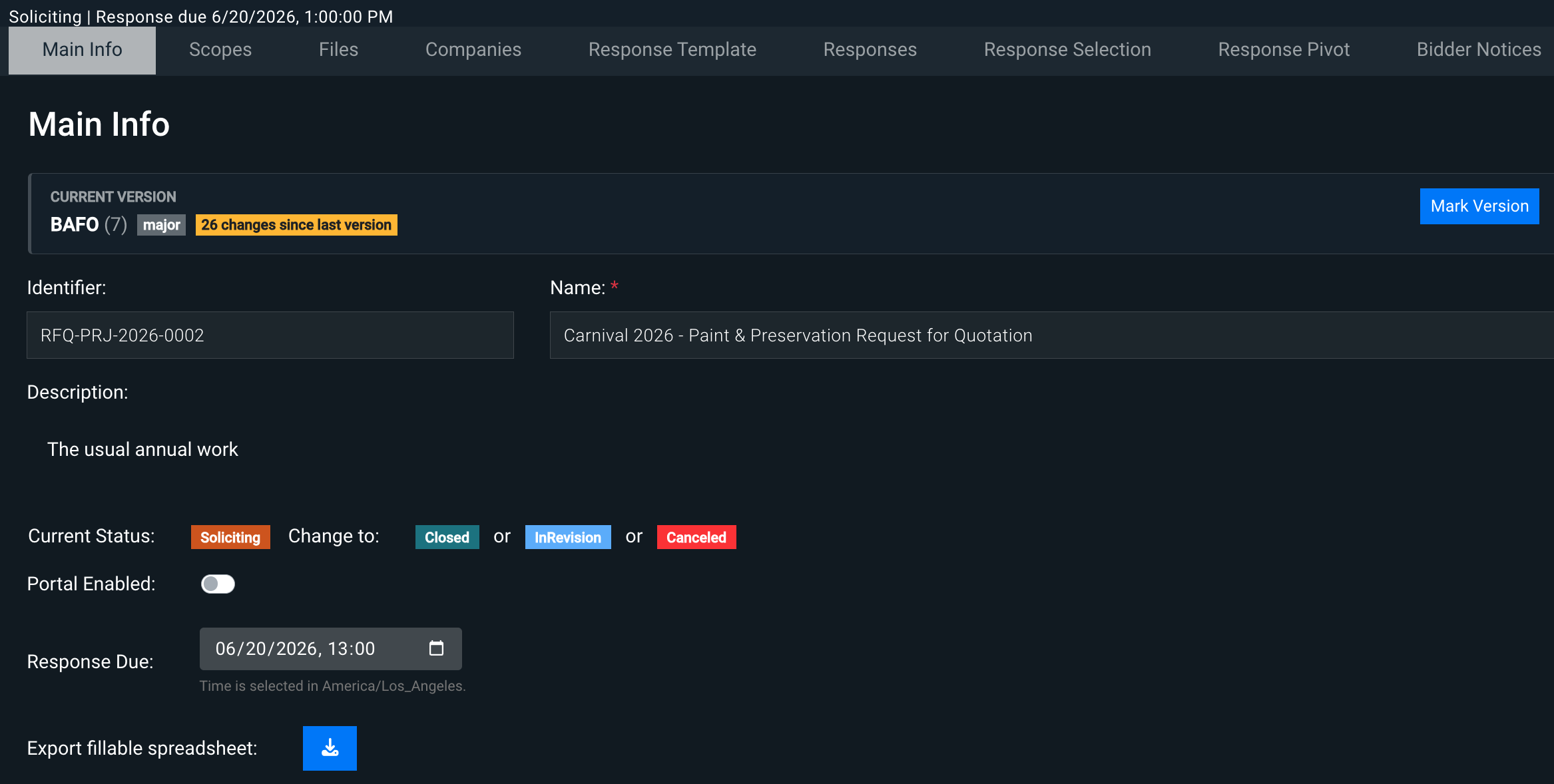
Here’s a summary of each of the elements in this tab.
- Version info – Provides version information and a button to mark a new one.
- Current Version info – Shows the label for the current version, plus whether it was marked as a minor or major version.
- Name – The editable name of the RFQ
- Description – A text description, if any, for the RFQ
- Current Status – Where in the workflow the RFQ is, plus buttons to change to a different status as allowed by the workflow (in the image above,
SolicitingandCanceledare those buttons) - Portal Enabled toggle – Controls whether this RFQ can be seen in the OAE portal. In Development, this toggle can be flipped back and forth, but in all other RFQ statuses, it can only be turned on.
- Response Due Date – The date that responses to the RFQ are due
- Export Fillable Spreadsheet – If you’d rather fill out a spreadsheet with an RFQ’s details and import it, use this option.
Now let’s look at those elements in more detail.
Version info
In order, here’s what this section shows you.
- The current version’s Name
- The number of versions that have been created, in parentheses
- Whether the current version is major or minor
- The number of changes, if any, since the current version was marked
- A button to mark a new version
Identifier, Name, and Description
Identifier is a read-only field, while you can modify the RFQ Name at any point. The value for Identifier is generated when the RFQ is created; the schema is RFQ-PRJ-yyyy-nnnn, where yyyy is the year the RFQ was created and nnnn is a sequential index. So in the above screenshot, the RFQ’s Identifier tells you it’s the sixth one created for that project in 2026.
Use the Description field to provide information that companies will need to adequately respond to the RFQ, like a summary, selection criteria, special instructions, etc. Description is displayed in the portal.
Status
To move the RFQ to a new status, pick one of the Change to buttons and click it. You’ll get a confirmation screen.
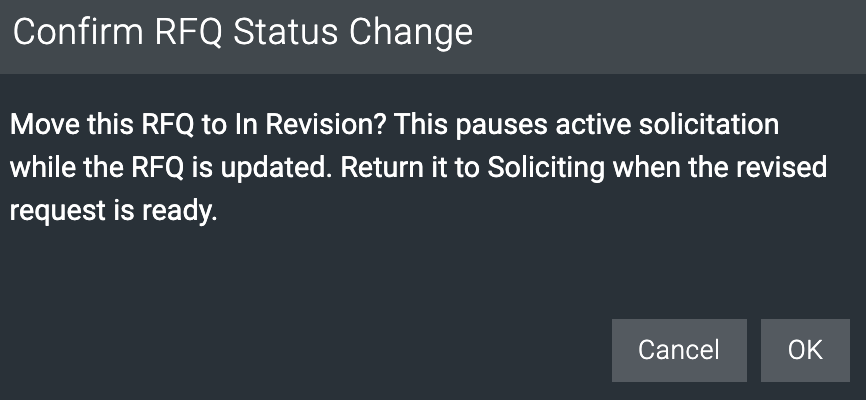
See above for more on the statuses and workflow.
Portal Enabled
This toggle button lets you control when the RFQ can be shown in the OAE portal. It’s available for all statuses except Done and Canceled.
There are other criteria that affect whether the RFQ will actually appear in the portal.
- The RFQ status is Soliciting or Closed
- The Company has been solicited for the RFQ
- The Contact using the portal is associated with the Company
For RFQs that are still in Development, you can toggle both ways to show or hide the RFQ in the portal. Once an RFQ is in Soliciting or a later status, the toggle can only be turned on.
Fillable Spreadsheet
This file will let OAE and portal users bulk import scope values for their responses.
Download it, fill it in, then upload it:
- In OAE: In a Draft response, use the blue Upload Attachment button.
- In the portal: In the response form, use the Import Spreadsheet button.
The contents of the file will be added as scopes.
Learn More
Check out the rest of our User Guides to learn more about OAE.