

In this User Guide, we’ll cover how to use the OAE RFQ portal to manage responses to, and communication about, RFQs you’ve been invited to bid on.
The OAE RFQ portal enables subcontractors to manage all the RFQs they’ve been invited to bid on. Portal users can submit, retract, and replace responses, fill out required forms, ask questions, and read notices from RFQ issuers.
Table of Contents
Logging Into the Portal
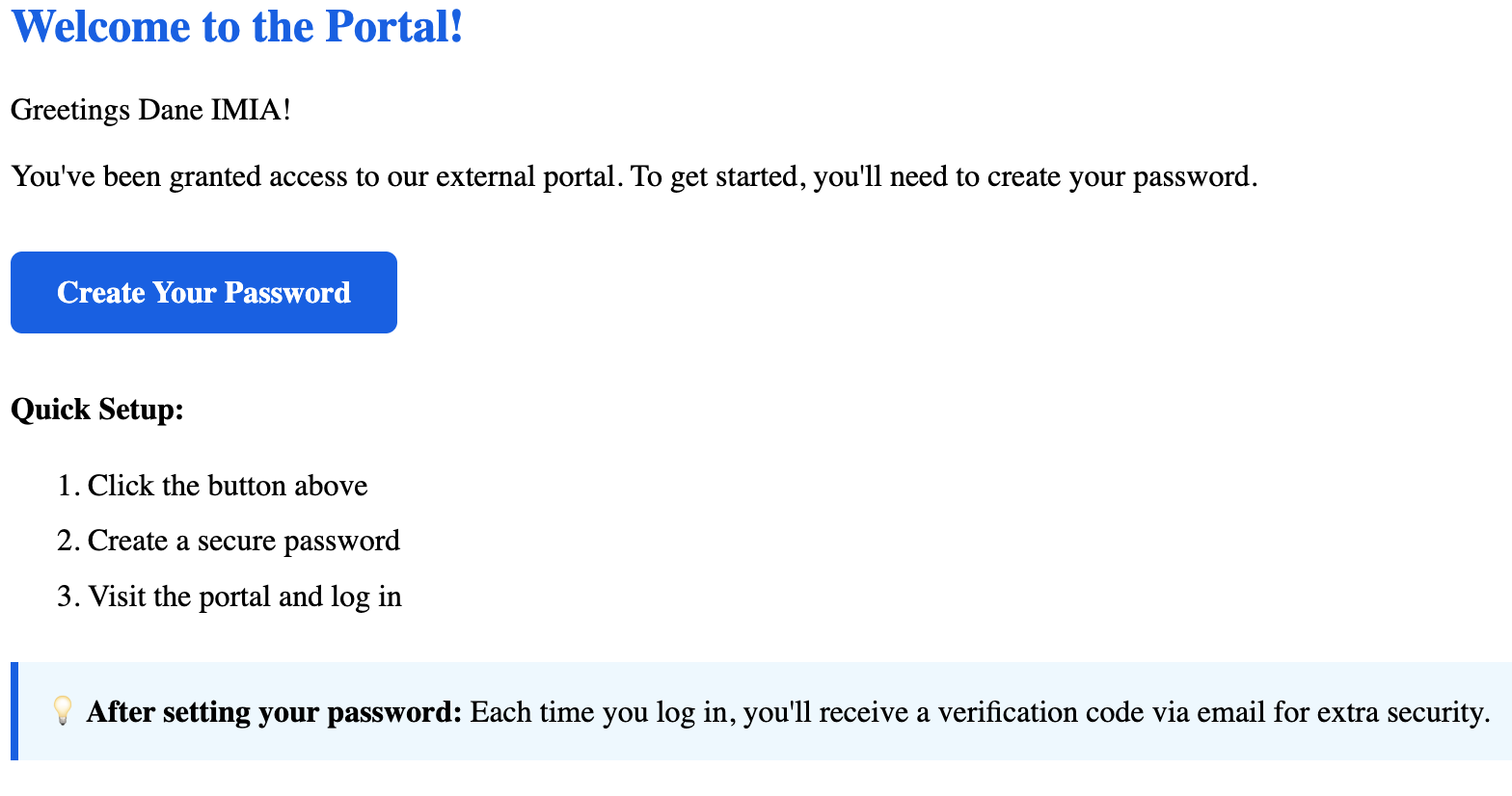
You will receive an email with instructions on how to access the portal and log in.
When you log in to the portal, you’ll land on the Dashboard by default.
Portal Header
At the top of every page in the OAE RFQ portal, you’ll find links to basic things like the dashboard, the About page, and logging out, plus the current username and company.

Portal Dashboard
The dashboard is your starting place for using the portal. It’ll tell you what needs to be done.
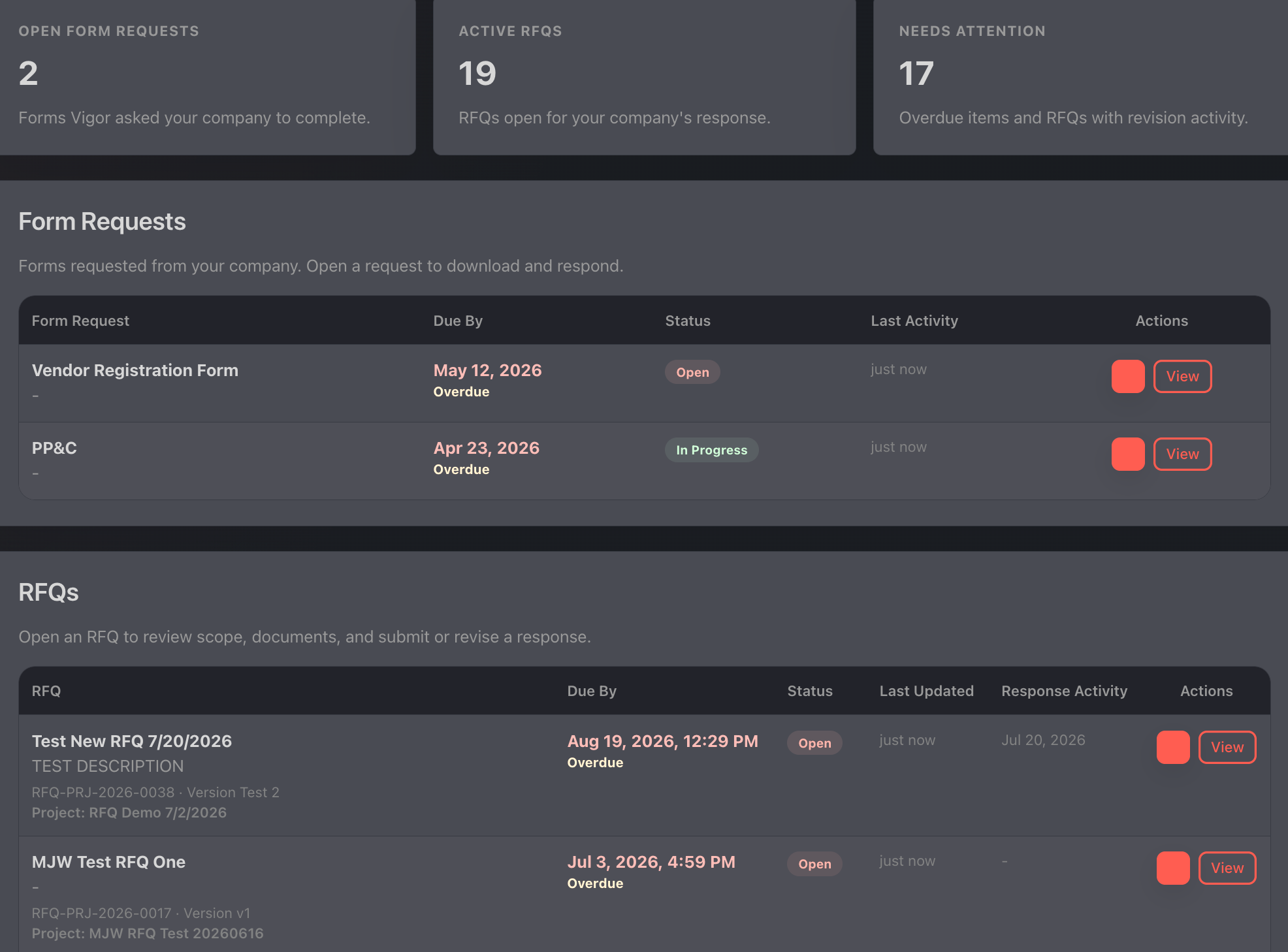
Here’s what you’ll find in each Dashboard section.
Overview row
The top row provides an overview of what you have going on in the portal, including:
- Open Form Requests: Outstanding company forms that still need a response.
- Active RFQs: Live solicitations that are still relevant to your company.
- Needs Attention: Overdue items and RFQs with revision activity.
These items will help you know where to focus.
Form Requests
This is a list of form requests the RFQ issuer sent you that still need a satisfactory response. You can download the form as a PDF using the download button on the right, or click the form request name or the View button to go to the form request’s page.
Form Request page
This information is pulled from OAE into the OAE RFQ Portal.
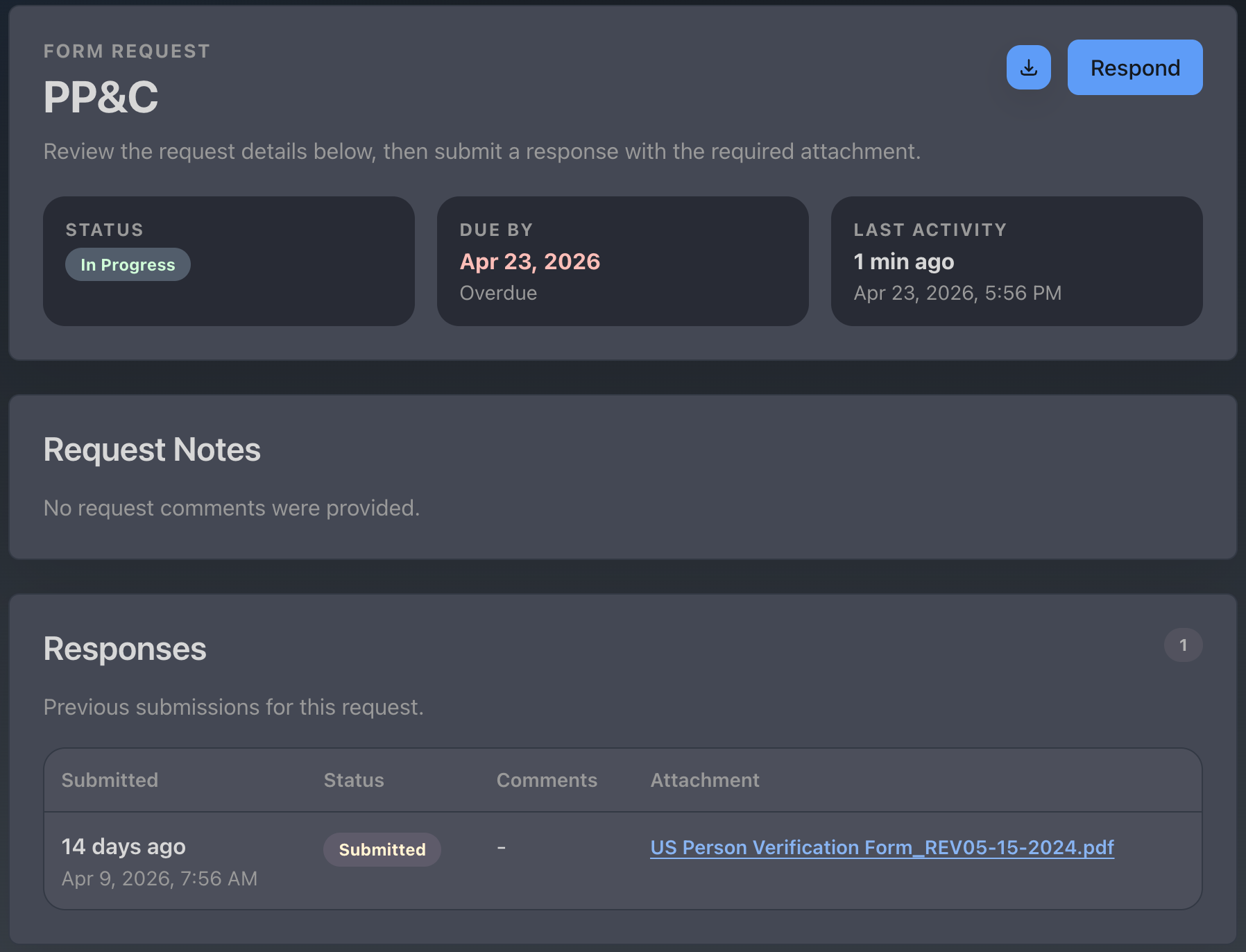
You can download any attachments to review, then respond back to the sender; responding must include a file attachment, but doesn’t require a comment. The sender will review your response in OAE.
RFQs
And, of course, here we have the RFQs themselves. You will only see RFQs in Open or Closed status.
In the RFQ table, you get an overview of what’s going on with each RFQ – including whether the RFQ is overdue – and you can download the response template for each.
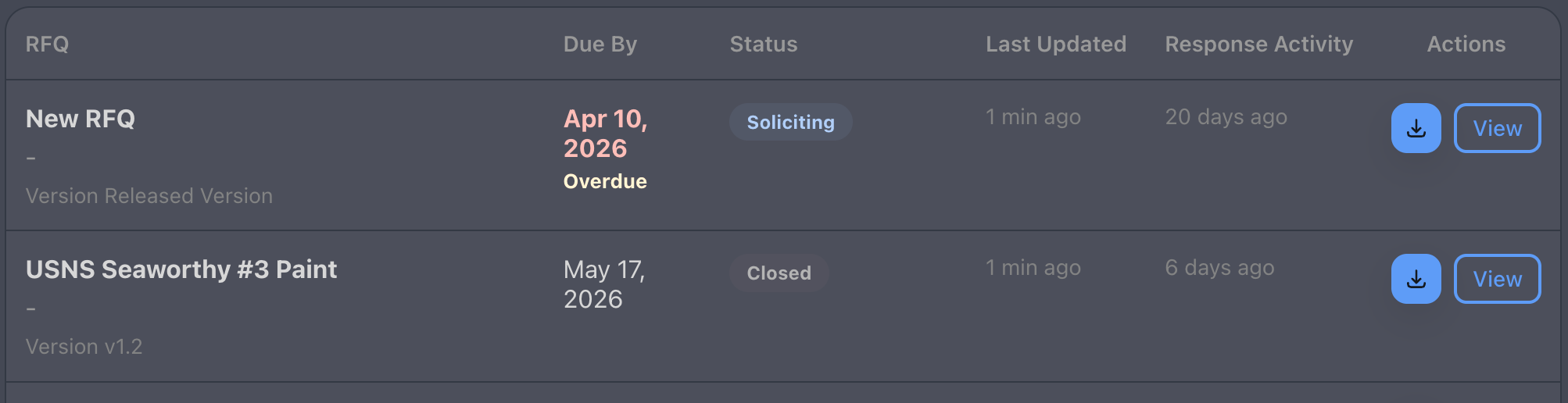
The RFQ column shows you, from top to bottom:
- The RFQ’s Name, which is a link to the RFQ page
- The description provided by the issuer
- The RFQ’s identifier and its current version
- The project’s Name
To view an RFQ in the OAE RFQ portal, you can click either on the View button on the right, or on the RFQ name on the left.
RFQ Page
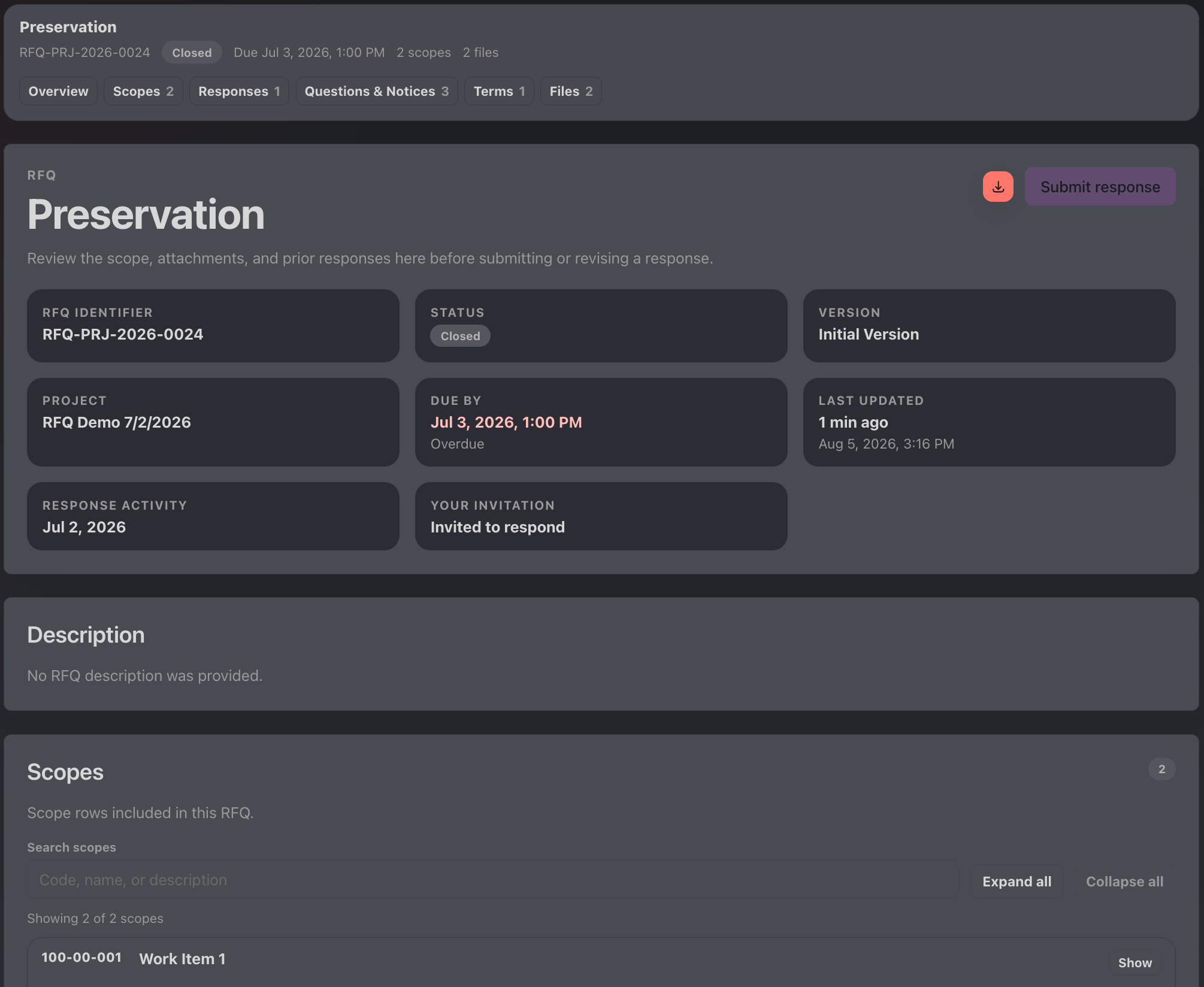
The RFQ page has eight sections.
Header
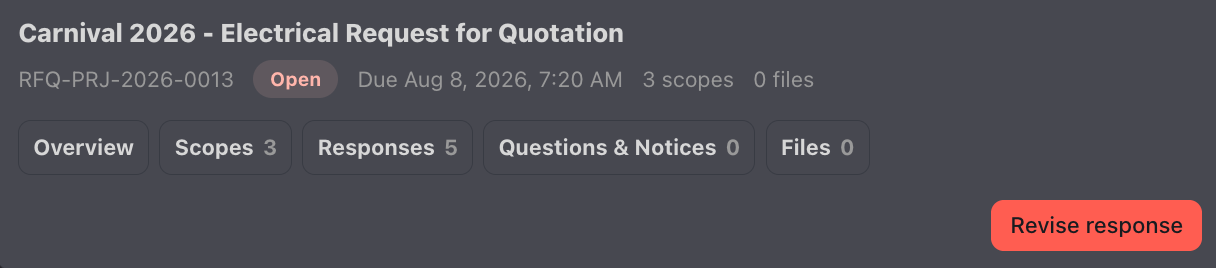
Here we have a quick summary of the state of the RFQ, including the name (e.g. “RFQ Files Test” in the above example) and the unique identifier you can use to refer to the RFQ (e.g. “RFQ-PRJ-2026-0018” above). You can jump to the sections below by clicking on Overview, Scopes, etc.
The header also offers an action button that varies by context – for example, in a new RFQ it’ll be Start response, and if the RFQ issuer has requested a revision to a previously submitted response, it’ll be Revise response. Either way, the button will pull up the RFQ Response page – see below for more on that.
This section is sticky, so as you scroll down the page, it stays visible at the top.
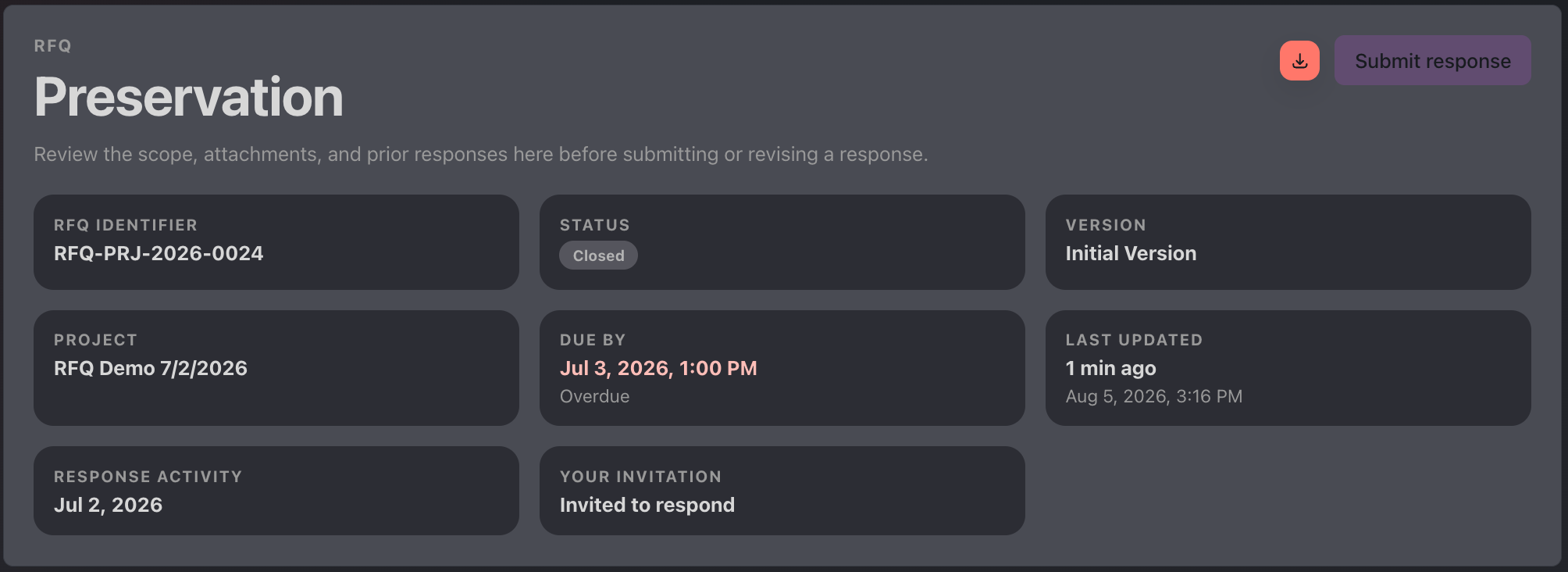
Overview
This section gives you basic info about the RFQ, plus a template download button if you want to import your response data via a spreadsheet, and a button for starting a response (see RFQ Response page below).
Description
Here you’ll find general information provided about the RFQ.
Scopes
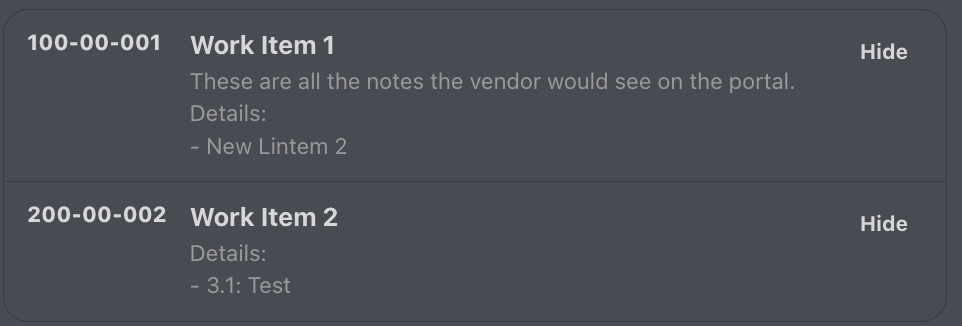
Each row shows you the code and name for the RFQ, along with how many work classifications are included. In the upper right corner you’ll see the total count of scopes.
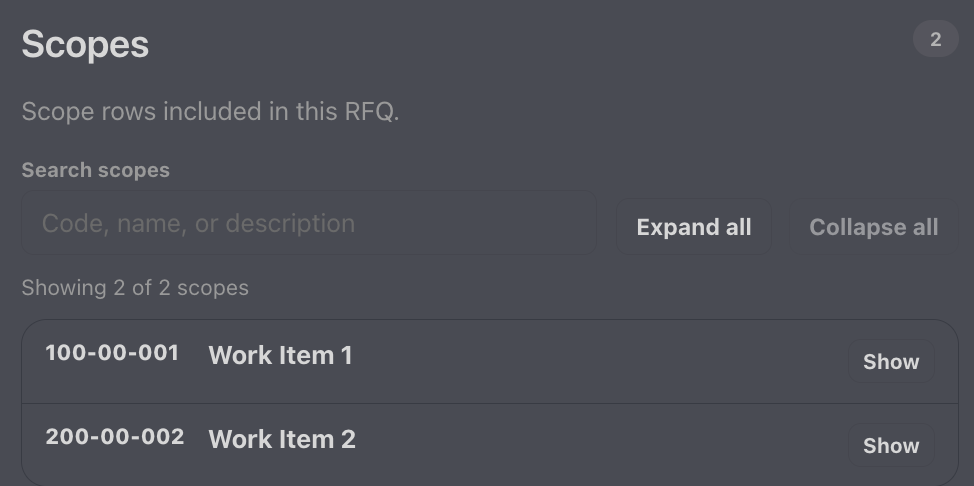
Use the ‘Search scopes’ box to filter the list of scopes. You can search by a scope’s Code, Name, or Description; the search is case-insensitive, and spaces will be taken literally, so you can search for normal text phrases like “blast and coat.”
To view a scope’s details, click the Show button for that scope. Expand all will do the same for all scopes.
Responses
This section shows the list of your responses to this RFQ.
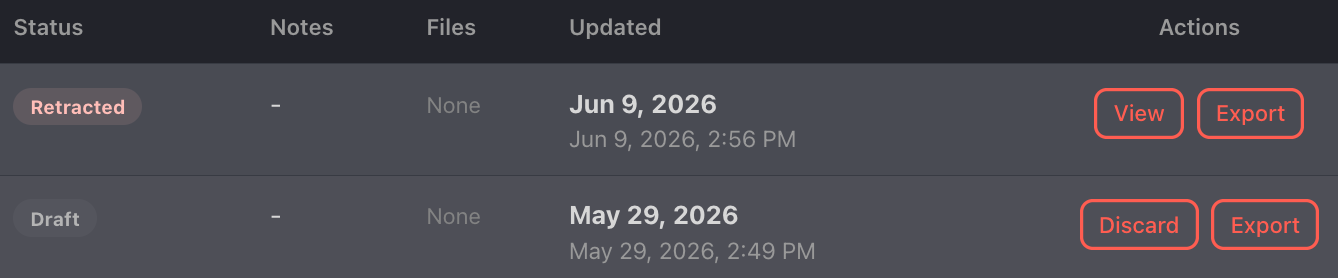
Status will be one of the following:
- Draft: A partially completed response that has not been submitted
- Processing: The response was submitted and is being processed by the system.
- Submitted: The response was submitted successfully
- Submission Failed: The response was submitted, but something went wrong. You will have to copy it and try to submit again.
- Retracted: The response was submitted, then retracted so it won’t be considered.
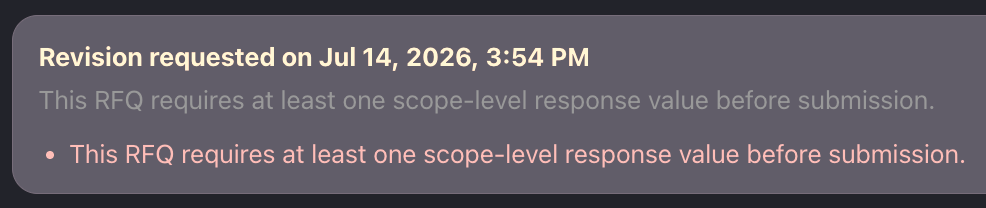
- Revision Requested: The RFQ issuer requested a revision to this previously submitted response.
- Replaced: A newer revision has been accepted.
If a revision has been requested for a response, it will be flagged by a box like this.
You can view/download any response files – by clicking on the link in the Files column – and take several Actions depending on the status of your company’s invitation, the RFQ, and the response.
- Discard – Available for Draft responses, to delete it.
- View – Available to every response except Draft, so you can pull up the RFQ page. See below for more on this.
- Export – Available to every response, downloads an XLSX file containing basic RFQ info and the response’s scope details.
- *Continue – Available to Draft responses, so you can keep working on a response that wasn’t ready to submit before.
- Retract – available to Submitted responses, so you can withdraw from a bid, pull a response with incorrect information so you can replace it, and so on.
- *Revise response – available to Submitted responses, so you can revise the previous response based on requester feedback. This will open the Response screen, where you can edit the details before submitting the replacement response.
- *Start new from this response – Available for most responses, this copies the response as a new Draft.
The actions marked with * all pull up the RFQ Response page – see below for more on that.
Questions and Notices
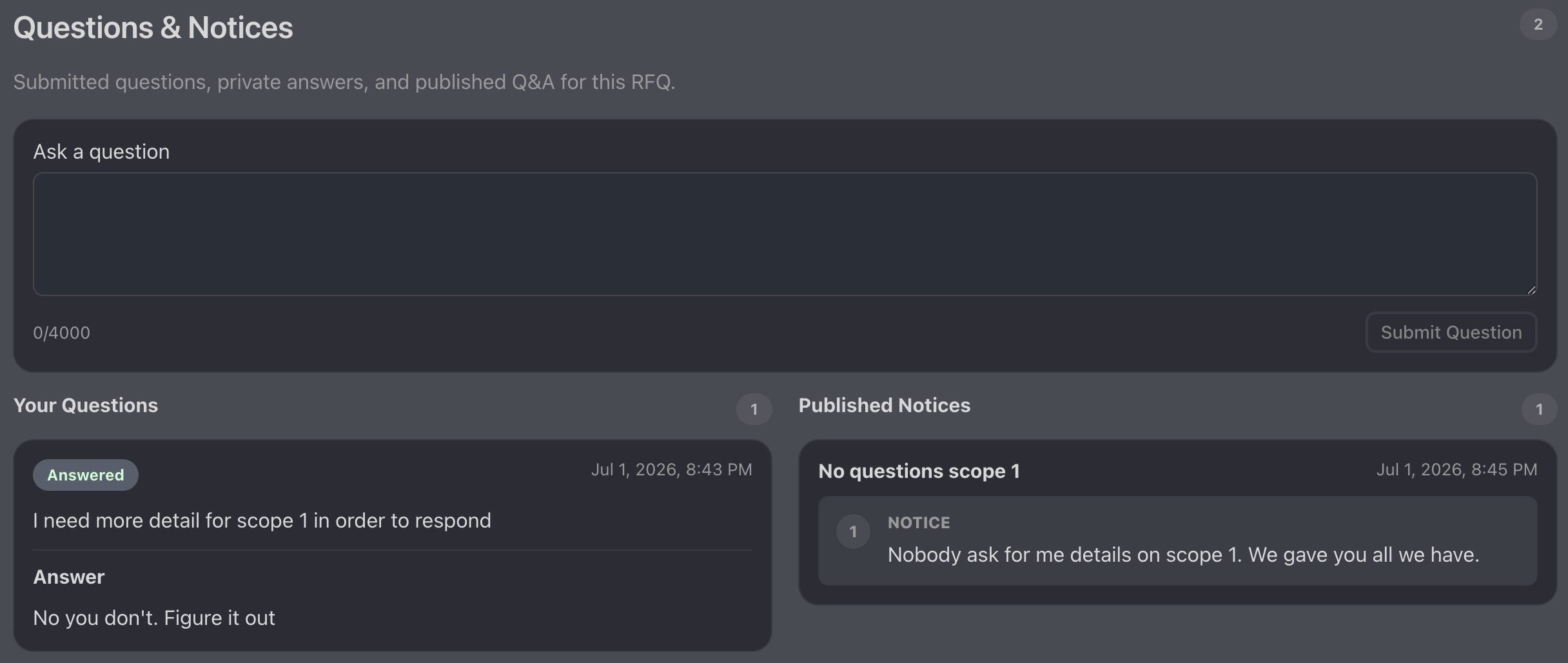
If the RFQ is in a state that allows questions, you can ask one here. Once you submit, it appears in the Your Questions box. When the RFQ issuers provides an answer, it will appear under the question. Questions have two statuses, Submitted and Answered.
Published Notices provide information the RFQ issuer wants all bidders to have. They can take several forms, including direct messages as well as answers to questions that the issuer thinks would be helpful to all bidders.
Terms and Conditions
This simple section just displays the T+C for the RFQ. When you go to submit a response, you’ll be prompted to accept.
Attachments
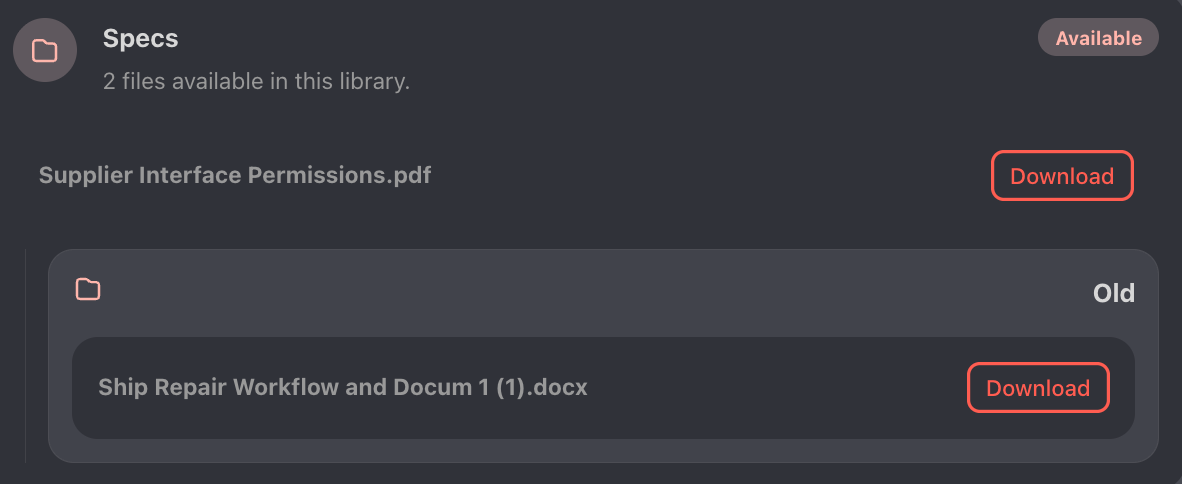
In the above image, there is a folder named Old, that contains the Ship Repair Workflow document.
If a file’s Data Classification makes it available to you, use the Download button to get a copy.
View Response page
When you view a response, you’ll see the same information the Responses section showed you – plus the Structured Response section, which shows the values provided for each scope.
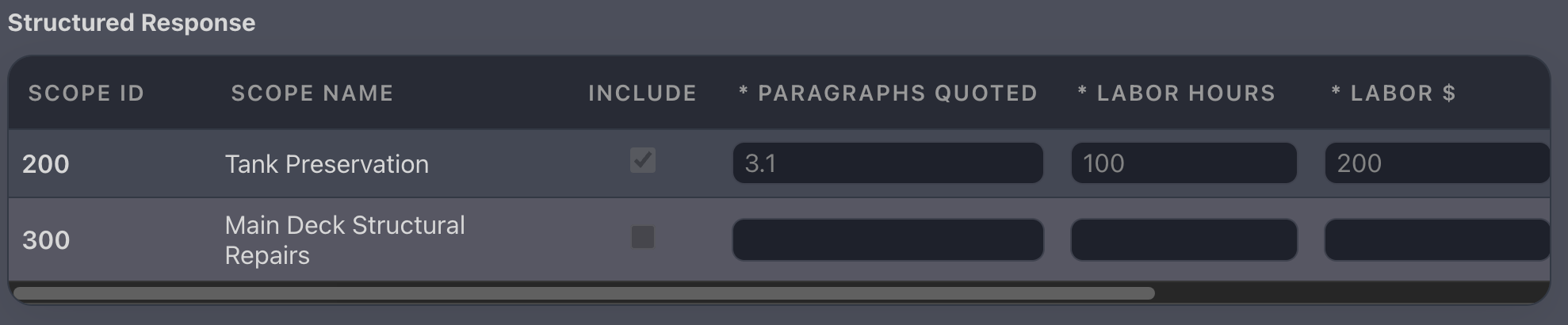
In the top right, you can Export the whole response as an XLSX file.
RFQ Response page
Whether you’re starting a new response, revising one, etc., the Response form is the same. Check the note at the top to make sure you’re doing what you meant to.
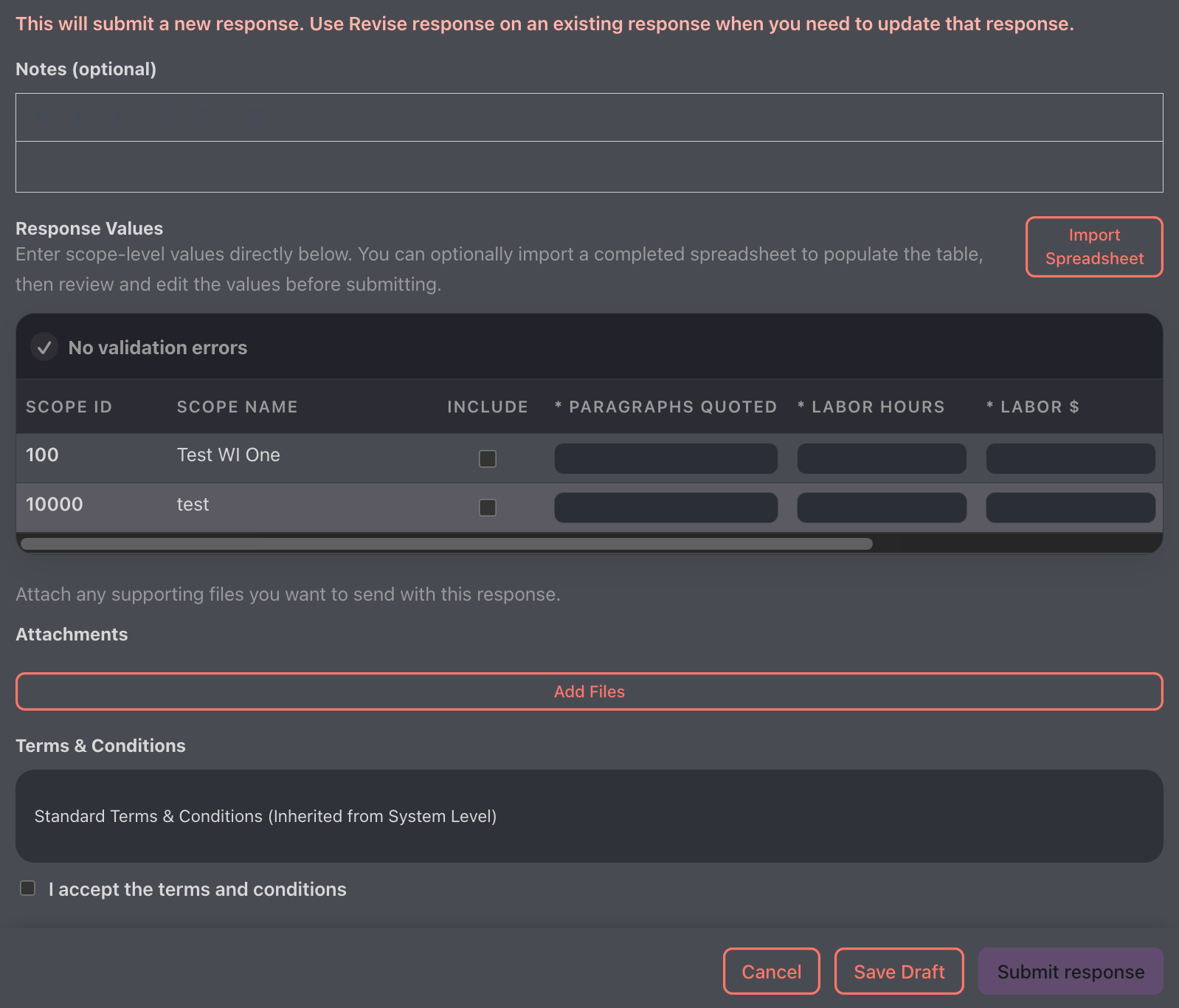
Here’s what you can do in this page.
Notes
Use this to provide the issuer any additional or explanatory information they might need to properly process the response.
Response Values
By default, the form assumes you’re entering scope values manually, but if you downloaded the template on the main RFQ page, and are ready to import a filled-out file, use the Import Spreadsheet button.
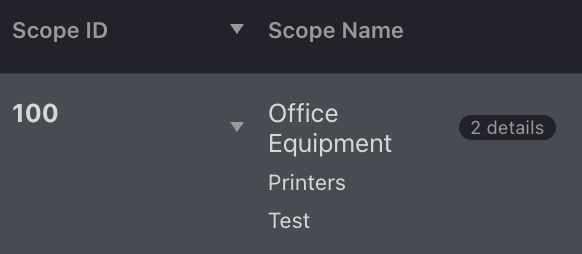
Note that if the RFQ issuer has added scope details, their names – and the count – will appear with the Scope Name.
Manual entry
As you enter mark scopes for inclusion in your response, and enter values, the system makes sure you’ve fulfilled the requirements (column names with * before them are required). Above the table you’ll see a summary of any errors, along with links on the right to jump to the problem rows.
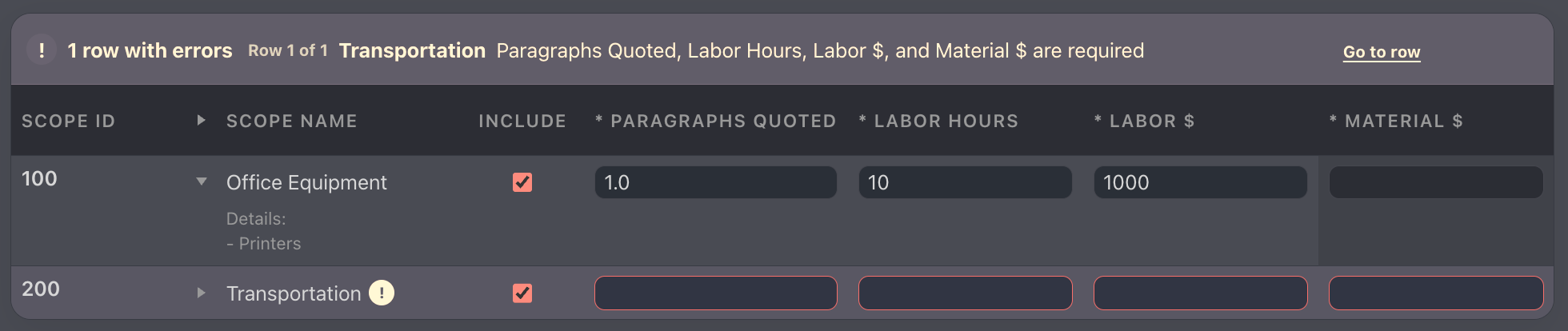
And within each row, if you see an exclamation point after a Scope Name, hover the cursor over it to see the error message.

Note that a required column may have fields you can’t edit, if that column is not configured for the scope. In the above example of scope values, you can see that Scope Id 100 lacks a value for MATERIAL $, yet there is no warning about that field being empty.
Import
Use this to populate the scope values from a spreadsheet. Once you upload the file, a form will pop up that lets you make sure the columns in the file get mapped to the correct response fields. Use the dropdown menus to change the response field. You can also tell the system to ignore a spreadsheet column.
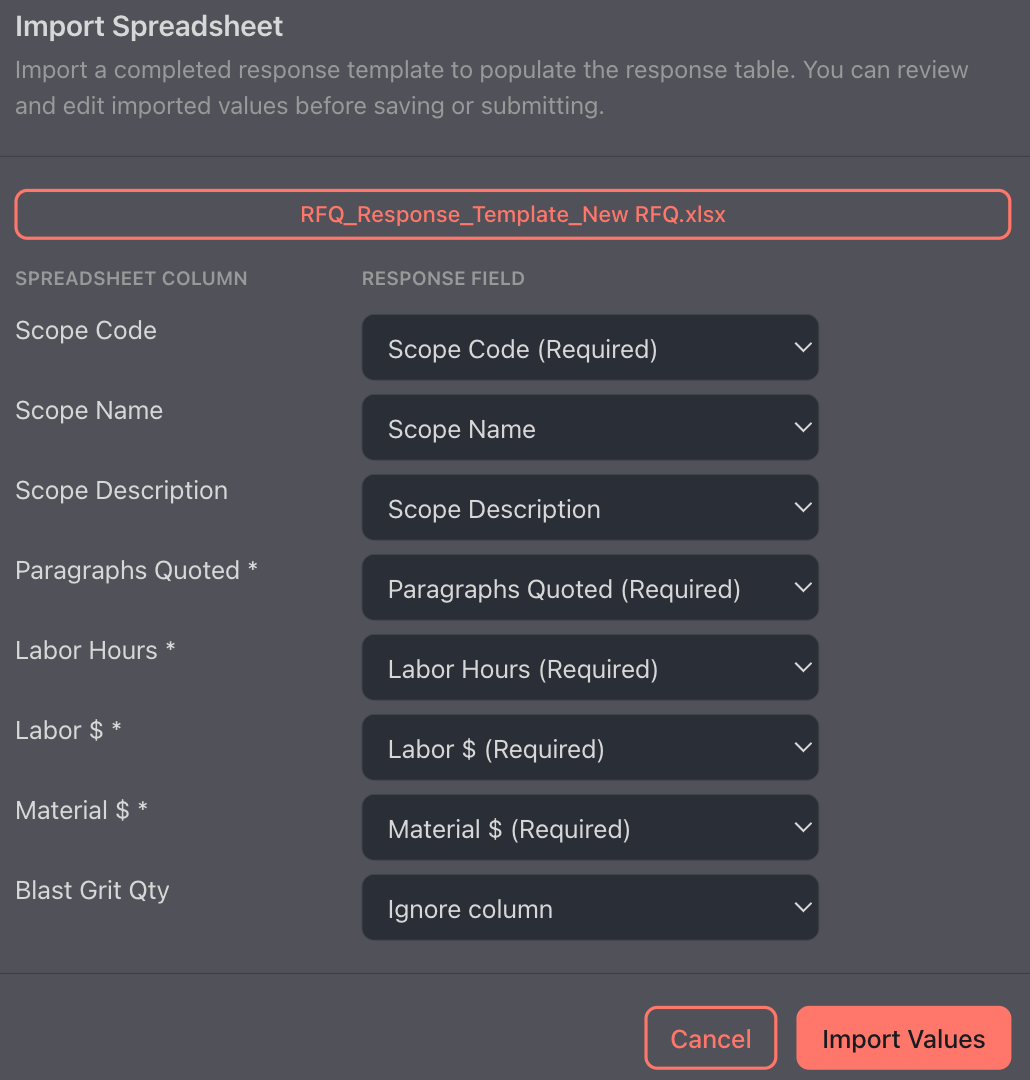
Hit Import Values when you’re ready to proceed. Once the scope values table is populated, if any of the scope columns in the imported file are not included for responses to this RFQ, you’ll see a warning box.
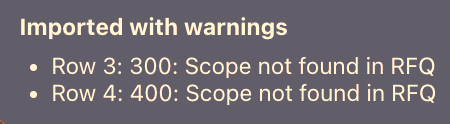
Attachments
Click Add Files to upload a file from your computer. Once you’ve added a file, you can remove it.
Terms and Conditions
Before you can submit a response, you have to read the Terms and Conditions and check the I accept the terms and conditions box.
Save a Draft
If you’re not ready to submit yet, use the Save Draft button at the bottom. The response will appear in the RFQ page as a Draft, where you can continue it later.