

In this user guide, we cover OAE RFQ construction, including preparation, adding scopes and files, and managing invitations.
RFQ construction in OAE centers, of course, around a project’s RFQs tab. That’s where you start and populate an RFQ, and manage it through its lifecycle. So let’s look at how you construct an RFQ, from initial creation through adding details to inviting a company to bid.
Table of Contents
These instructions assume you’re familiar with our general guide to RFQs in OAE.
Project Setup
Before constructing RFQs, there is some setup to do, both in the System menu and in the project’s other tabs.
Company Contacts
If any bidding companies will be using the portal, users must be added in OAE before they can be invited.
To do this, go to the System menu, then Companies, then the page for the company you want to add the user to. A full explanation of the company page is beyond this guide; the relevant section is Company Contacts.
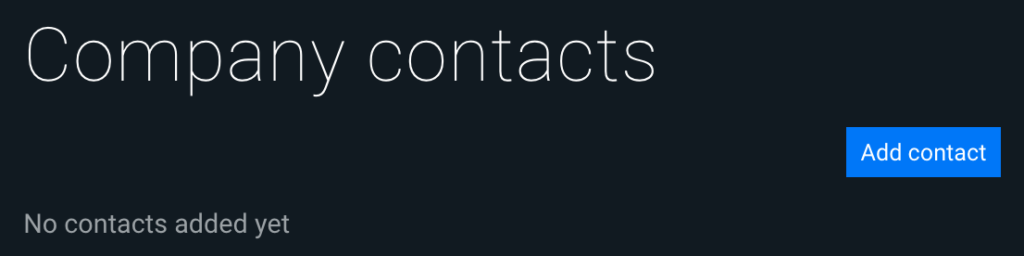
Hit Add contact and fill out as much of the form as you can.
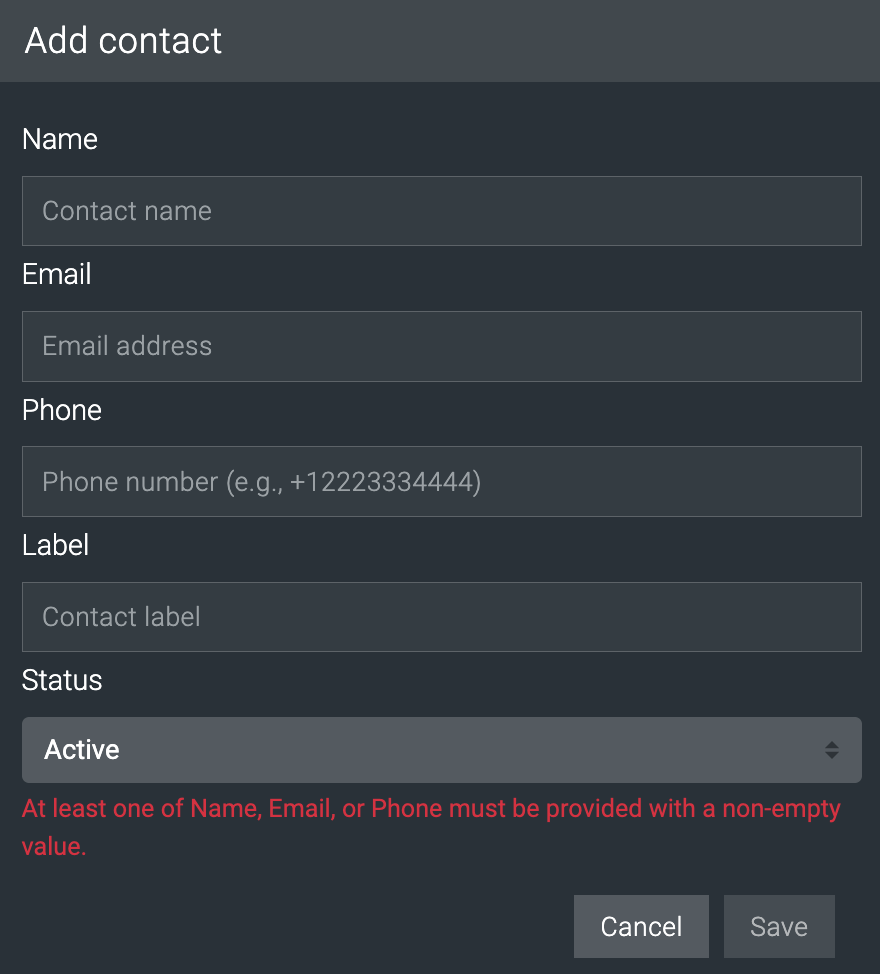
Note that while the form doesn’t require an email address, a user must have an email address to use the portal, since that serves as the login username; this email address will also receive 2FA security codes and user notifications from the portal.
The added user will receive an invite email with instructions.
Shared Libraries
While you can make files available to portal users in each RFQ, you don’t want to waste time adding the same files repeatedly. Shared libraries let you add files and folders to the project, once, then link to them from each RFQ.
To set up shared libraries, go to the project’s Files tab, and click on RFQ Shared Libraries. Here’s what it looks like empty.
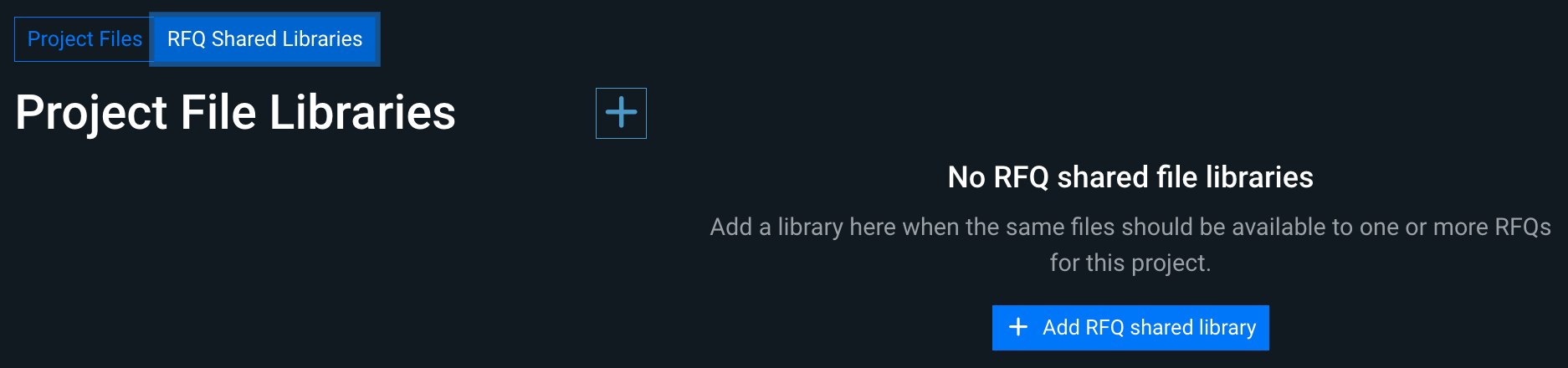
Hit the + Add RFQ shared library button to create the first one. The screen will split, with the list of libraries on the left, and the selected library’s contents on the right.
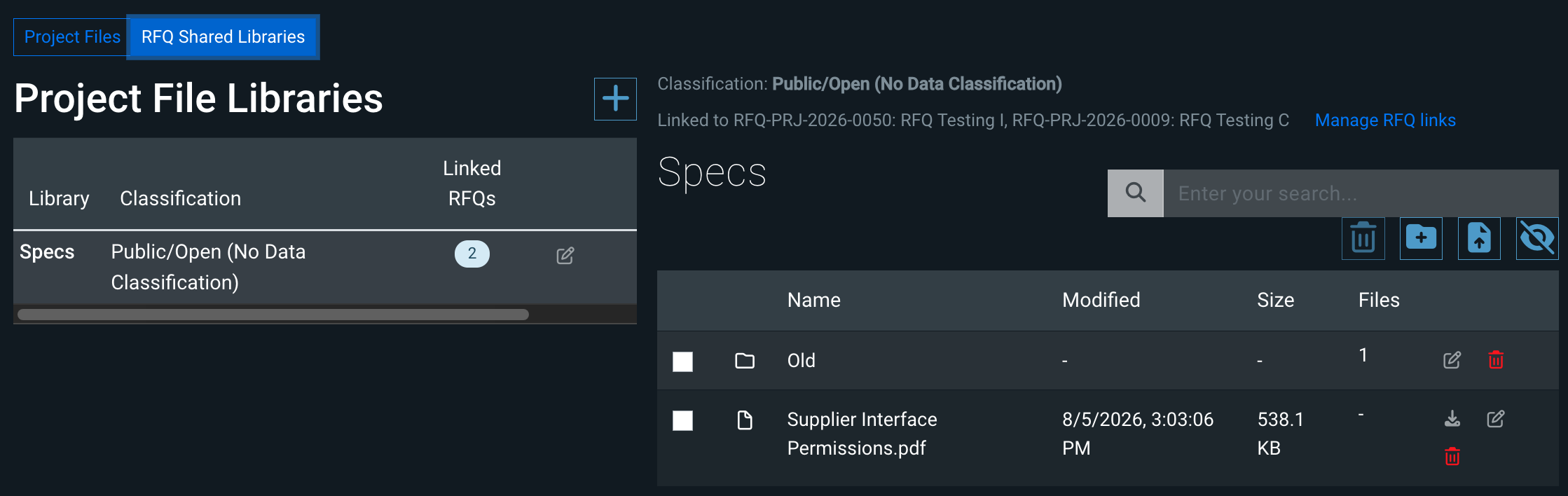
The Linked RFQs column in the libraries list is a bubble showing how many, if any, RFQs are linking to that library.
The right side lists the names of any RFQs linking to the library, along with a convenient link to the RFQs tab. The table toolbar lets you Delete any selected items, Add a folder, Upload a file, and Reveal any hidden system files.
To open a folder, just click on its row. Using the action buttons on the right, you can Edit or Delete any item; you can also Download a file.
Preparing the Work and Line Items
While OAE lets you manually add work and line items as scopes and scope details, for all but the smallest projects, this probably means a lot of repetitive, error-prone work – since those items are usually in the project already.
So when you’re adding scopes, you can just link to existing work and line items – and in bulk, without having to re-enter data. But you have to set up those items first so they’ll show up in the RFQ.
As we’ll cover later, the three elements of items you can use to link as scopes are Work Classifications, Rate Cards, and Flags. So that’s what you have to set up.
Rate cards
Rate card, of course, is a required value, so all you have to do is make sure any items that don’t use the project or work item default have been updated.
Work classifications
Work items and line items can be associated with work classifications, though the method differs:
- Work items: In the work item’s general settings tab, add one or more values to the Work Classifications field.
- Line items: Enable the Work Classifications column using the Filter Columns button, then populate the column for the items you want to add to scopes.
Flags
If any Project Flags are configured, you can add them to line items.
Creating the RFQ
In the project’s RFQs tab, click the blue + Add button. The Add RFQ screen will pop up.
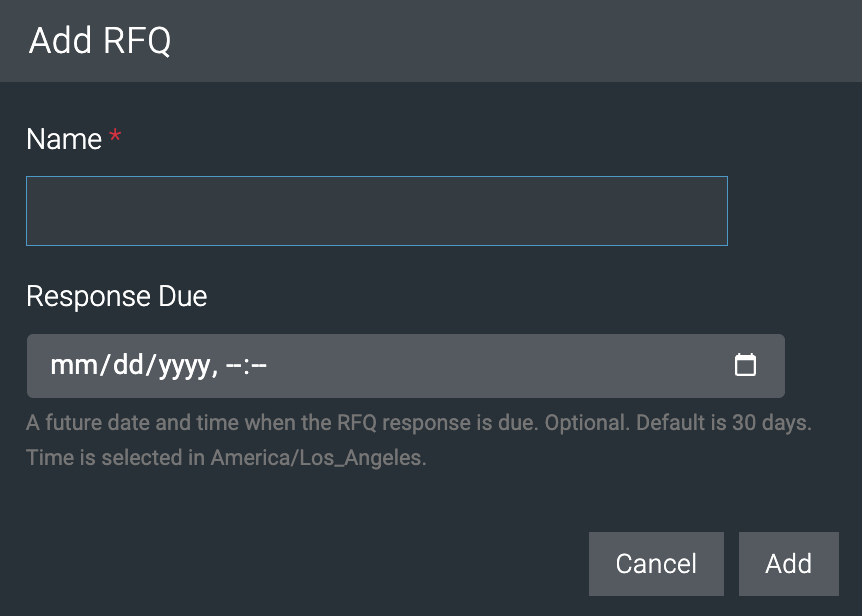
The RFQ name is the only requirement. You can provide a due date/time if you want, otherwise it defaults to 30 days from today. You can type in the date or hit the little calendar button to select a date.
Once you add the RFQ, you’ll be taken to the new RFQ’s Overview tab.
Overview
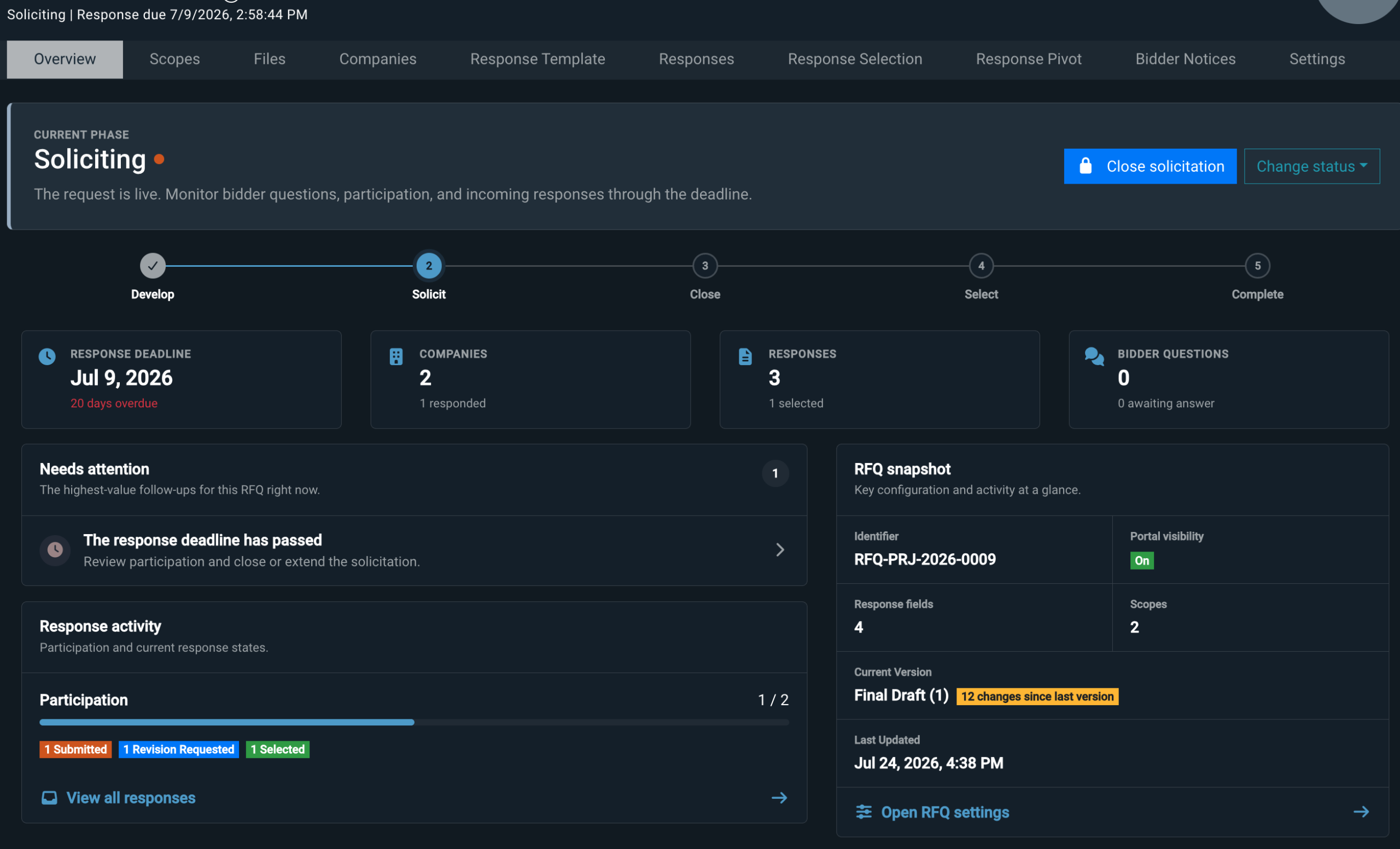
See the RFQ general guide for more about this tab, which is more relevant once the RFQ moves into Soliciting.
The first thing you’ll want to do is make sure the RFQ’s settings are accurate and complete.
Settings
See the RFQ general guide for an overview of the elements in this tab. Here’s what to do:
- Mark an initial version.
- Adjust the RFQ name if needed.
- Provide a description, and if bidders will be using the portal, make sure it’s aimed at them.
- If bidders will be using the portal, turn Portal Enabled on. The RFQ won’t actually be visible there until it moves to Soliciting.
- Make sure the Due Date is correct.
- If you’ll be handling responses for any bidders who won’t be using the portal, download the spreadsheet to fill out and import.
Pulling in Work Scopes
In OAE RFQ construction, the Work Scopes tab offers you three options for adding scopes, using the toolbar buttons to the upper right of the table.
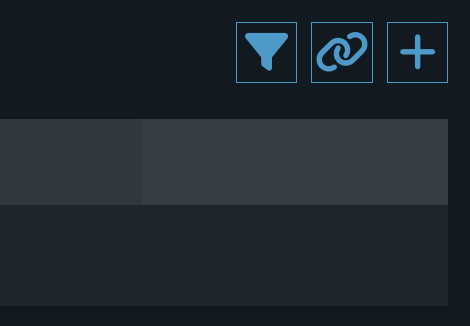
From left to right, the options are as follows.
Add Scopes and Details by Linking Filtered Items
This is what you prepared your work and line items for. For this option, scopes map to work items, and scope details map to line items.
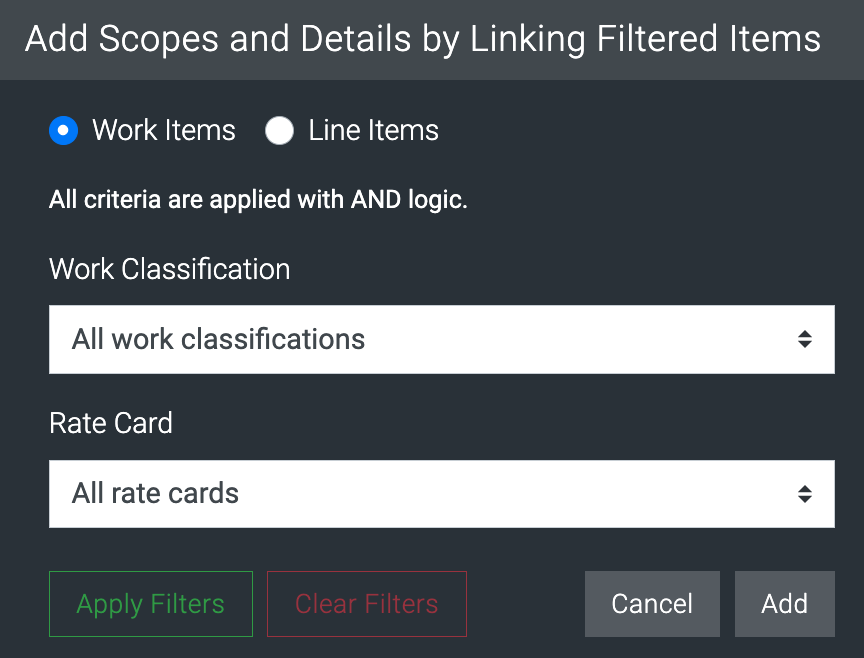
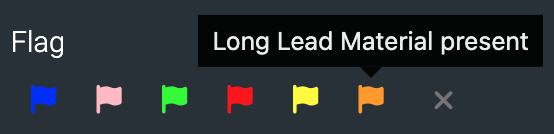
You can either add only on work items, or on work and line items. If you choose to add line items too, then the Flag filter will appear; hover the cursor over a flag to see its meaning. You can choose one flag.
The work classifications list comes straight from System Settings. If you don’t see a value you need, your admin can add it for you.
Once you’ve chosen all or one work classification, one or all rate cards, and one or no flags, hit the Apply Filters button at the button to preview the number of scopes and scope details your combination of filters would add.
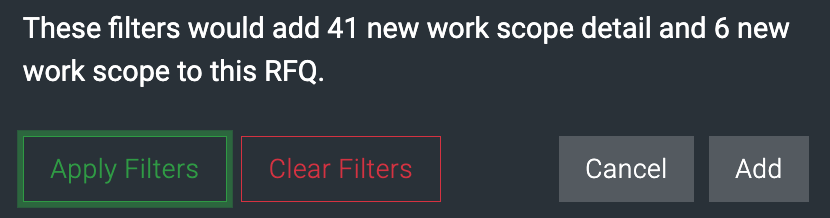
Once you’ve got the filters you want, hit Add. The screen will refresh to show you what you added.
Add a Scope and Detail by Linking an Item
This option lets you link just one scope and detail to existing items.
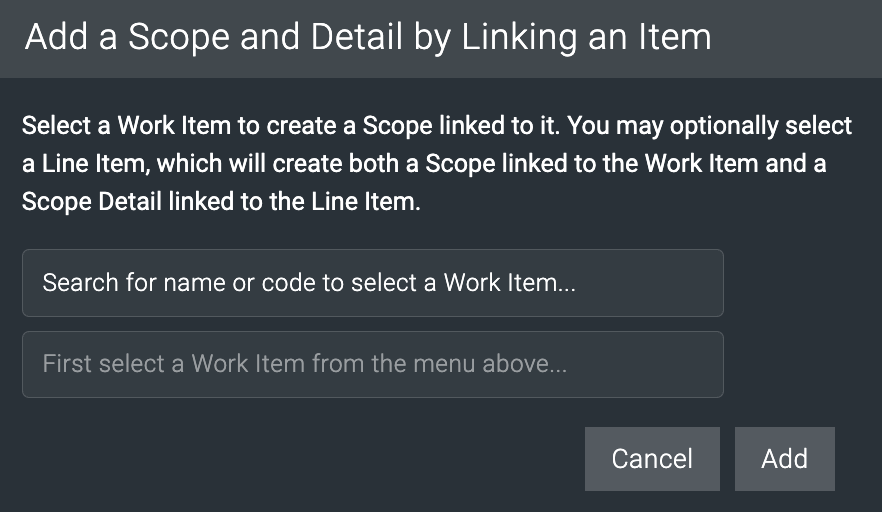
Both these fields are searches you type into, then select a value from the search results.
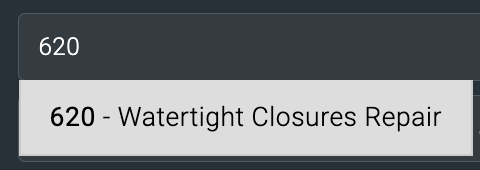
Search by code
This only works for the work item search.
Search by name
This works for both fields.
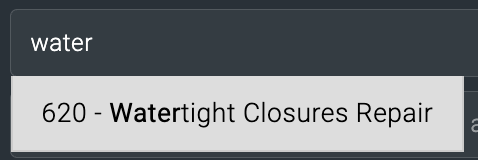
Hit Add to add the scope and detail using the selected work and line item. The screen will refresh to show you what you added.
Add a Basic Work Scope
This is the manual option. Just provide a Code, Name, or Description.
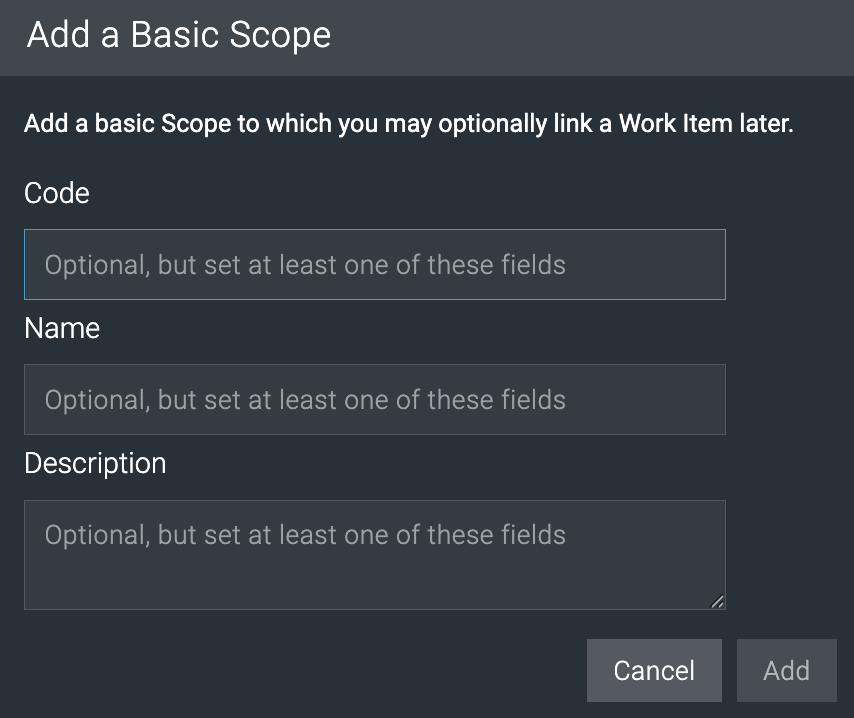
The scope won’t be linked to any work item, though you can do that later. Think of this as a quick placeholder, carrying with it the risk of ending up with a duplicate or mismatch with a scope that’s created via linking.
Working with Work Scopes
Once you’ve added a scope during OAE RFQ construction, you can use the Scopes table to change the order of the scopes or unlink, link, or delete a scope.
Linking a scope to a work item works the same here as it does when you add a scope by linking to a work item.
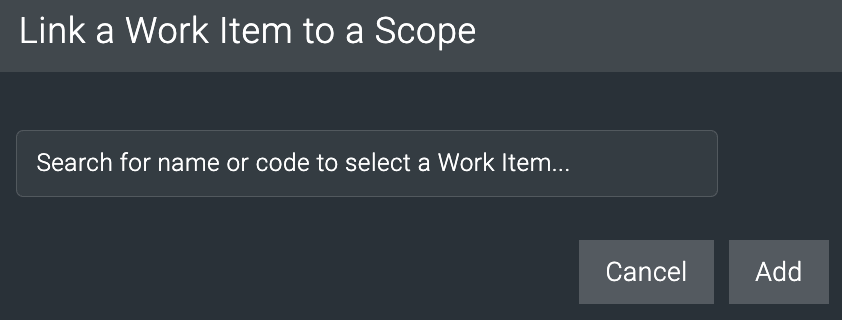
To see and modify a scope’s details, click on it to open it in the side panel. See the general RFQ guide for all about that.
The side panel is where you can edit the scope and add/remove/edit scope details.
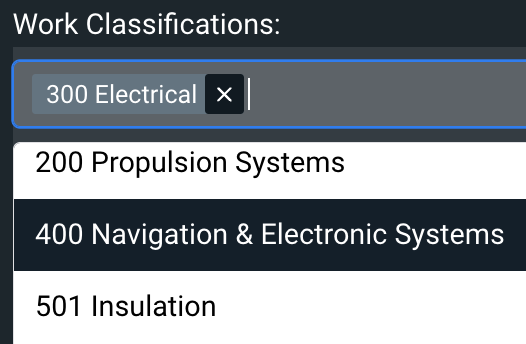
You can also include up to five work classifications in the scope; if you used any work classifications in a filter to add the scope, the relevant work classification will be pre-populated. To add another one, click in the Work Classifications field, scroll down, and choose a value.
Working with Files
In OAE RFQ construction, the Files tab lets you upload and organize files pertaining to the RFQ, and control which ones are visible to portal users based on their data classification.
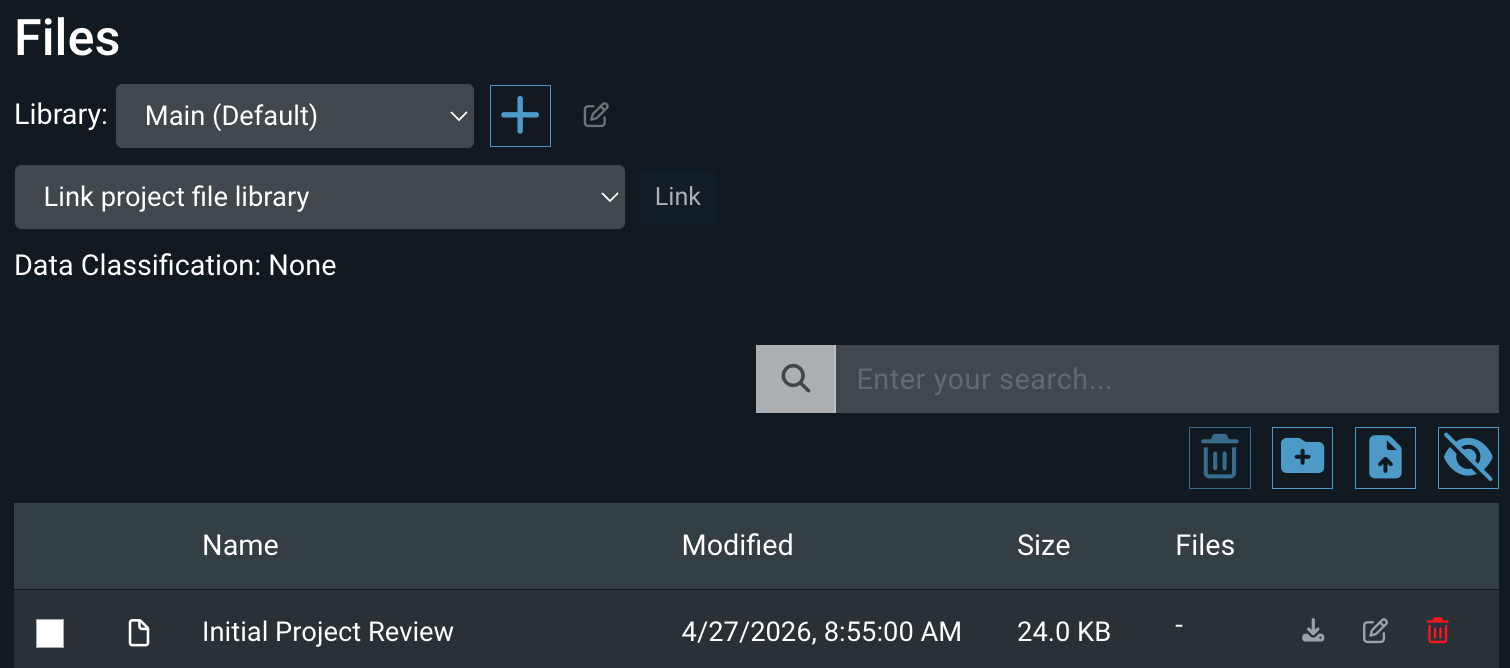
Here’s what you can do.
Manage libraries
The Library dropdown lets you choose a library to work with; the Main library is the default choice.
Use the + button to add a new library.
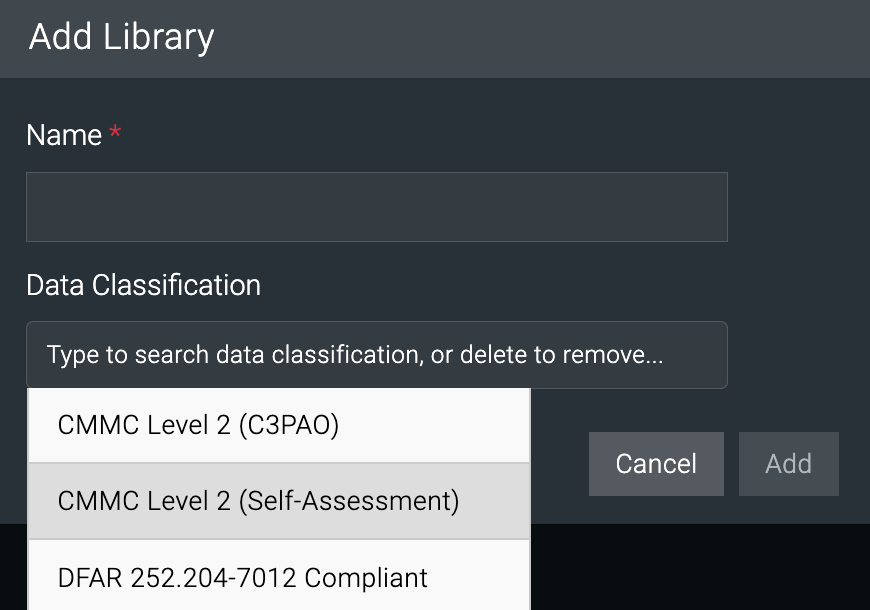
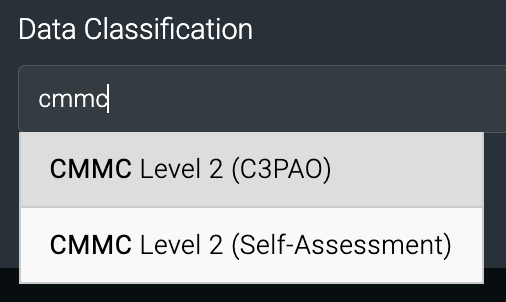
Only the name is required. To make sure only authorized portal users can see the contents of the library, choose a data classification. You can type in the field to narrow the list of options.
You can delete or edit the Name and Data Classification of any custom library using the icons to the right of the Library dropdown.
Whichever library you choose, its folders and files will appear in the table below – except for linked shared libraries.
Link to a shared library
Here is where you can add any shared libraries you set up earlier.
Use the Link project file library dropdown to choose a custom library.

The Link button will turn blue – click it.
The screen will update to reflect the change. The “(Project)” in the Library selection indicates that it’s a linked library, as does the presence of the Unlink button.
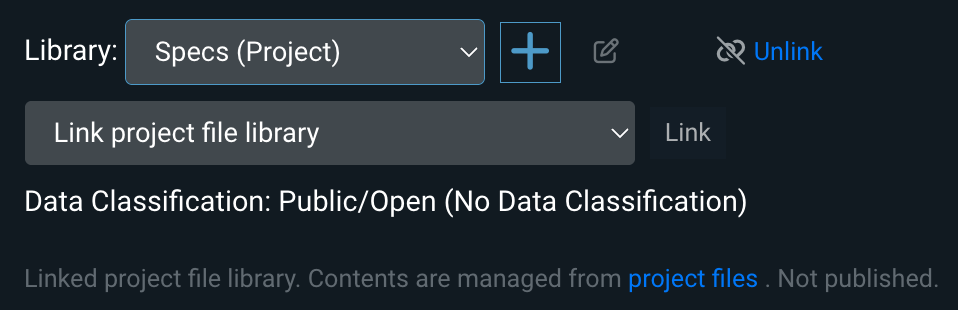
Note that the shared library’s contents are not displayed here, nor can you make any changes to the library’s content, since that’s managed in the project’s Files tab. The shared library contents are, however, shown to portal users just like folders and files you add here.
Search current library
The search box will live-filter the current list of file and folder names. Note that the search function:
- Only looks at the names of files and folders, not metadata or contents.
- Does not search inside folders, so you’ll have to open each folder, then search it.
- Is case-insensitive.
Navigate current library
The library list always shows folders at the top of the list. Folders and files are each displayed with the most recently-modified files at the top.
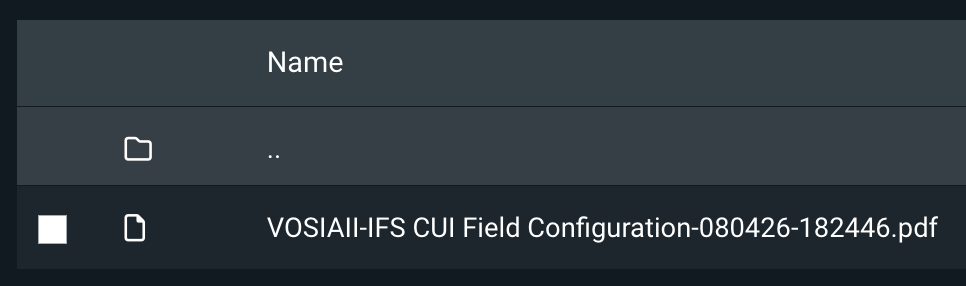
To view a file, download it using the action button. To open a folder, click once on it. When you’re inside a folder, click on the top .. row to go back to the parent folder.
Add folders and files
Using the toolbar, you can create a new folder or upload a file.
New folders just need a name. The Upload file button will open a dialog box so you can select a file from your computer’s file system.
Take actions on folders and files
Using the action buttons for each item in the table, you can Download it, Edit its name, or Delete it.
Note that deleting a folder will delete all its contents.
Managing Companies
Here is where you invite companies to submit estimates, and manage their solicitation status.
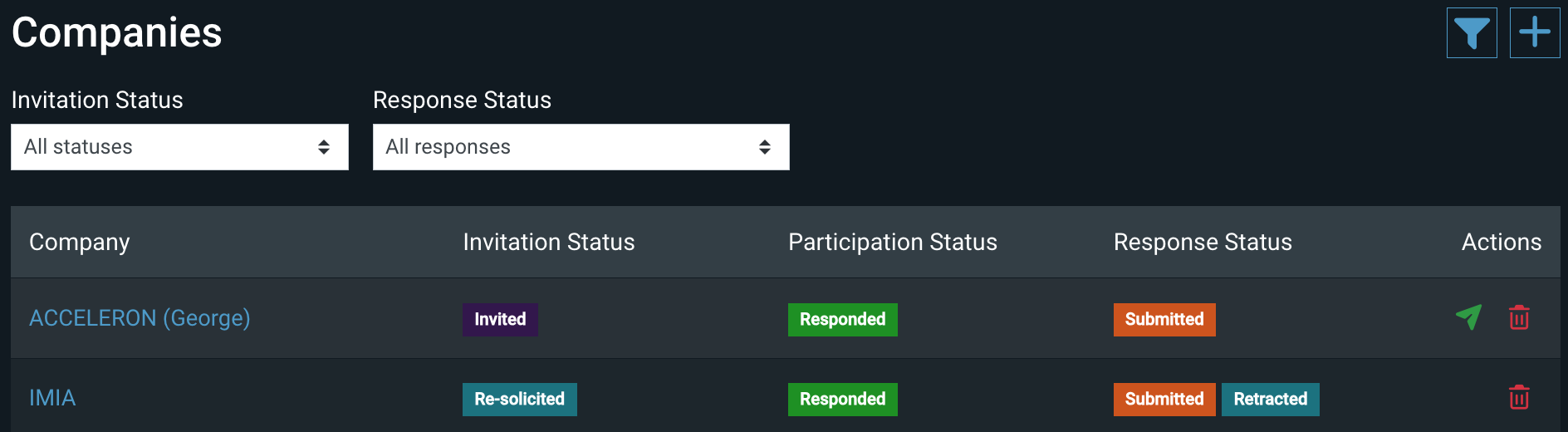
The Companies table lists the name of each company, with any alternate name in parentheses), its solicitation status, and its response status. The response status is driven by the RFQ response workflow, but the solicitation status you control.
Inviting a Company
Using the Companies table toolbar, you can either add multiple companies using a filter (like with scopes) or add one using a dropdown list. Both options pull from the Companies list in the System menu.
Adding companies by filter lets you choose one or more – or all – work classifications and one data classification to filter on.
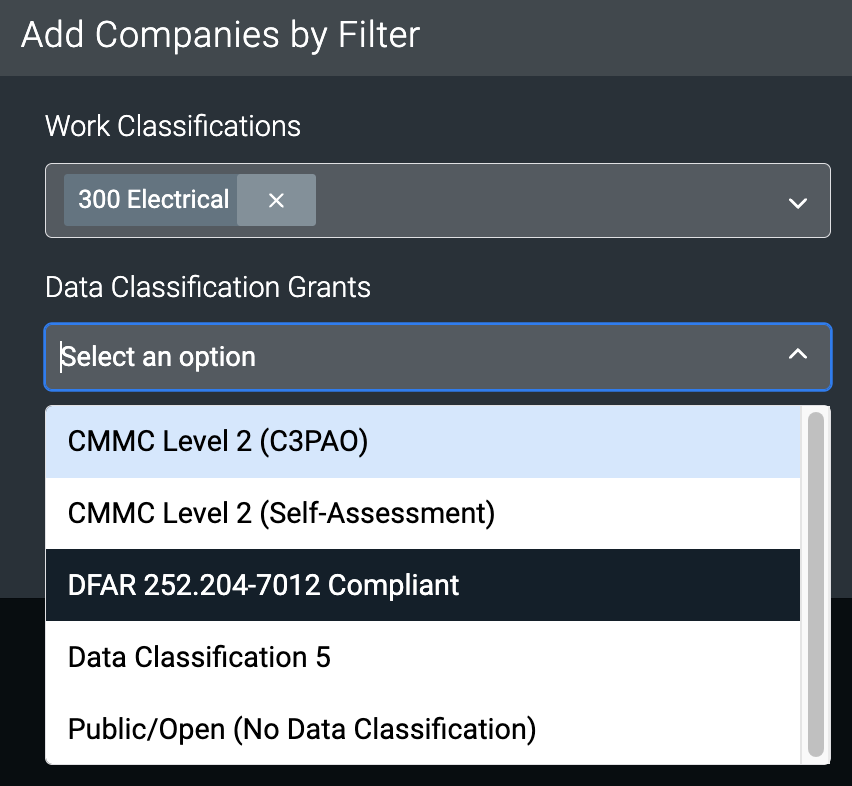
As you change the filter fields, the dialog box updates to show you how many companies match your choices, and calls out how many of those have already been invited.
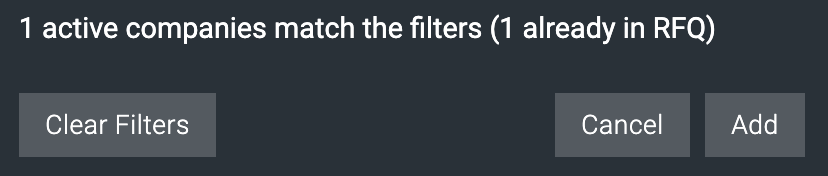
When you hit Add, OAE issues an invitation email – to the notification email and any contact emails configured for the company – to submit a response to the RFQ in the portal.
Solicitation Status
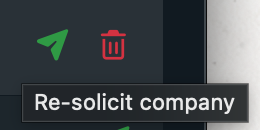
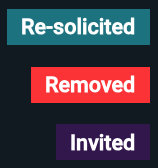
Once a company has been invited in OAE RFQ construction, you can change its solicitation status to Re-Solicited or Removed. Removed can be changed back to Re-Solicited and vice versa. To change the status, use the Action buttons for that company.
To help distinguish the status values, each is a different color.
Defining the Response Template
When you’ve added scopes and files, and invited a company, the company will see the RFQ in the portal, where they assemble and submit their response. The response template controls what information that response asks for.
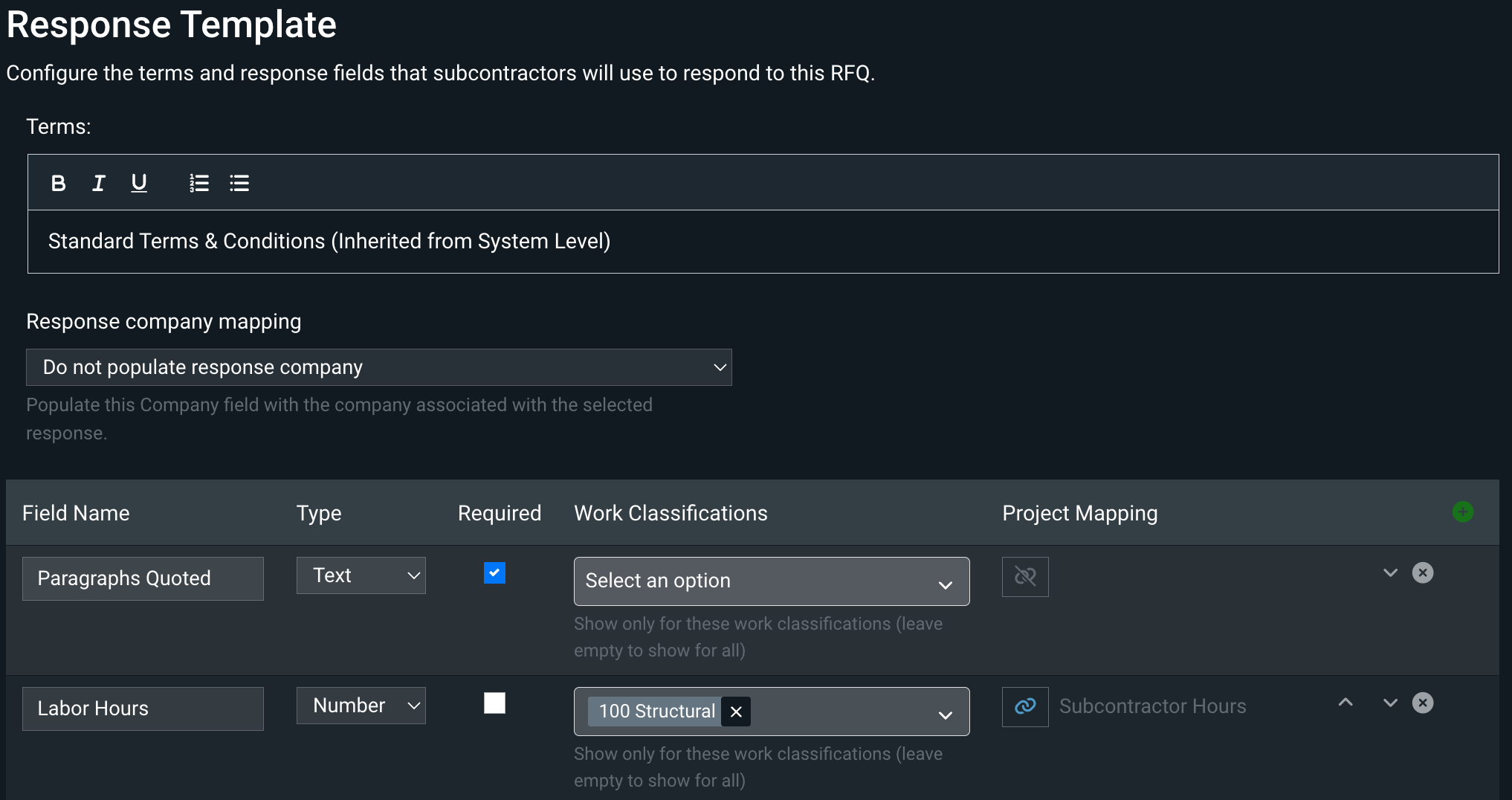
Terms field
This rich text field provides the company the terms and conditions that apply to the RFQ. Just click on the field to edit.
Response company mapping field
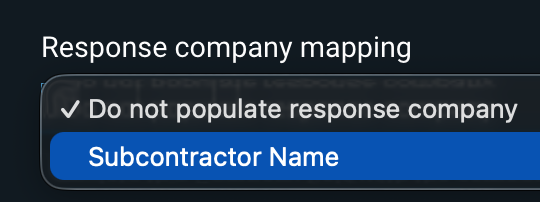
Since the end result of OAE RFQ process is usually items containing the selected vendor’s quoted values, you might want those items to include the vendor’s name. If your Structure includes a column of type Company, select that column using the dropdown menu to pull the Company for each response into the auto-generated item.
Response fields table
Here you add the data fields the company will see when they build their response. If you want any response values to plug right into your estimate, link those response fields to structure columns. You can also control the field order.
The + button adds an empty row to the bottom of the table, rather than popping up a screen. The Field Name, Type, and Required columns are straightforward.
Work Classifications
Lets you control whether the field applies to all classifications or only some. To restrict the field to certain classifications, click on the field. You can scroll through the dropdown to choose a value, or type in the field to filter the options first.
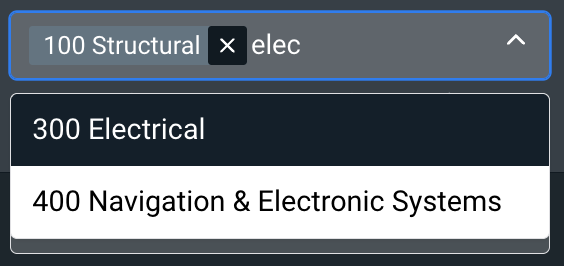
Note that you can add up to five classifications. For the above example, with 100 Structural specified, when a company assembled their response in the portal, only scopes that are also associated with 100 Structural will see this field.
Populating your estimate
By default, the values a company populates response fields with don’t affect your estimate. You can set those values to feed into your estimate using the Project Mapping column. It lets you link a response field to a structure column, and when you select a scope response, OAE will add a line item to the top of the estimate’s Line Items table for those values.
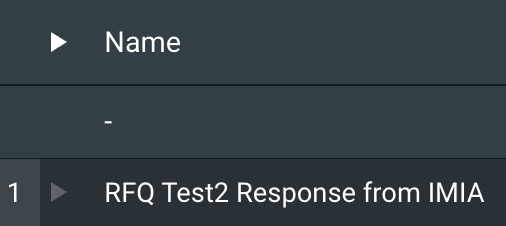
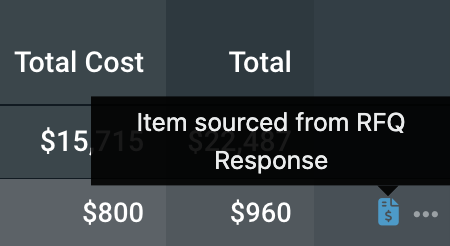
An indicator icon on the right side of that item will also mark it as coming from an RFQ response.
Changing the field order
On the right side of each row in the table, next to the X delete button, are arrow buttons that will move that row up or down in the table.
The order matters because the fields from top to bottom will become columns from left to right in the portal, where the company will populate them for each scope row.
Learn More
Check out the rest of our User Guides to learn more about OAE.